Getting Started
19000

Filters


Getting Started (8)
Usage and Operation (9)
Service and Repair (12)
Manual (62)

Power on the Laser

Introduction
  1. When you boot up the Fusion Ascent for the first time, you will need to set up a few settings in the unboxing wizard to get started. On the first screen, select your preferred language and then click the next arrow.
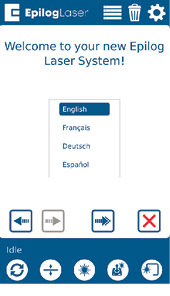
    Epilog Laser welcome screen with language selection
  2. Confirm that your laser’s exhaust system has been set up by pressing the green next arrow.
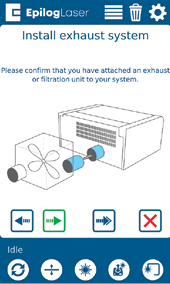
    Exhaust system installation instructions
  3. Follow the steps on the screen to run your first engraving using the anodized aluminum piece included in your Training Suite Kit. Press the green next arrow.
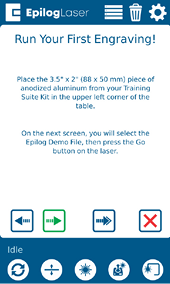
    Running first engraving instructions
  4. At the Job Menu, select the job “Epilog Demo” and then press the Go/Stop button at the machine to begin running your first job. The machine will automatically focus to the piece of anodized aluminum and then engrave it.
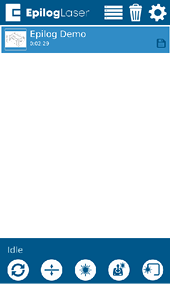
    Epilog Demo job selection

Once the engraving is complete, it’s time to connect your Fusion Ascent to your computer. You can connect via Ethernet, USB, or Wireless connection in the steps on the following pages.

[helpful]
  • Date:
    07/30/2026

Continue Your Laser Journey

Revisit a past lesson or move ahead to discover what's next.
/* === Aggressive removal of PrintFriendly injected header elements === */ #printfriendly #pf-title, #printfriendly #pf-src, #printfriendly .pf-header, #printfriendly header, #printfriendly .printfriendly-header, #printfriendly h1:first-of-type, #printfriendly .page-header, #printfriendly [class*="header"], #printfriendly [id*="header"] { display: none !important; visibility: hidden !important; height: 0 !important; margin: 0 !important; padding: 0 !important; } /* Hide any top bar or source URL container */ #printfriendly #pf-src, #printfriendly .pf-src, #printfriendly [class*="src"], #printfriendly [class*="url"] { display: none !important; } /* Force page margins and centered page numbers */ @page { size: letter portrait; margin: 0.7in 0.5in; } @page :left, @page :right { @top-left { content: none !important; } @top-center { content: none !important; } @top-right { content: none !important; } @bottom-center { content: counter(page); font-size: 0.95em; padding-bottom: 25px; } }