メインコンテンツへスキップ

使用方法と操作

シリーズ:9000

フィルター


はじめに (1)
使用方法および操作 (88)
サービスおよび修理 (29)
マニュアル (0)

Results: 88 items found
  • 表示:
順序で
関連性

フィルター


はじめに (1)
使用方法および操作 (88)
サービスおよび修理 (29)
マニュアル (0)

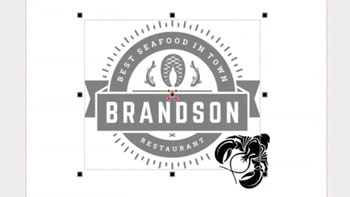
センター・センター vs カスタムセンター彫刻

プリセット位置指定でアートワークを中央に配置する方法と、オフセットされたグラフィックを中央に配置するテクニックについて学びましょう。

Using Center-Center   There are many ways to use Center Engraving on the Epilog Laser Dashboard.   Let’s take a logo we want to engrave at the center of a coaster. In the Epilog Dashboard, choose the Advanced Tab.   Next to Centering Point you’ll see a list of all (...)
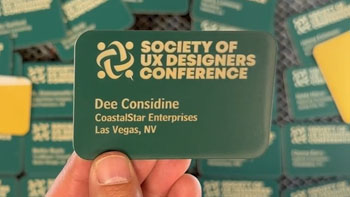
プリントマージを使用して複数のアイテムをカスタマイズする

CorelDRAW 印刷マージ機能を使用して、複数のアイテムを簡単に識別CorelDRAW 、一度に彫刻CorelDRAW 学びましょう。

Import Data Here we have a series of name badges to engrave and cut on the laser using print merge. First we’ll need to pull in the list of names.   Select File > Print Merge > Create/Load Print Merge Click Import File and navigate to your .csv, .rtf, or (...)
アップリケの作成

レーザーでアップリケを作るにはどうすればよいですか?

簡単な手順をいくつか踏むだけで、2プライのツイル生地を使って自分だけのオリジナルカットアップリケを作ることができます!この手順に従って、クリップアートをどのように最適化して、この見事なデザインを作り上げたのかをご覧ください!まず、画像全体のグループを解除します。次に、周囲にアウトラインを追加する必要があります(...)
Laser Dashboardにおけるボトムアップ彫刻オプションの使用

印刷ドライバーに表示される「ボトムアップ彫刻」オプションは、いつ、どのように使用すればよいですか?

As any engraver knows, most materials you engrave or cut can produce a certain amount of debris. This is especially true with woods, acrylics and plastics. Epilog’s Laser Dashboard™ features an array of engraving options to help you get the most from you system. The Bottom-Up engraving feature is one (...)
都市地図のレーザー彫刻またはカット(CorelDRAW)

Epilog Laser Laserでカットまたは彫刻するための都市地図アートワークを作成するにはどうすればよいですか?(CorelDRAW)

Laser engraved or cut city maps are easy to create and will quickly become a great new addition to your popular laser engraved and cut products. Create your own local city maps and laser engrave them on cutting boards, marble tiles, and small tables, or create laser cut versions using (...)