メインコンテンツへスキップ

使用方法と操作

フィルター


Getting Started (48)
使用方法および操作 (125)
サービスおよび修理 (270)
Manual (66)

Results: 125 items found
  • 表示:
順序で
関連性

フィルター


Getting Started (48)
使用方法および操作 (125)
サービスおよび修理 (270)
Manual (66)

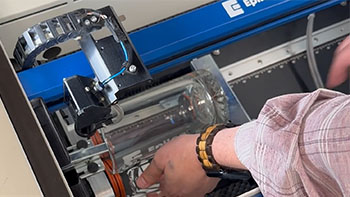
リム式ロータリーアタッチメントの使用

ここでは、リムドライブロータリーアタッチメントを使用してガラスマグをカスタマイズする手順をご説明します。

Install the Rim-Style Rotary   To install the Rim-Style Rotary Attachment, lower the table and turn off the machine.   Place the Rotary at the top-left corner of the table. Attach the plug to the machine at the top-right corner of the bed.   Turn the machine back on.   (...)
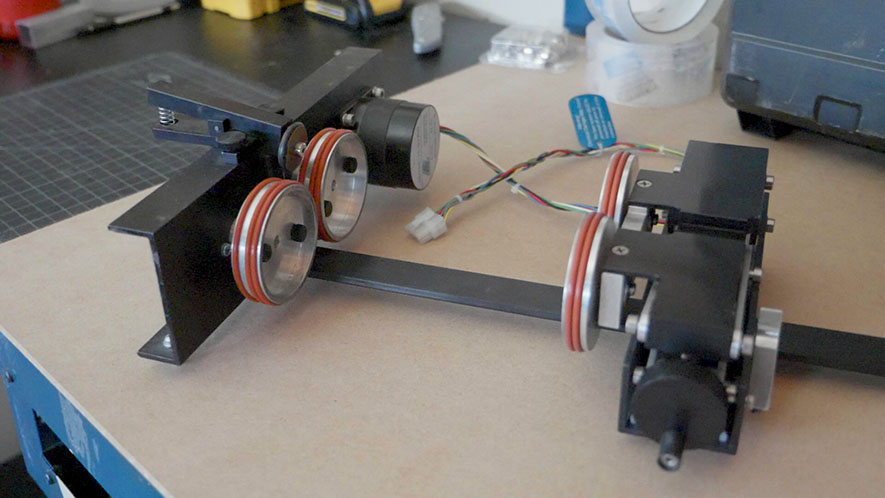
リム駆動ロータリーアタッチメントの取り付け

リムドライブ式ロータリーアタッチメントの取り付け方法と取り外し方法を学びましょう。

Installing the Rim-Drive Rotary Attachment To begin installing the Rim-Drive Rotary Attachment, make sure your machine is plugged in and powered on. We then suggest opening the front door on your machine you so you can view the vertical position of the machine’s table. At the control panel, press the (...)
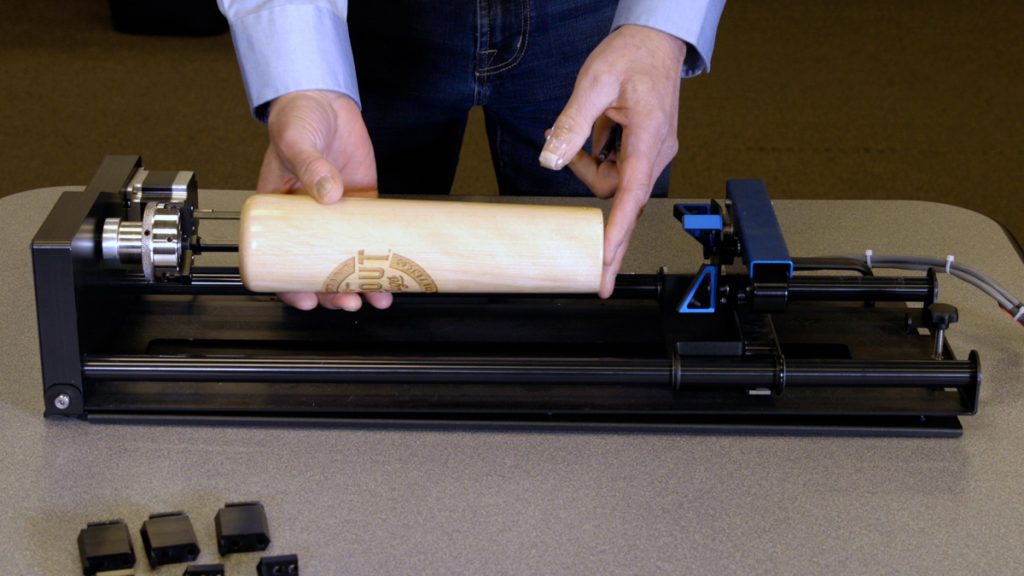
3爪チャック回転アタッチメントの使用

3爪チャック式ロータリーアタッチメントは、円筒状物体のマーキングや彫刻に極めて汎用性の高い工具です。

Installing the 3-Jaw Chuck   Before we get started, we will need to lower the laser table far enough to accommodate the 3-Jaw Chuck Rotary Attachment Once the table is low enough, power off the machine. Measure & record the diameter of the cylinder you plan on engraving; you will (...)
プリントマージを使用して複数のアイテムをカスタマイズする

CorelDRAW 印刷マージ機能を使用して、複数のアイテムを簡単に識別CorelDRAW 、一度に彫刻CorelDRAW 学びましょう。

Import Data Here we have a series of name badges to engrave and cut on the laser using print merge. First we’ll need to pull in the list of names.   Select File > Print Merge > Create/Load Print Merge Click Import File and navigate to your .csv, .rtf, or (...)
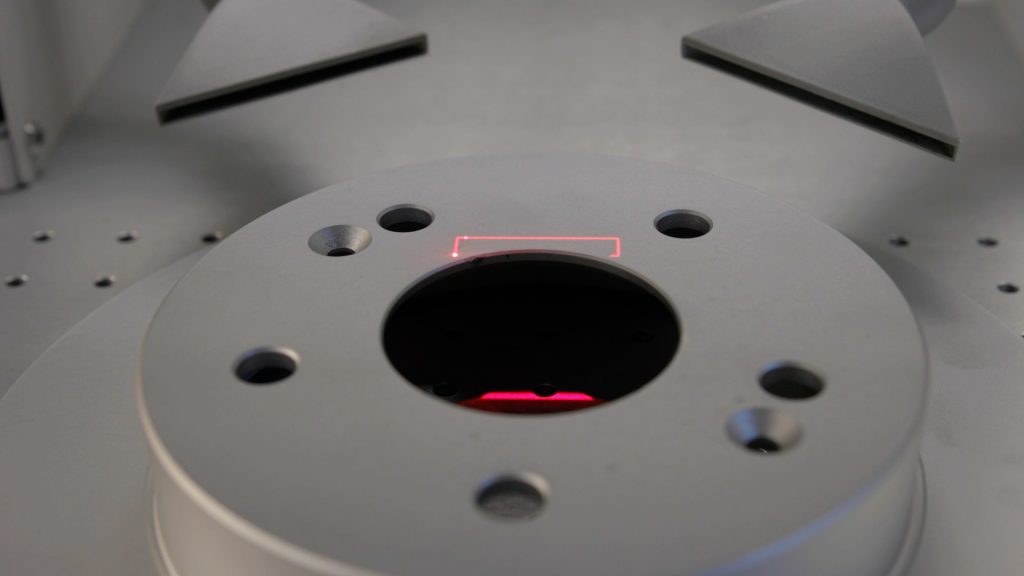
登録マークを使用した印刷済みアクリル製キーホルダーの切断

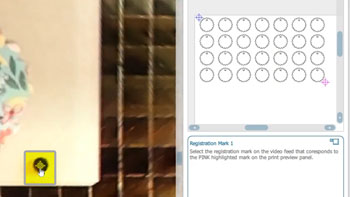
IRIS™カメラを使用して、精密な切断のための印刷された位置合わせマークを見つけます。

Setup Files   Here we have a sheet of keychains to cut out of an acrylic sheet we had preprinted with the flower design. In CorelDRAW, you can also see the file we printed, along with the four registration marks printed at the corners of the design. First, we’ll turn (...)