メインコンテンツへスキップ
コントロールパネル
19000

フィルター


はじめに (8)
Usage and Operation (9)
Service and Repair (12)
マニュアル (62)

駐車位置の設定/駐車位置のリセット

はじめに
  1. 新しい「パークポジション」を設定するには、右上隅にある設定の歯車ボタンをタップしてください。
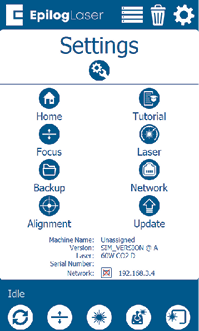
    設定メニュー
  2. 「設定」メニューで、左下隅にあるレンチと歯車のアイコンをタップして、「設定」メニューを開きます。
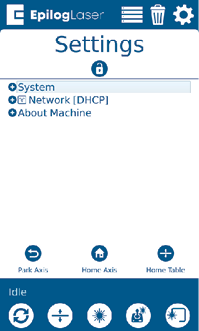
    駐車位置の設定
  3. 「システム」を押してメニューを展開します。「駐車位置」までスクロールし、それを押してサブメニューを開きます。
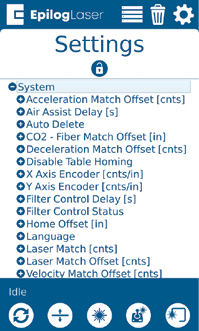
    「パーク」の位置メニュー
  4. 画面を下にスクロールして「駐車位置」まで移動し、それをタップしてサブメニューを開きます。
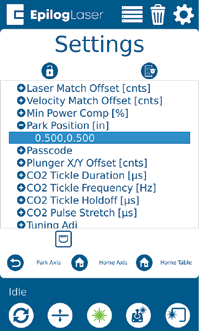
    「パーク」の位置メニュー
  5. 「駐車位置」の下にある現在の数値をタップして、任意のX座標とY座標に変更してください。「OK」を押して、新しい座標を保存してください。
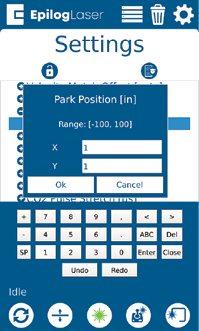
    駐車位置の座標を設定する
  6. 「パーク位置」をデフォルトの位置にリセットするには、前述の手順に従い、X値とY値の両方を「1」に変更してください

[参考になる]
  • 日付:
    08/10/2026

レーザー治療の旅を続けましょう

過去のレッスンを復習するか、次の内容に進んでみましょう。
/* === Aggressive removal of PrintFriendly injected header elements === */ #printfriendly #pf-title, #printfriendly #pf-src, #printfriendly .pf-header, #printfriendly header, #printfriendly .printfriendly-header, #printfriendly h1:first-of-type, #printfriendly .page-header, #printfriendly [class*="header"], #printfriendly [id*="header"] { display: none !important; visibility: hidden !important; height: 0 !important; margin: 0 !important; padding: 0 !important; } /* Hide any top bar or source URL container */ #printfriendly #pf-src, #printfriendly .pf-src, #printfriendly [class*="src"], #printfriendly [class*="url"] { display: none !important; } /* Force page margins and centered page numbers */ @page { size: letter portrait; margin: 0.7in 0.5in; } @page :left, @page :right { @top-left { content: none !important; } @top-center { content: none !important; } @top-right { content: none !important; } @bottom-center { content: counter(page); font-size: 0.95em; padding-bottom: 25px; } }