メインコンテンツへスキップ

使用方法と操作

シリーズ:18000

フィルター


はじめに (7)
使用方法および操作 (92)
サービスおよび修理 (25)
Manual (4)

Results: 92 items found
  • 表示:
順序で
関連性

フィルター


はじめに (7)
使用方法および操作 (92)
サービスおよび修理 (25)
Manual (4)

ロータリーアタッチメントを使用した彫刻用アートワークの設定方法

ロータリーアタッチメントで彫刻する際に、巻き込みアートワークを設定するにはどうすればよいですか?

Using your rotary attachment to create 360 degree engravings will give even more versatility to your Epilog laser system. Setting up the artwork to wrap around an object is very simple. In this exercise we will be using The Torch MAG-Lite Flashlight as an example on how to set up (...)
非イタリック書体にイタリック/斜体効果を追加する –CorelDRAW

イタリック体ではない書体/フォントをイタリック体のように見せるにはどうすればよいですか?

Have you ever had a client or project requiring the italic version of a typeface, but the typeface you are using doesn’t have an italic font? Many people experience this problem when designing with roman, hand-written, and calligraphic style typefaces. Here we’ll show you a quick and easy technique for (...)
ベクターアートワークのCMYKからRGBへの変換 –CorelDRAW

CorelDRAWを使用してベクターアートワークをCMYKからRGBに変換するにはどうすればよいですか?

This article will go through the steps to convert vector artwork from CMYK to RGB in CorelDraw. Start by selecting all of your artwork with the Pick Tool (CTRL + A). Next open the Replace Objects Wizard, by selecting Edit / Find & Replace / Replace Objects from the drop-down (...)
ワークフローの最適化:デフォルトのジョブ設定の変更

ソフトウェアスイートでデフォルトのジョブ設定をどのように設定できますか?

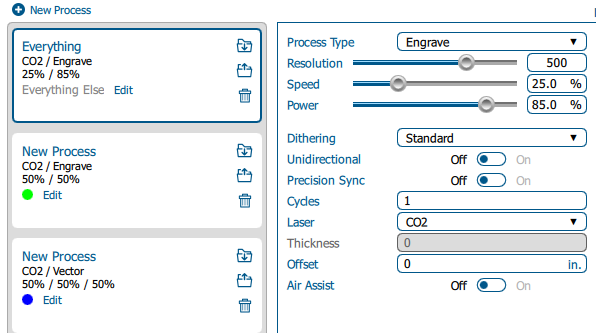
Estimated time: 5–10 minutes • Skill: Beginner By default, jobs sent to the Epilog Software Suite use standard settings. You can customize these defaults to save setup time or better match your materials and applications. Follow the steps below to change the default job settings. Changing Default Job Settings Send (...)