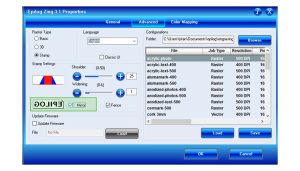
以下の記事には、AutoCAD Epilog Laser への印刷に関する一般的な手順とヒントが含まれています。
AutoCAD レーザーによる切断用途で頻繁に併用される非常に強力なソフトウェアAutoCAD 。あらゆるツールと同様に、その動作原理と限界を理解することは、最大限の活用に役立ちます。AutoCAD 通常Epilogシステムと互換性がありますが、各バージョンでは印刷方法に影響を与える可能性のある若干異なる印刷規約が使用されており、異なるバージョンではレーザーからの出力結果が異なる場合があります。
Printing & Plotting
Sending jobs from AutoCAD is heavily dependent on the print settings in the AutoCAD Print/Plot window. Since there are so many different settings that it requires, it is important that you double-check all of the settings that are critical to success. Previewing your image before sending it to the laser is very helpful in preventing print problems.
AutoCAD 多数のレイヤーや色などを含む非常に複雑な図面を作成AutoCAD AutoCAD 複雑さには制限がないため、ユーザーはレーザーが2D切断機であり、通常は1回の作業で1枚の素材を切断する点に留意すべきです。レーザーシステムは複雑な図面に対応可能ですが、「印刷/プロット」前に不要な詳細を削除することで、レーザー装置の生産性が向上する場合があります。
Color Mapping
Creating objects of different colors in AutoCAD allows the user to take advantage of the Vector Color Mapping capabilities of the Epilog Dashboard print driver. Color mapping assigns different Speed and Power settings to an object based on its color allowing you to both cut and mark in a single setup.
Page Size/Piece Size
When printing from AutoCAD you will need to set up your AutoCAD page so that it is square. . A square page in AutoCAD prevents the objects from rotating 90 degrees when you print them. The page in the example below is set to 24 x 24 inches.
- すべてのオブジェクトをAutoCAD の上部に配置してください(下図参照)。24 x 24インチのページを使用し、24 x 12インチ(610 x 305 mm)のベッドサイズに印刷する場合、下部の12インチ(約305 mm)にあるオブジェクトは処理されません。
- ピースサイズをAutoCAD のAutoCAD サイズに合わせて設定してください。
- ダッシュボードでピースサイズを設定し、AutoCAD 一致させることを必ず確認してください。AutoCAD とダッシュボードのプリントドライバーのピースサイズを両方とも正方形(例:24インチ×24インチ)に設定することは、AutoCADアートワークを90度回転させる傾向を克服するために必要です。

カラーマッピングと線幅
In the AutoCAD print window, set the pen colors that you are using to .001 inch.
The default for all pens is .010 and a line weight this large disables vector cutting.
線幅を0.001インチに変更しない場合、ベクターカットは実行できません。
ラインの太さが大きすぎるジョブをレーザーが受信した場合、そのジョブを実行しようとするとレーザーシステムはビープ音を発するだけです。

Additional Helpful Hints
Use these settings in the AutoCAD print window:
Set the page orientation to Portrait.
Set Plot area to Limits.
Scale set to 1:1.