Estimated time: 5 minutes • Skill: Basic
This guide explains how to submit a credit card payment for an Epilog Laser order after receiving a quote from a technician. Follow the steps below to complete your payment quickly and securely.
Submit Payment from Your Quote
-
Locate and click the Pay Now button on your quote.
This button appears directly on the digital quote sent by your Epilog Laser technician.
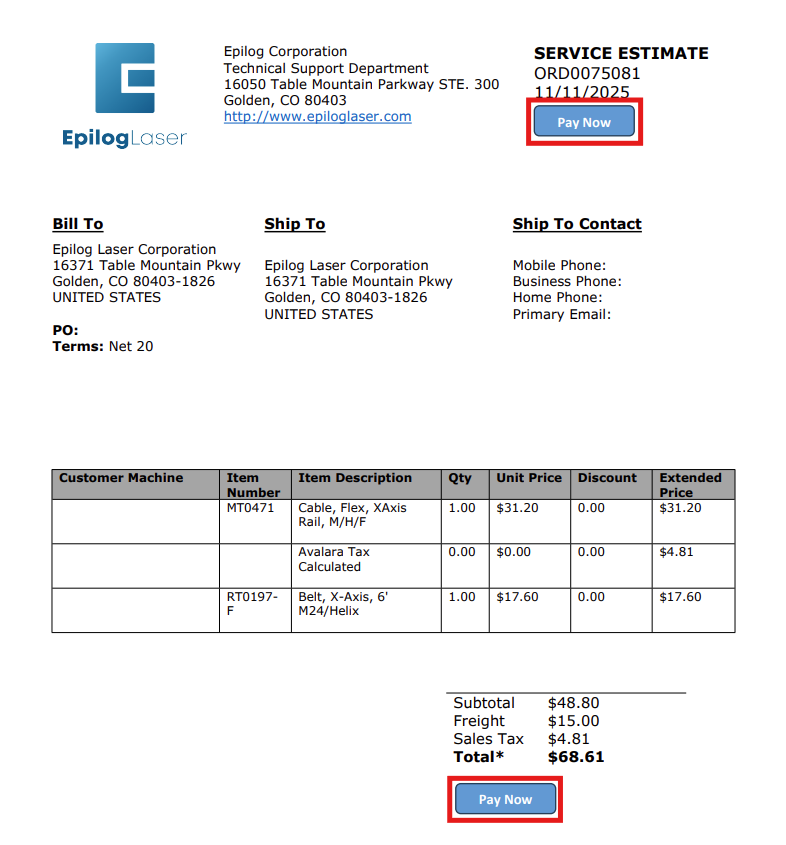
Figure 1: Click the Pay Now button to begin the payment process. -
Access the Order Details page.
After clicking Pay Now, you’ll be redirected to the Order Lookup page. Here you can enter your order details to locate your quote in the system.
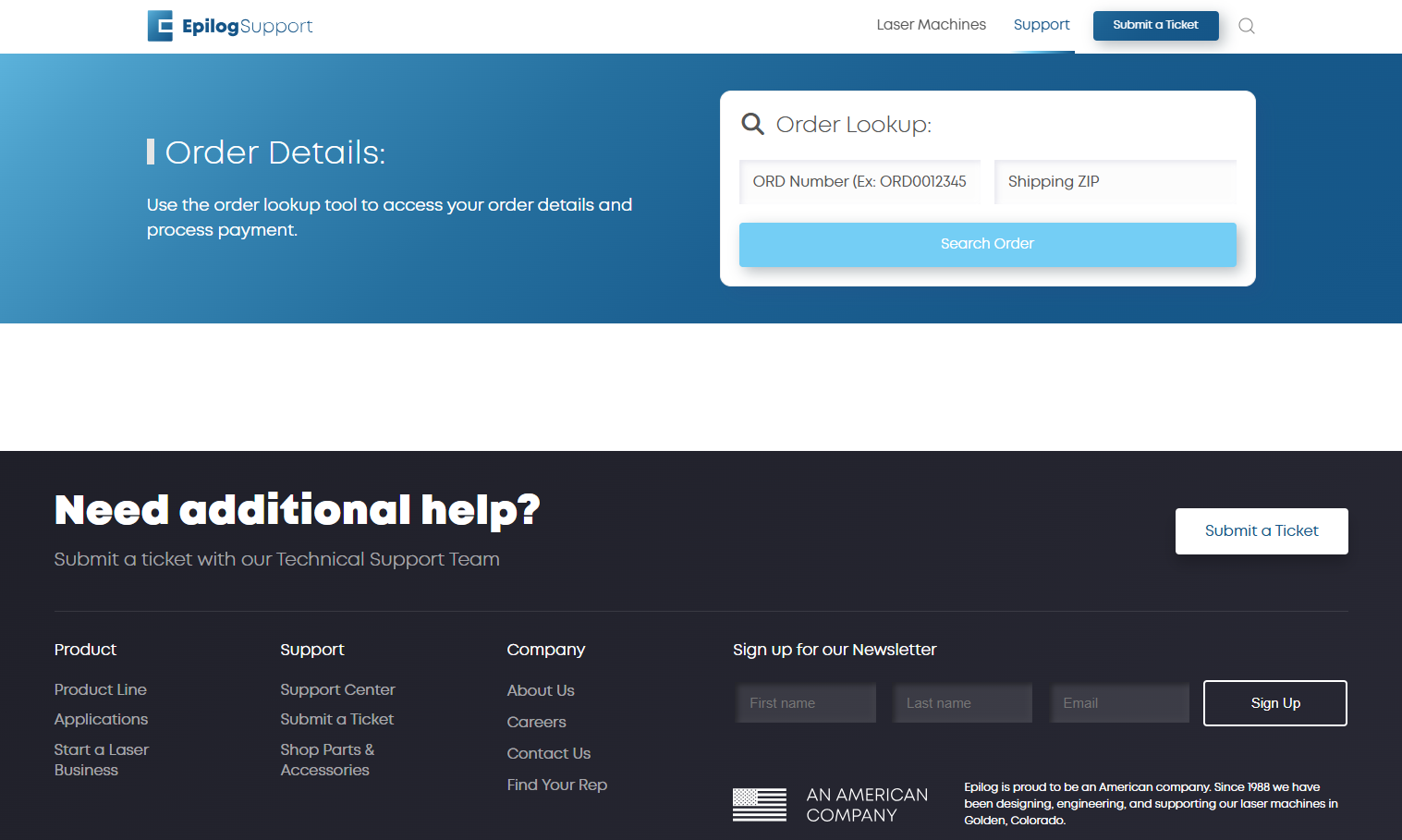
Figure 2: The Order Details page where you can lookup your quote information. -
Enter your order information.
In the Order Lookup box, type your ORD number and ship-to ZIP code exactly as they appear on your quote, then click Search Order.
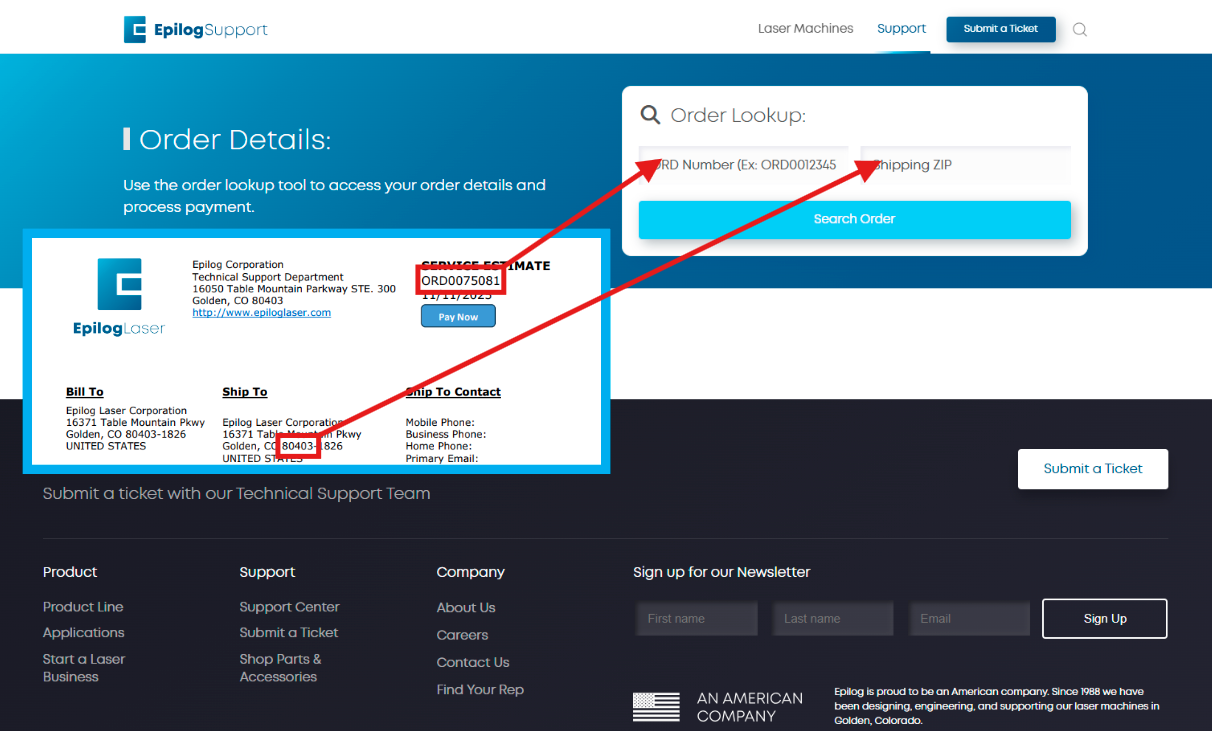
Figure 3: Use the Order Lookup to find your quote. -
Confirm your order details.
Once your order appears, verify the part numbers, quantities, and shipping details. If everything is correct, click Proceed to Payment.
If you need to make changes to billing, shipping, quantities, or delivery speed, reply to the email where you received the quote. If your case has expired or closed, please submit a new support request.
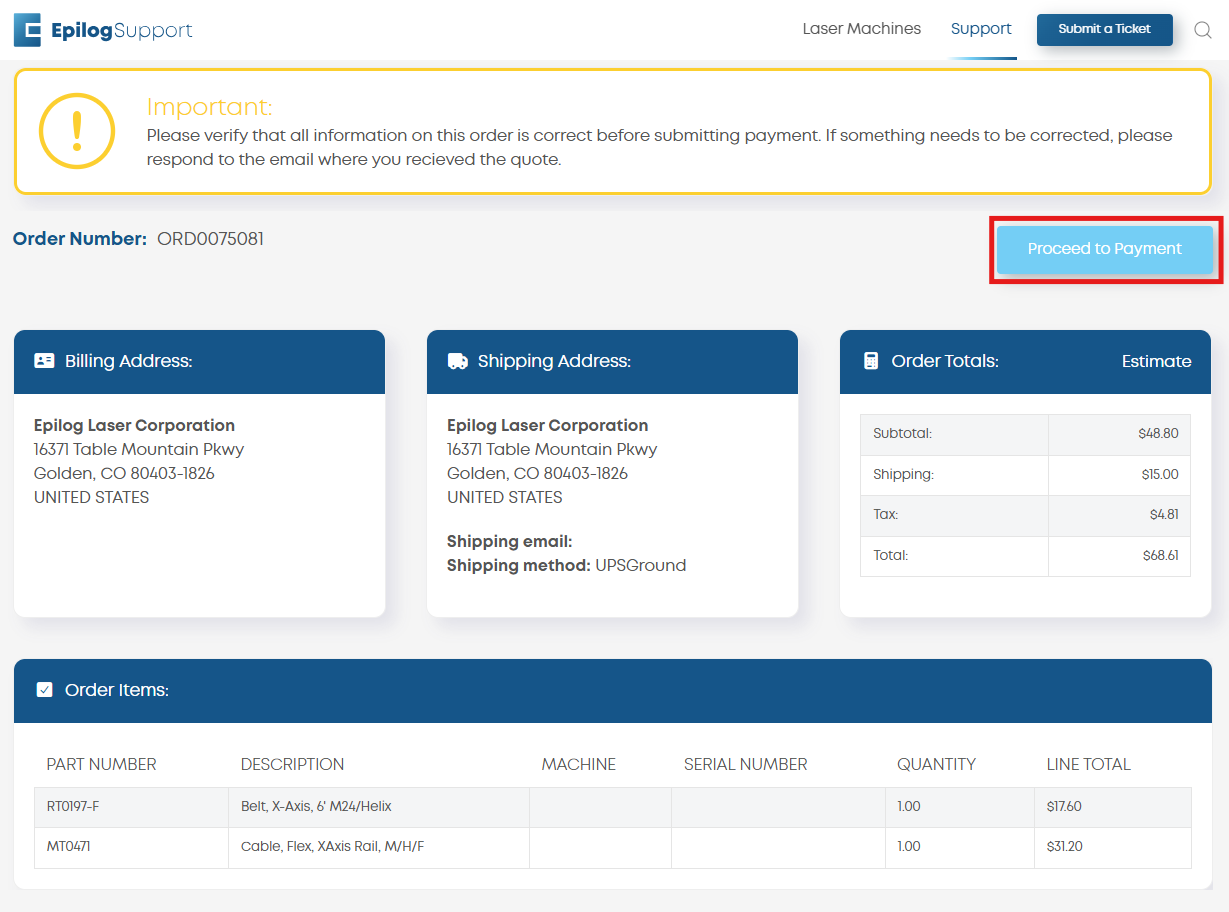
Figure 4: Review your order before proceeding to payment. -
Enter billing and payment details.
Provide your credit card and billing information on the secure payment form, then click Process to finalize your order.
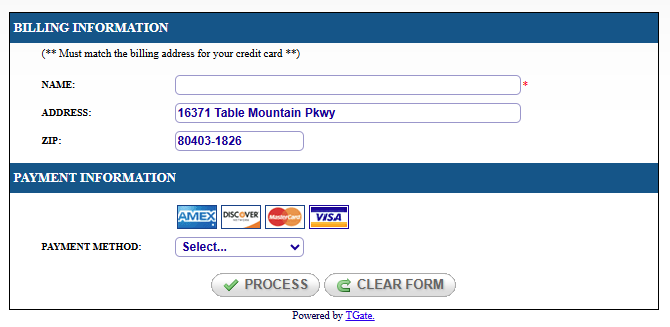
Figure 5: Complete the payment form to submit your order. -
View confirmation.
After your payment is processed, you will return to the Order Details page where you can confirm that your payment was successful.
Additional Information
For more details on the payment methods accepted by Epilog Laser, visit our Technical Support FAQ on the Epilog Support Center.