With a few easy steps you can create your own custom cut appliqué out of two-ply twills! Follow these instructions to see how we’ve taken a piece of clipart and optimized it to create this stunning design! First, ungroup the entire image. Next, we need to add an outline around (...)
Laser Engrave or Cut a City Map (CorelDRAW)
Laser engraved or cut city maps are easy to create and will quickly become a great new addition to your popular laser engraved and cut products. Create your own local city maps and laser engrave them on cutting boards, marble tiles, and small tables, or create laser cut versions using (...)
Laser Engrave or Cut a City Map (Adobe Illustrator)
Laser engraved or cut city maps are easy to create and will quickly become a great new addition to your popular laser engraved and cut products. Create your own local city maps and laser engrave them on cutting boards, marble tiles, and small tables, or create laser cut versions using (...)
PhotoLaser Plus Quick Start
This page is to provide you with special settings that we’ve developed with CADLink for PhotoLaser Plus, as well as to provide you with some quick tips that we think you’ll find helpful when using the software. Download and unzip the attached material profile settings into your C:PhotoLaser Plus (...)
Epilog Pulse Setup Guide
Epilog Pulse App Guide Streamline your workflow by sending jobs directly to your laser from any modern web browser. System Requirements & Setup Compatibility Firmware: Version 1.1.0.2 or newer Browser: Chrome, Edge, Safari, or Firefox Processor: Intel Core i3/i5/i7, AMD Ryzen/FX/A-Series, or ARM Connection Required Before utilizing the Pulse application, (...)
Purchase or Print a New Laser Alignment Target
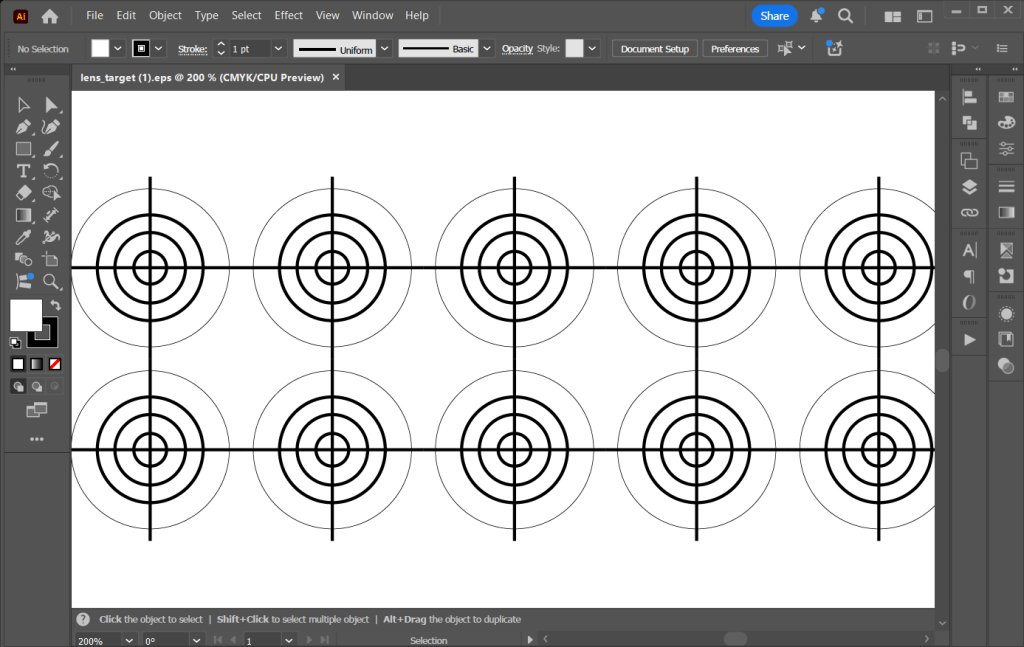
Accurate laser alignment is essential to achieving clean, precise engraving and cutting results. Over time, alignment targets can wear out or become damaged, which may impact the performance of your laser system. To help maintain optimal accuracy, replacement laser alignment targets are available and easy to obtain. You can purchase (...)
Power Requirements by Laser Wattage
Systems: All This information is to be used only to size a power condition or an UPS (uninterruptible power supply)and should not be used to size the circuit providing voltage to the system. The circuit requirement remains as a 15 amp circuit. Laser Type Wattage Voltage Requirements Wattage of Power (...)
Selecting an Uninterrupted Power Supply for your Epilog Laser System
Spring is a time for many things, including unpredictable weather. While many people have battery backup for clocks, computers and other important devices, many don’t think of taking this important precaution when it comes to their laser. No one wants to lose a whole project because of an unexpected power (...)
Power Consumption and Your Laser
Using the formula and information below, you can discover how much power our laser systems draw as well as how much it costs to operate a laser. Most users are pleasantly surprised at how energy and cost efficient these powerful systems are – even our highest-wattage machine costs less than (...)
Material Safety and your Laser
While nearly any material you put into your engraving system will contain and or release some sort of residue or debris, generally speaking, most materials are safe to use in your system. However, there are certain materials not suited for laser engraving and cutting – these materials can corrode the (...)
When to Calibrate the IRIS Camera System
Applies to: Fusion Maker • Fusion Edge • Fusion Pro • G100 All Fusion Maker, Edge, Pro, and G100 engravers are equipped with the IRIS™ camera system, which overlays your artwork onto the engraving table and material within the Epilog Dashboard software. The accuracy of this system depends on proper (...)
Optimize Your Workflow: Changing Default Job Settings
Estimated time: 5–10 minutes • Skill: Beginner By default, jobs sent to the Epilog Software Suite use standard settings. You can customize these defaults to save setup time or better match your materials and applications. Follow the steps below to change the default job settings. Changing Default Job Settings Send (...)