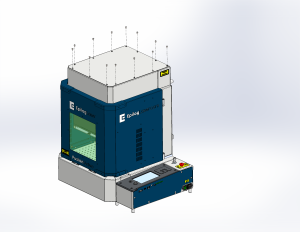
This guide covers updating the IRIS camera system software from the display on the Fusion Maker, Fusion Edge and Fusion Pro 24, 32, 36 and 48.
Parts Required
- None
Tools Required
- None
When to Update
The camera update refreshes the software the IRIS camera system runs on. No internet connection is needed. You do not need to run it regularly. Run it when you see any of these problems:
- The computer cannot connect to the cameras, even after checking the network or USB connection.
- The camera feed is completely black.
- The cameras cannot calibrate successfully.
A camera update may also be needed after replacing the overhead or carriage camera, the camera USB cable or, in very rare cases, the control board.
Camera Update
Turn On Engraver
Turn on the engraver and let it finish starting up.

Open the Settings Menu
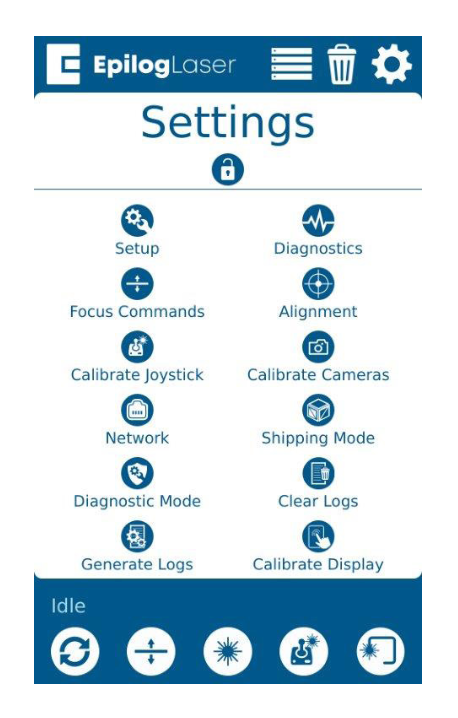
On the display, press the gear icon to open the Settings menu.
Open Advanced Settings
Press and hold the word Settings to open the Advanced Settings menu.
Open the Camera Tab
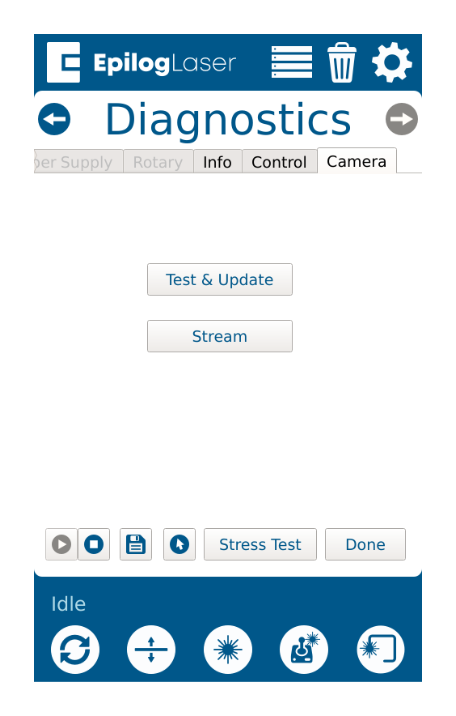
Open Diagnostics, scroll to the Camera tab and press Test & Update.
Update the Cameras
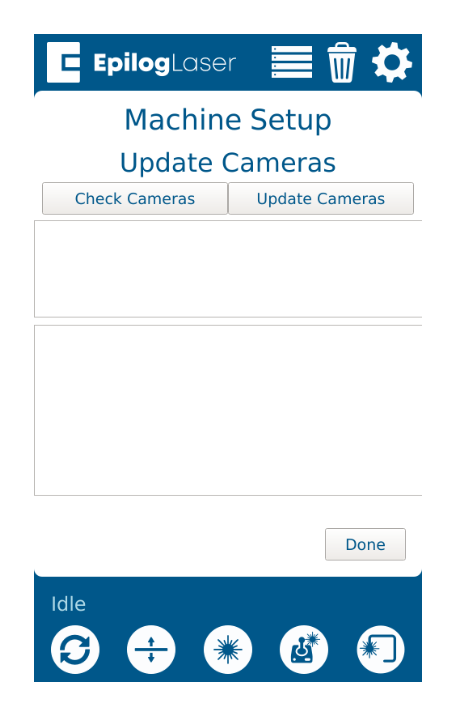
Press Update Cameras.
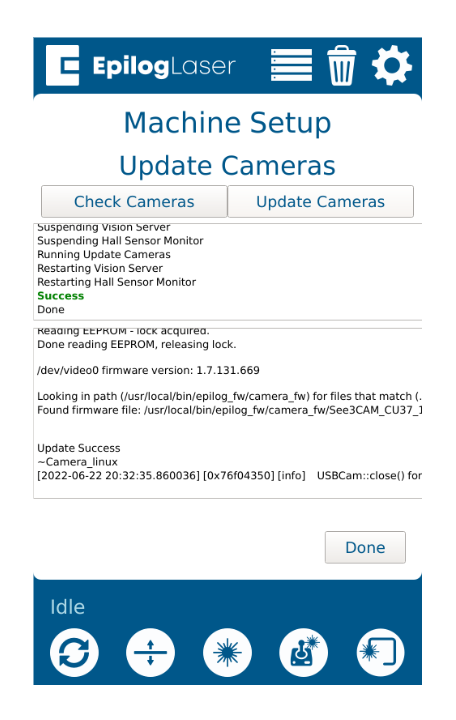
Wait for Success
Let the engraver finish the update. A success message appears when it is done.