Troubleshooting
17000

Filters


Getting Started (8)
Usage and Operation (103)
Service and Repair (58)

Filters


Getting Started (8)
Usage and Operation (103)
Service and Repair (58)

Blurry Driver Screen On Windows 10

Why am I seeing a blurry driver screen on my Windows 10 High-Resolution Display?

Introduction

This article explains how to fix an Epilog print driver window that looks very small or blurry on a Windows 10 computer. The problem is usually caused by the computer’s display driver or display scaling settings, not by the Epilog driver.

Issue Summary

After upgrading to Windows 10, or after installing the Epilog print driver on a new computer, the driver Dashboard window that holds the engraving settings appears very small or blurry.

Fix 1: Update the Video Driver

In many cases the computer is missing the driver for its graphics adapter, or is using a limited driver supplied by the computer manufacturer. Installing the current, full-featured driver from the graphics chip manufacturer usually fixes the display.

1Find out which graphics adapter the computer has. The computer manufacturer’s support website or owner’s manual lists it.
2Download and install the latest driver from the chip manufacturer:

These installers are automated and documented on each manufacturer’s support page. Epilog Technical Support cannot install graphics drivers for you.

Fix 2: Reset the Display Scaling

If the full-featured video driver is already installed, the computer may still have a custom scaling (DPI) setting carried over from an earlier version of Windows. Reset it to 100%, then set the size again.
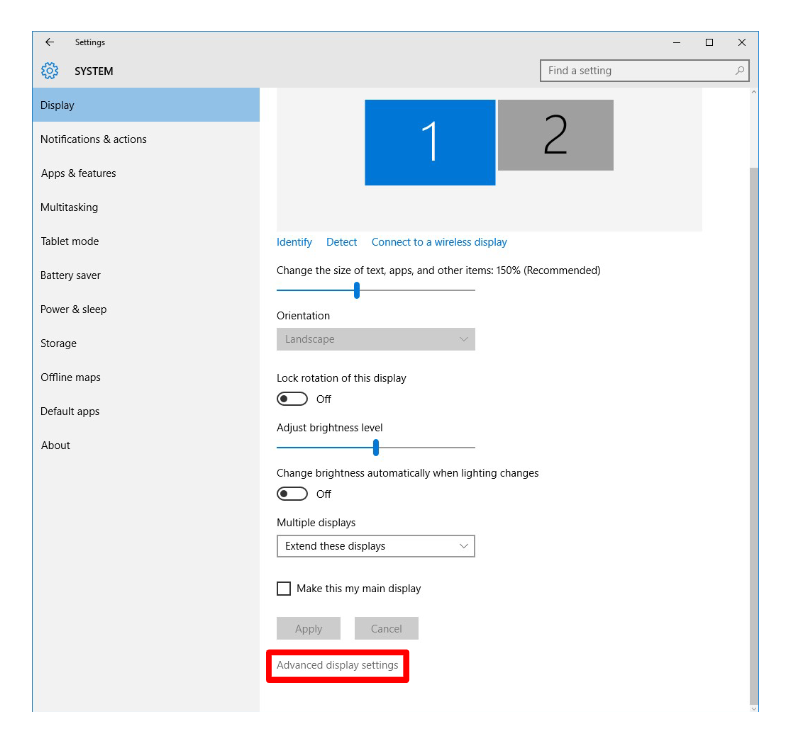
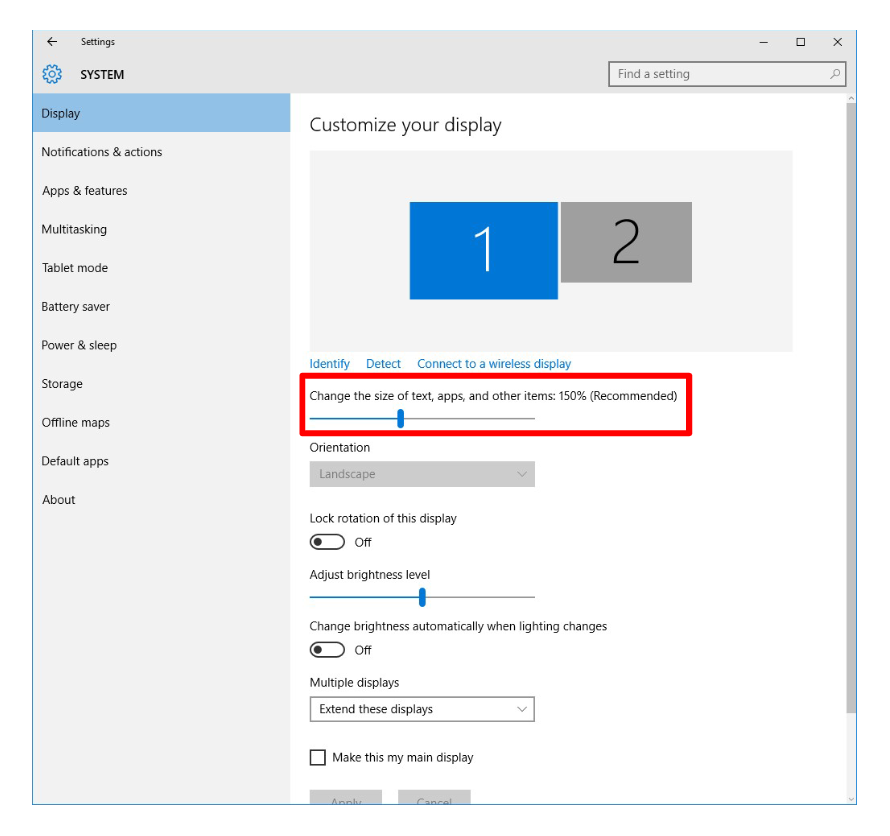
1Open Settings > System > Display, scroll down and select Advanced display settings.
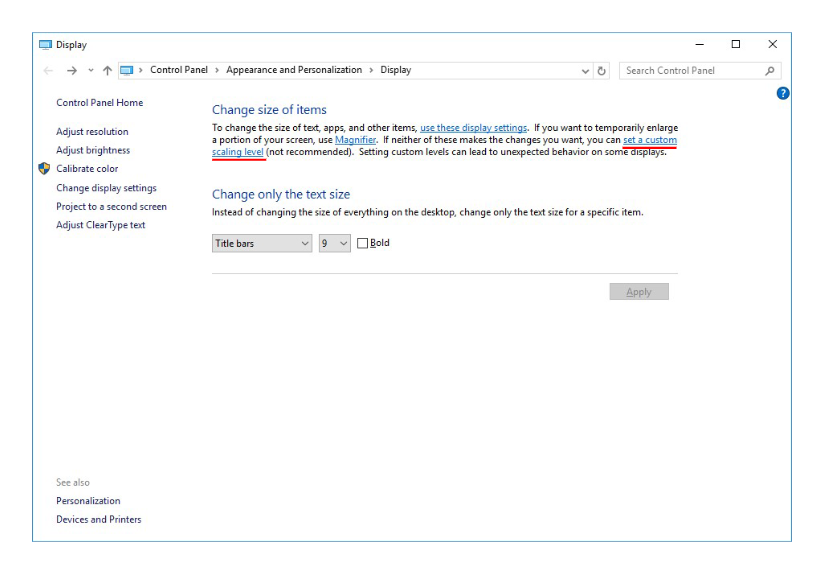
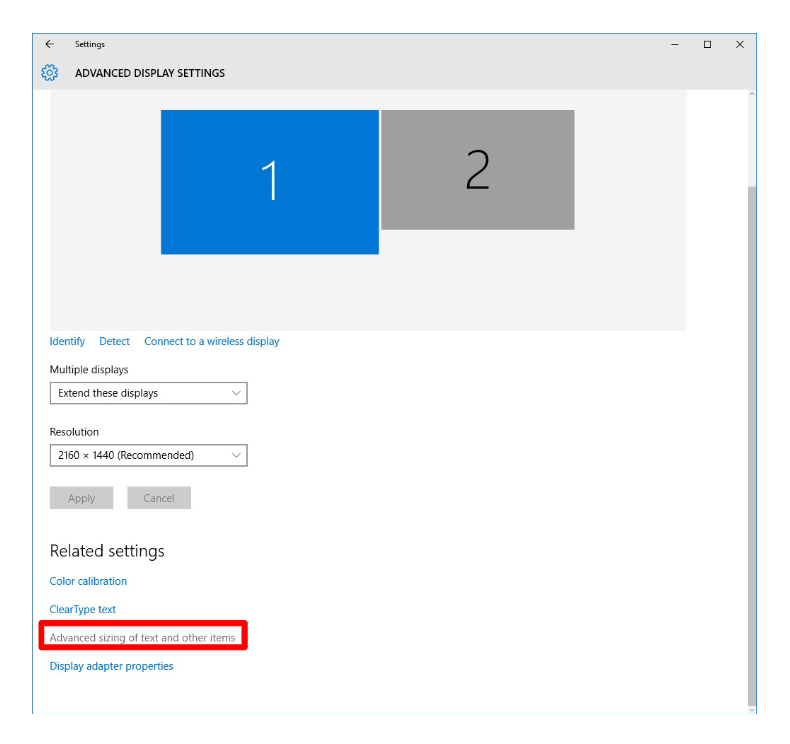
2Scroll toward the bottom and select Advanced sizing of text and other items.
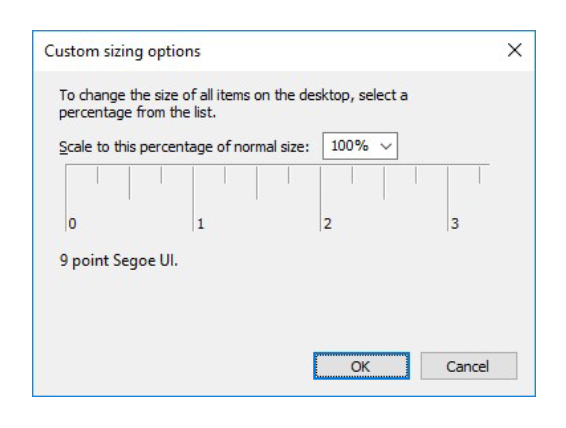
3In the first paragraph, select set a custom scaling level.
4Set the scaling level to 100% and click OK.
5Sign out of Windows and sign back in. Everything will now look very small.
6Go back to Settings > System > Display and use Change the size of text, apps, and other items to make things larger. 150% usually works well.

Was this helpful?

Yes
No
Thanks for your feedback!
  • ID:
    KA-01048
  • Date:
    11/05/2026

Continue Your Laser Journey

Revisit a past lesson or move ahead to discover what's next.