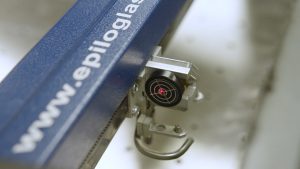
This guide covers setting the X and Y home position on the FiberMark, so artwork lands exactly where it is placed on the page.
Parts Required
- None
Tools / Materials Required
- Ruler or Measuring Calipers
- Scrap Wood (or other engraving material)
Setting the X-Y Home Position
Turn On the Engraver
Turn on the engraver.
Create a Test Box
In your graphics software, start a new page and draw a 1" black-filled box, 1" from the top and 1" from the left edge of the page. Make sure the page size matches the piece size in the print driver.
Engrave and Measure
Raster engrave the box on scrap material (wood works well). Measure from the top and left edges of the piece to the box. If either measurement is not 1", adjust as below.
Note: Adjust one axis at a time: X first, then Y.
Adjust X Home
Press CONFIG, then the Down arrow once to show X Home (for example -135; the range is 0 to -600). Use the Up and Down arrows to change the value, then press GO to save it.
- To move the image left, decrease the value.
- To move the image right, increase the value.
- Each step of 1 moves the image 0.001" (0.025 mm).
Adjust Y Home
Press CONFIG, then the Down arrow twice to show Y Home (for example +425; the range is -3000 to +1200). Use the Up and Down arrows to change the value, then press GO to save it.
- To move the image toward the rear, decrease the value.
- To move the image toward the front, increase the value.
- Each step of 1 moves the image 0.001" (0.025 mm).
Test and Repeat
After each change, resend the job and measure again. Repeat the X and Y adjustments until both measurements are exactly 1".