
Artwork Setup
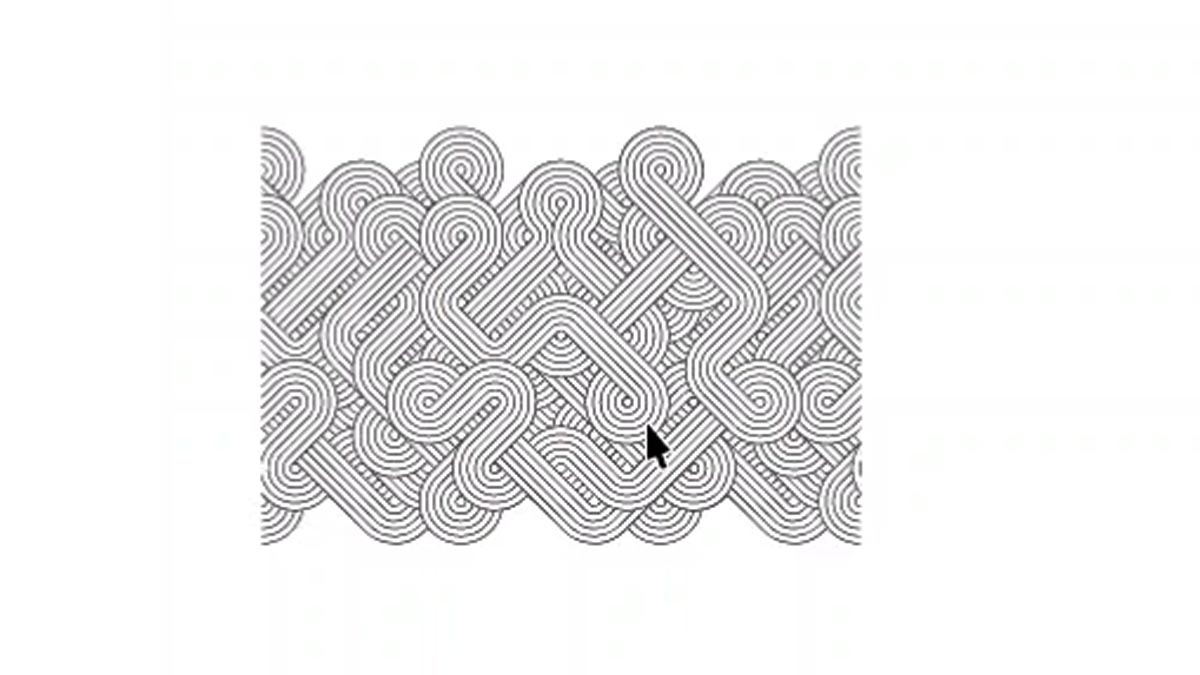
Here we have a graphic we want to engrave on a blade of knife, which we can do by using the camera.
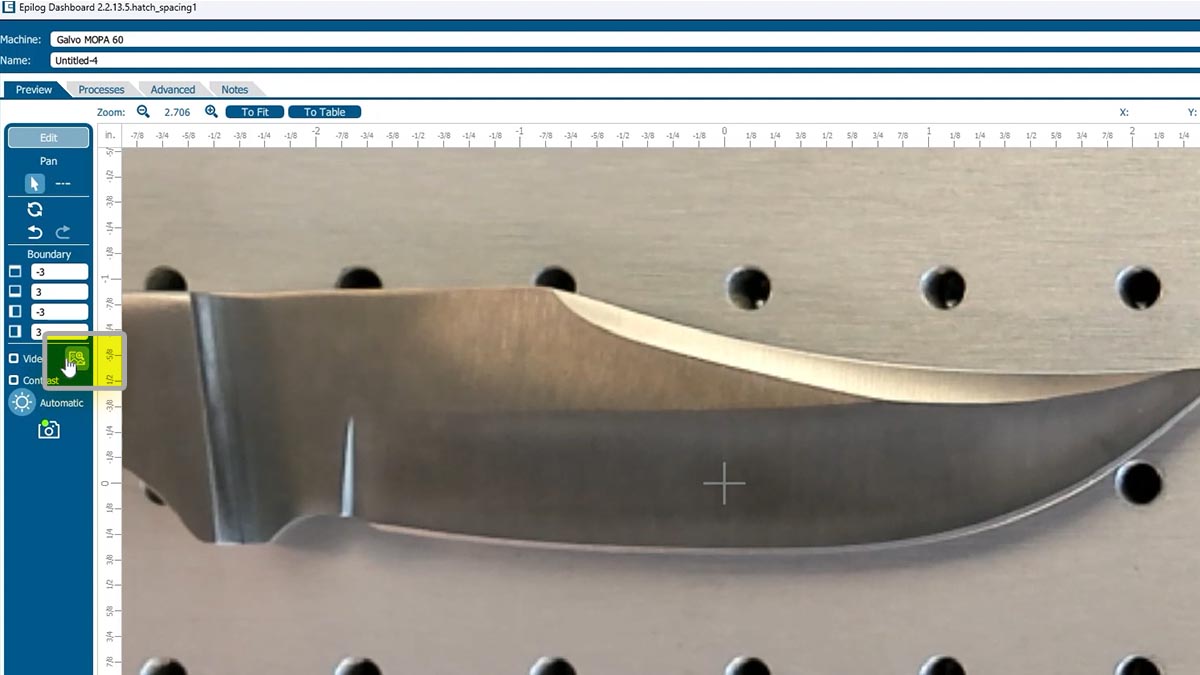
In the Laser Dashboard, using the camera, we can see the knife blade placed in the laser.
Start by clicking the Copy Background Image icon.
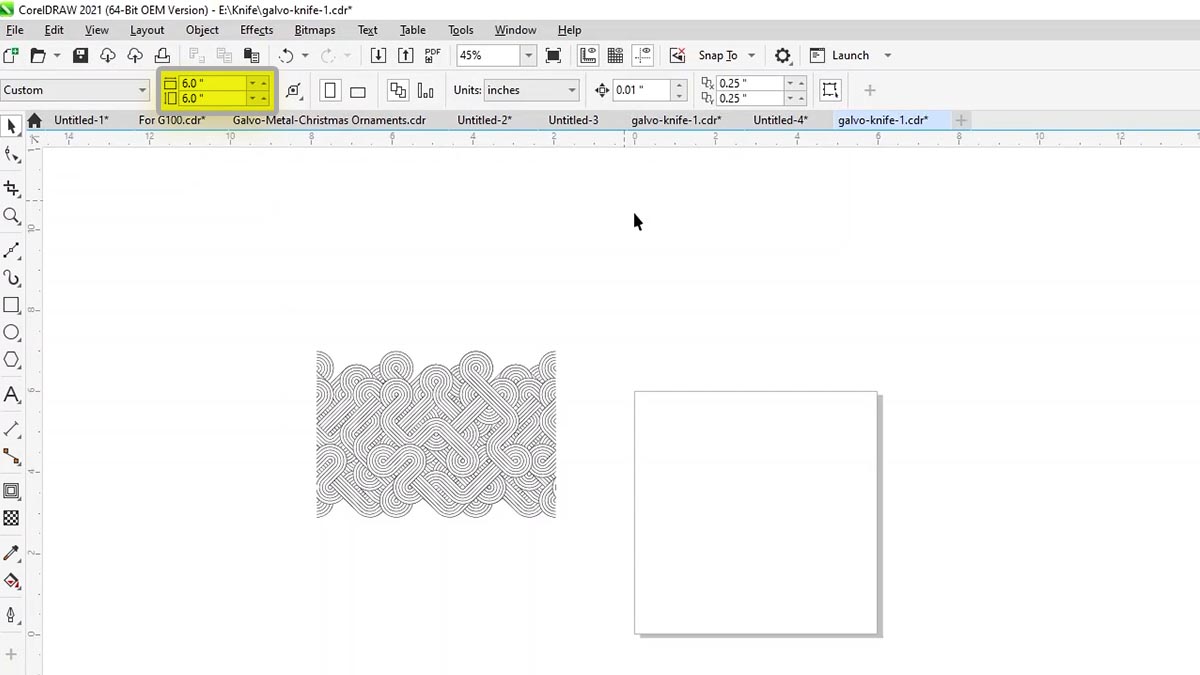
Back in our graphic software, change the page size to the size of the work area: 6” x 6”.
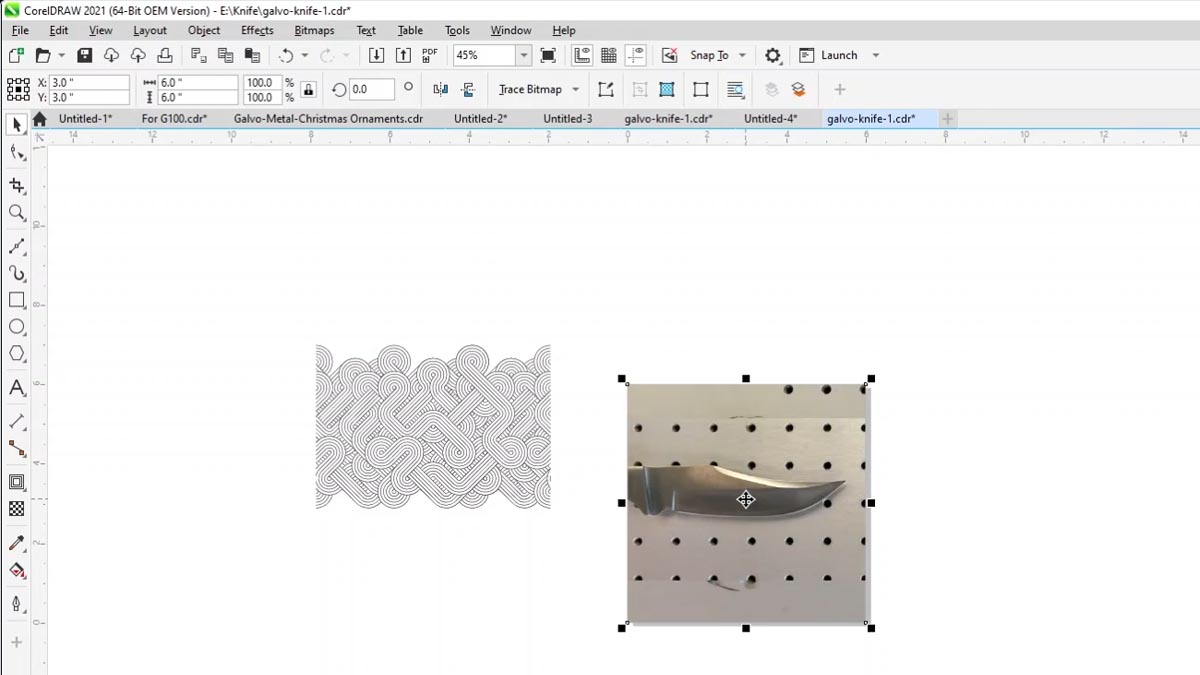
Paste the copied background image on the page.
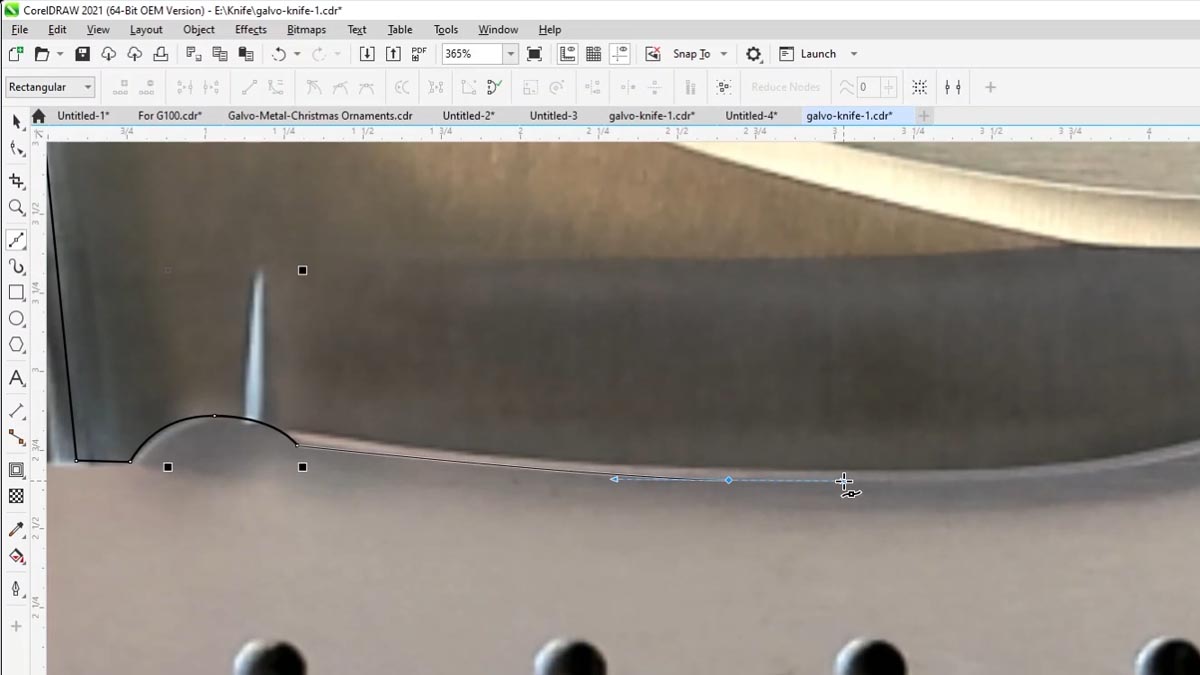
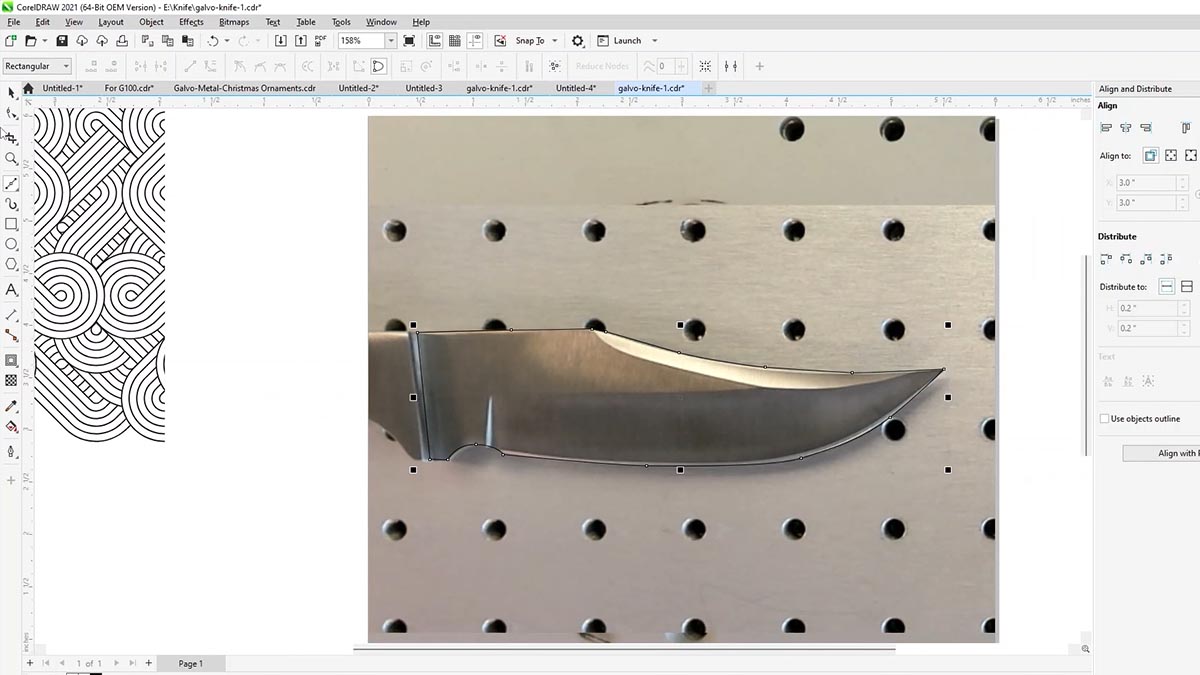
We’ll use the Bezier tool to draw an outline around the area of the blade we want to etch.
Click and drag to create curves as you draw your lines.
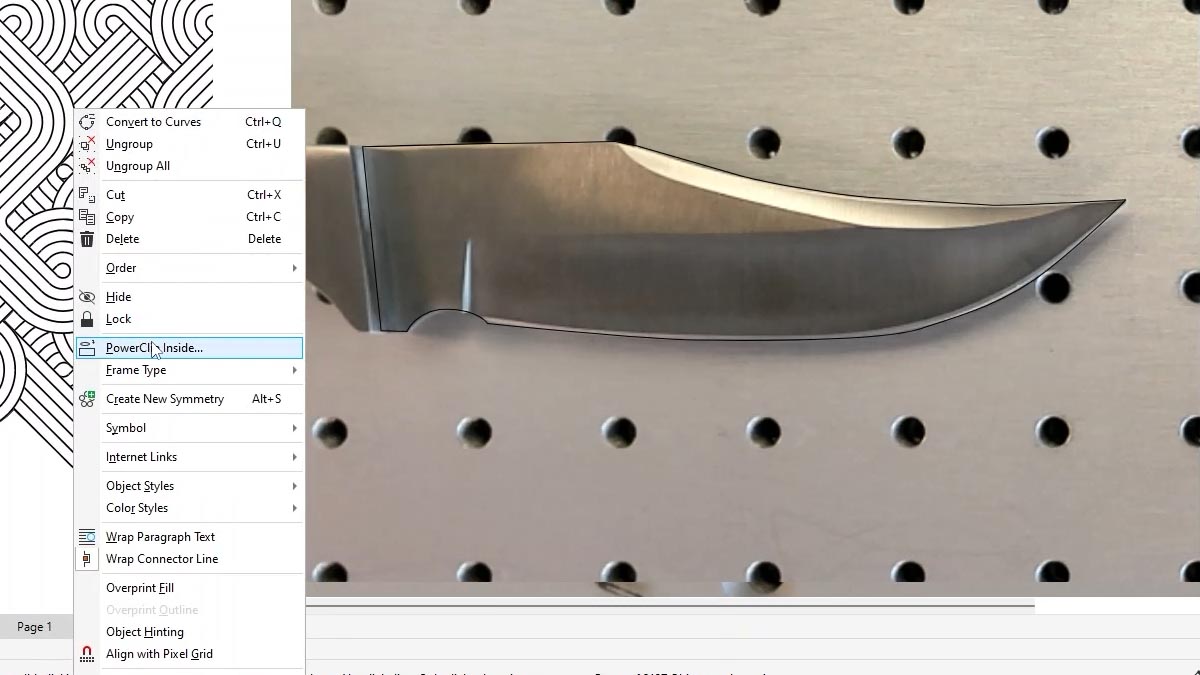
When you have your shape as you’d like, right click on the graphic and choose PowerClip Inside.
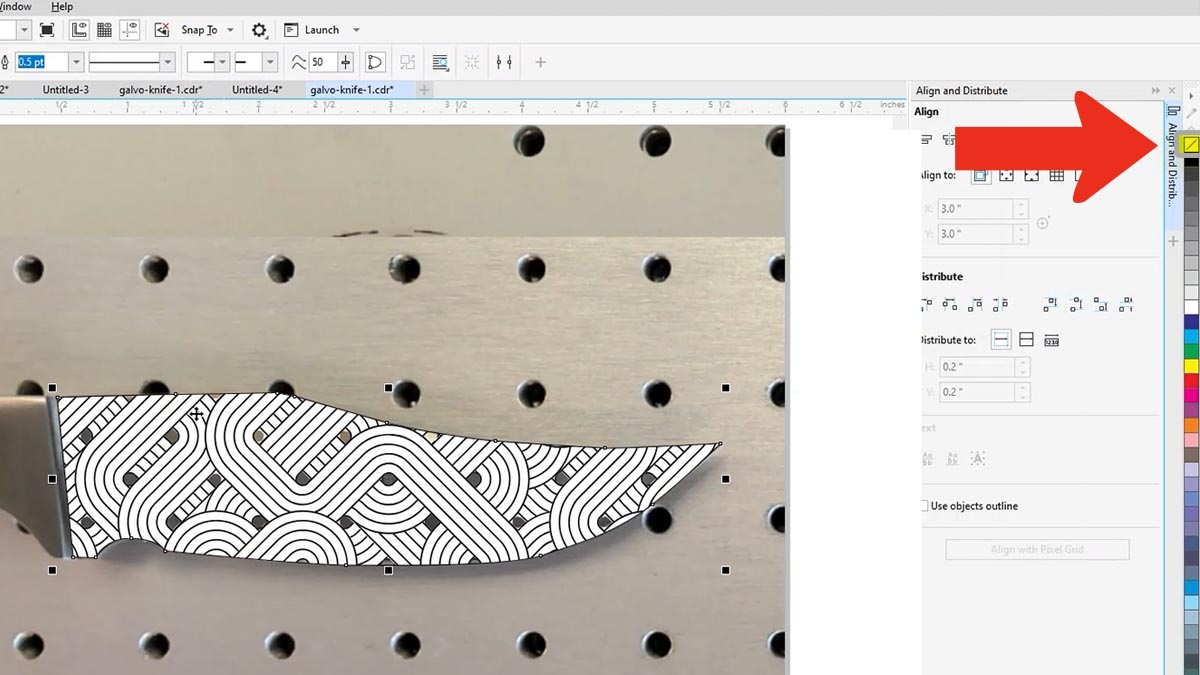
Click inside the shape to reveal the pattern. Make sure to remove the fill color from the outline.
 v
v
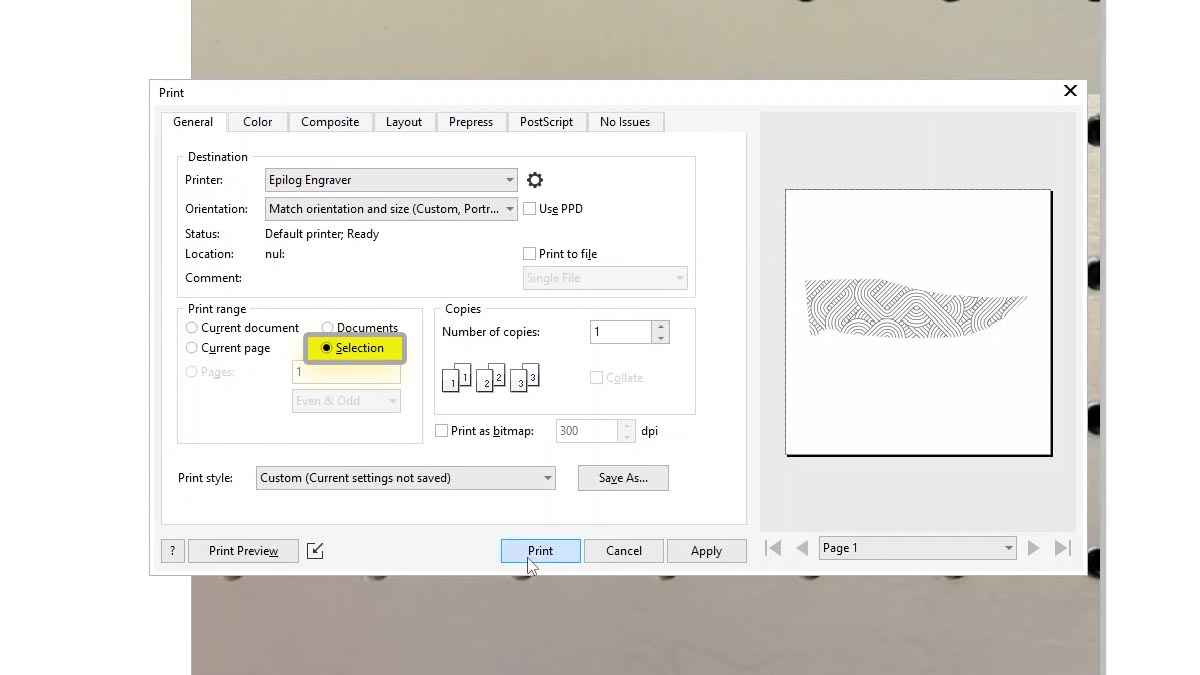
Print the file to the laser, choosing Selection for the Print Range so you don’t send over the background image.
Engrave the Pattern
Back in the Laser Dashboard you can see that our image is still perfectly aligned in the laser through the camera.
Import the material setting for Metal Etch.
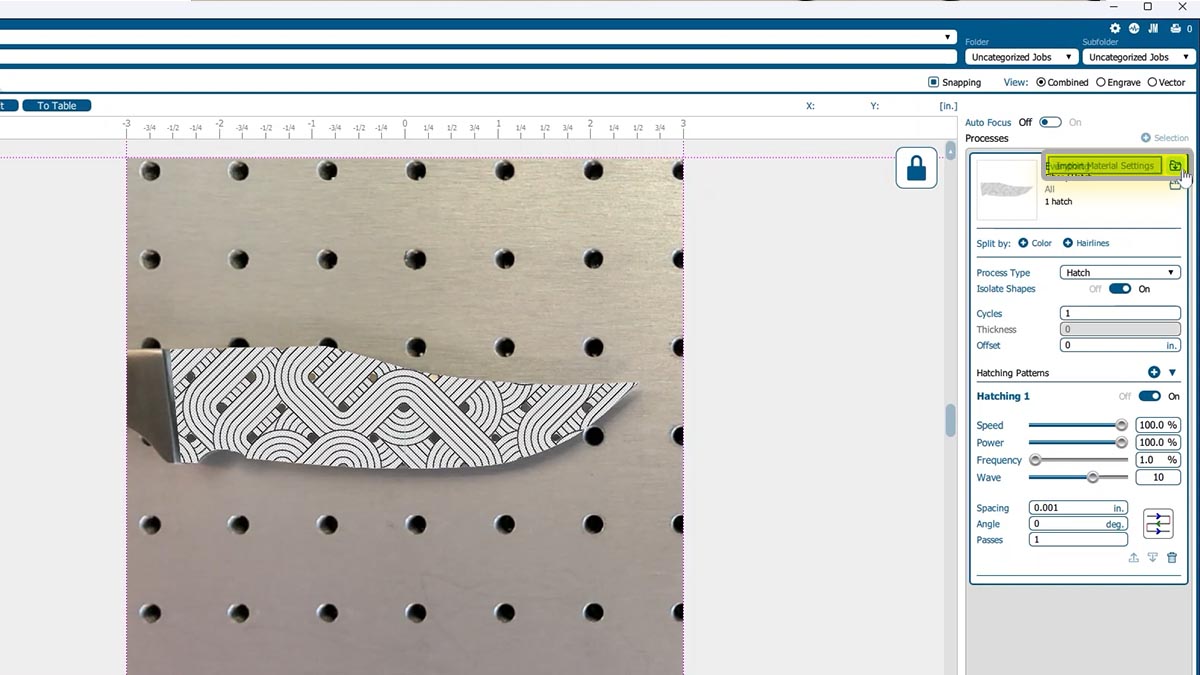
Print the file to the laser.
Mirror and Align the Artwork using the Camera
Place the unengraved side of the knife face up on the table.
Back in the Laser Dashboard, select the image.
Click on the Mirror Horizontally icon.
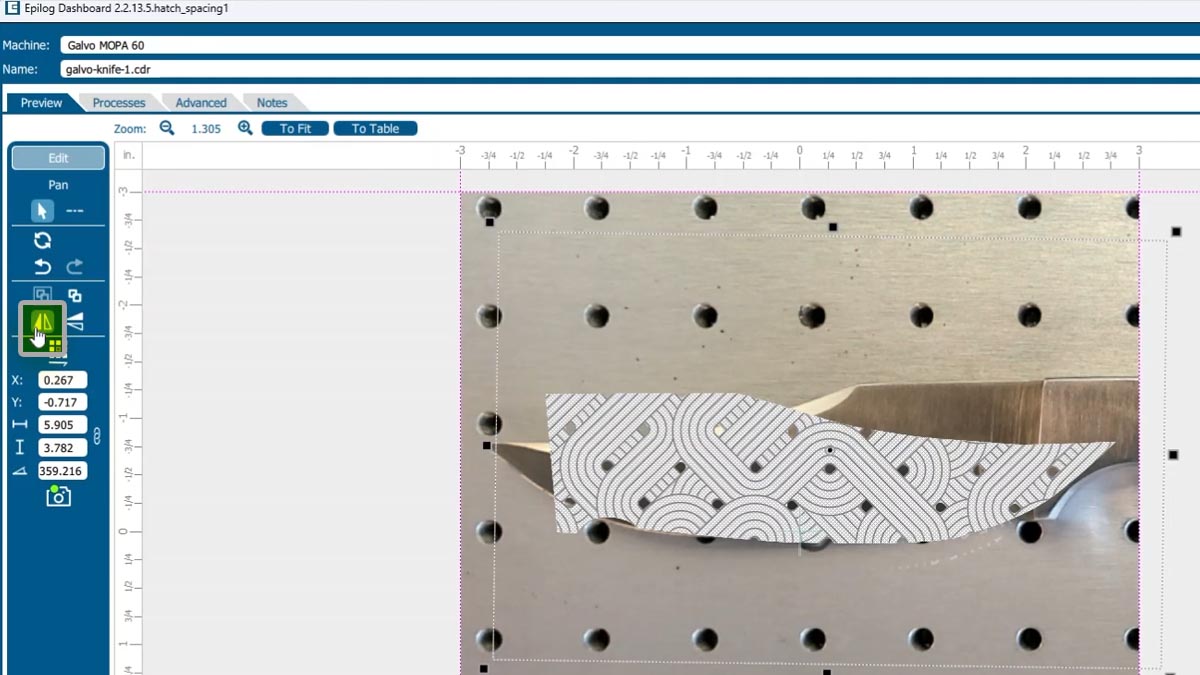
Use the camera to line up your artwork to the knife blade.
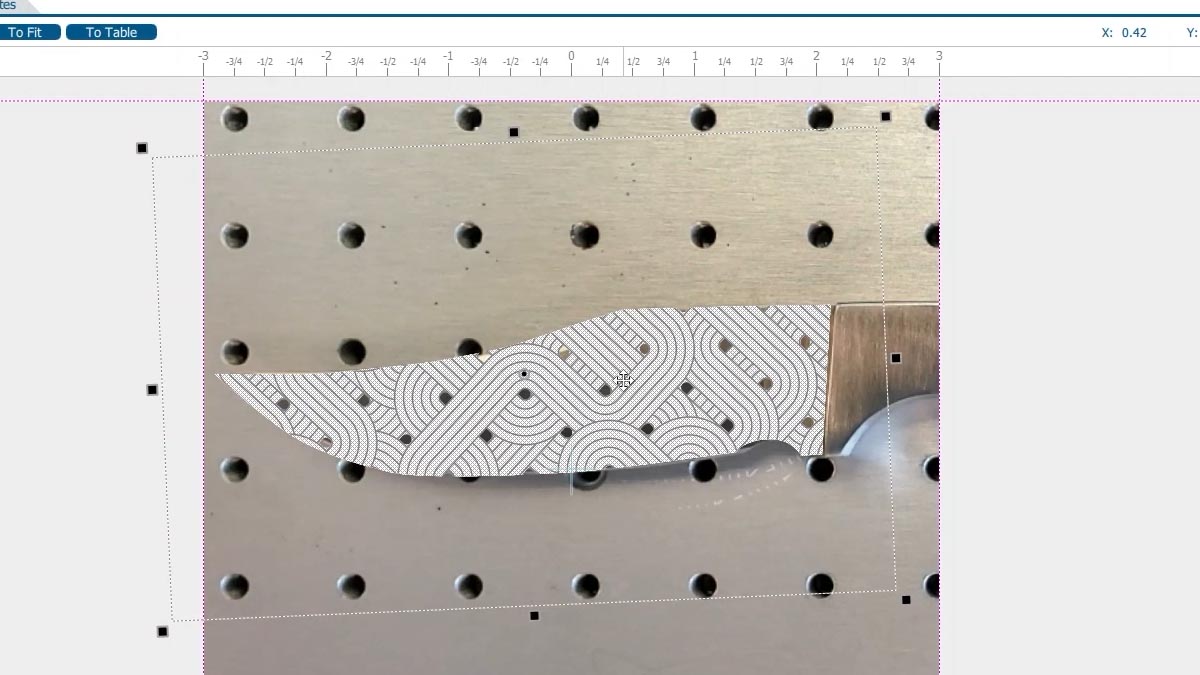
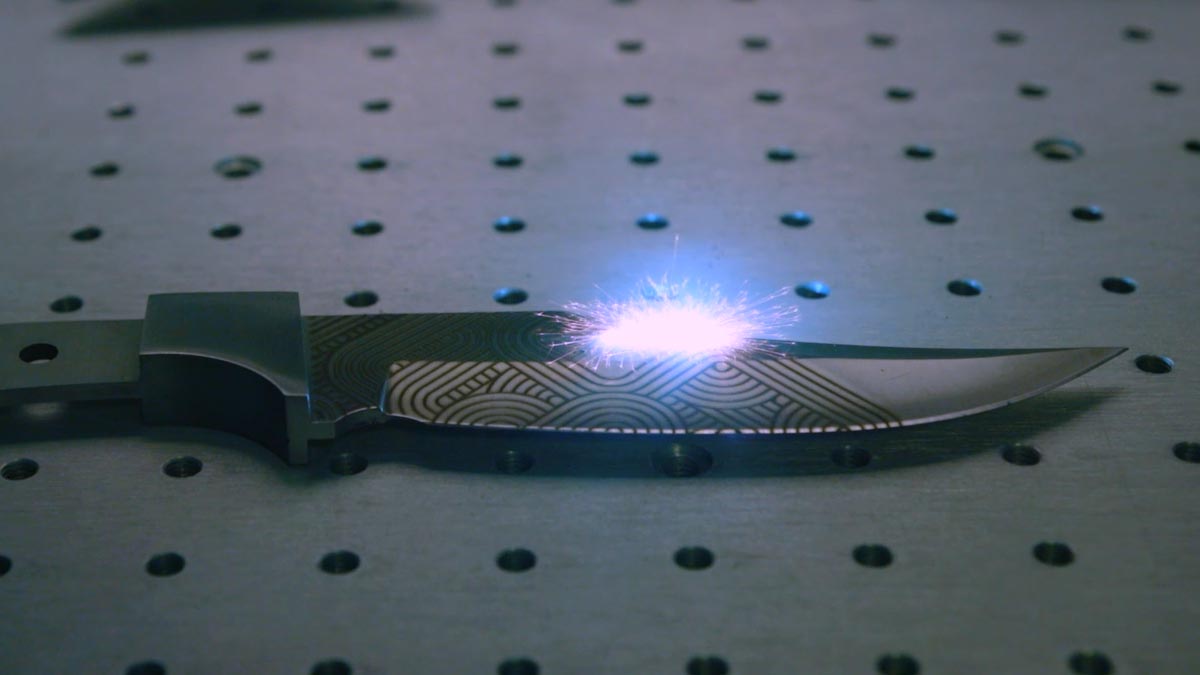
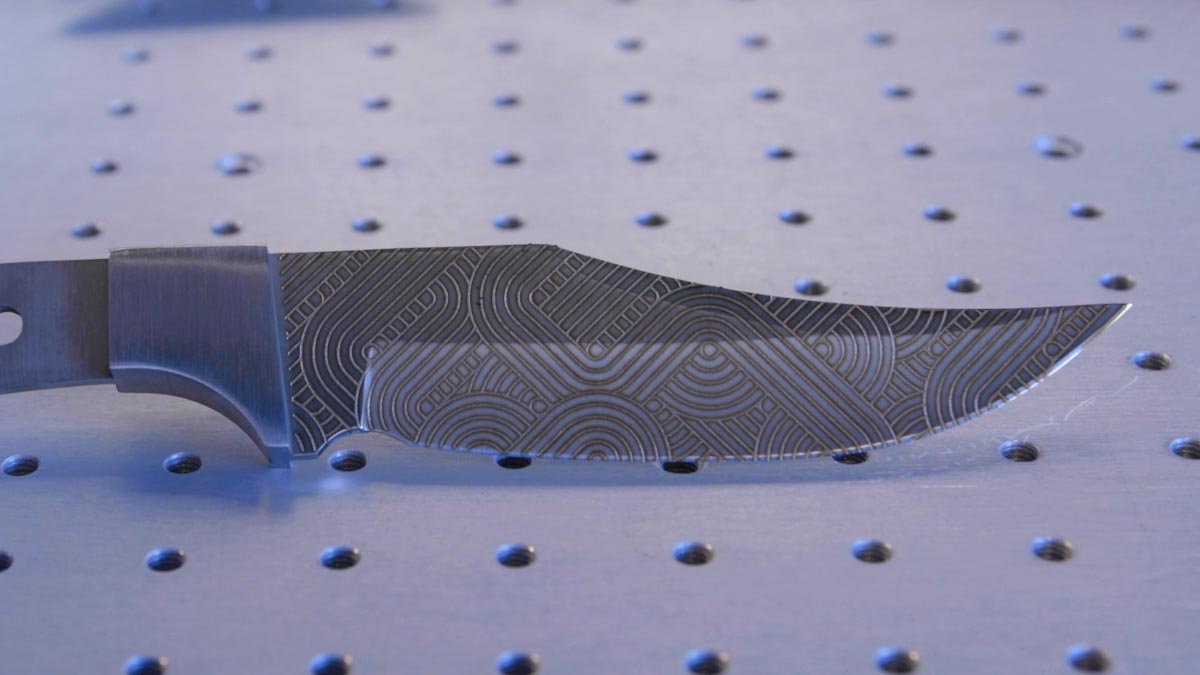
When you’re happy with the alignment, print the file to the laser.