This guide outlines the steps for flashing an SD card for your laser system. A technician must provide the required disc image file to complete this process. Do not proceed without first obtaining the correct file specific to your machine.
Flashing SD Cards
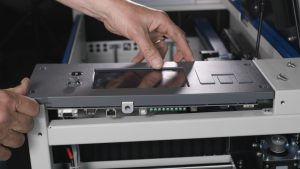
SD Card Removal
-
Remove the control board and SD card.
-
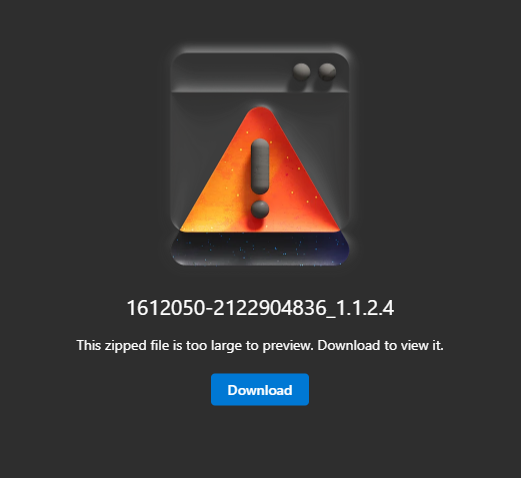
Download the shared ZIP file provided by your technician.
-
Unzip the file (Extract All).

Using this tool allows you to go directly to the desired firmware version.
-
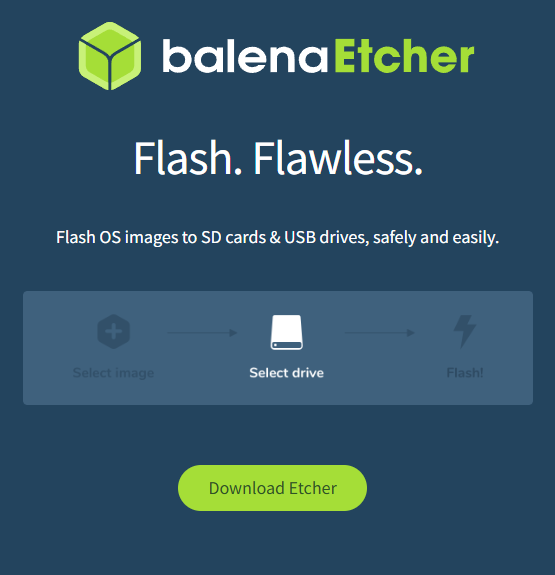
Download and install Balena Etcher.
-
Insert the SD card into your computer.
-
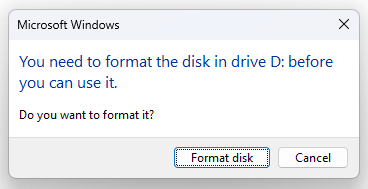
If prompted to format the SD card by your computer, select Cancel to avoid erasing its contents.
-
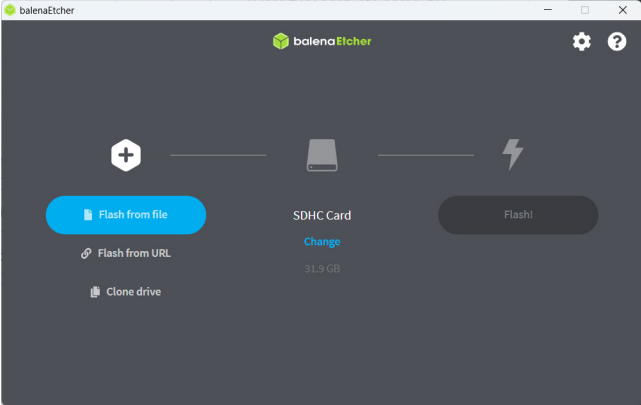
Open Balena Etcher.
-
Select Flash from file.
-
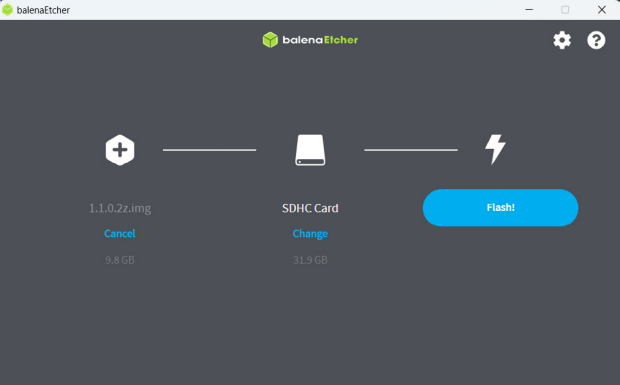
Navigate to the unzipped disc image file from step 3.

-
Select the target location (SD card).
Warning: Ensure the correct target location is selected to avoid overwriting existing data during the flashing process. To make it easier to identify the correct drive and prevent accidentally flashing the wrong device, remove any other flash drives from your computer before starting.
-
Select Flash.
-
When finished, remove the SD card from your computer.
-
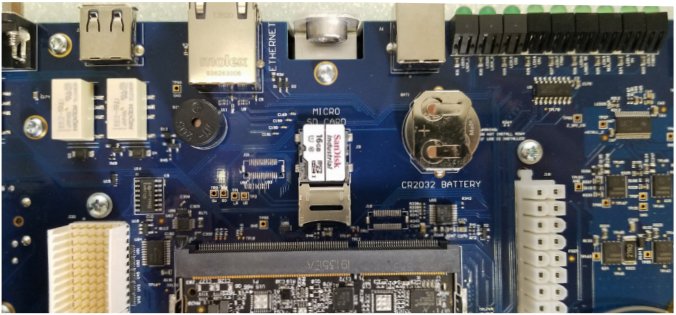
Install the SD card into the control board.
-
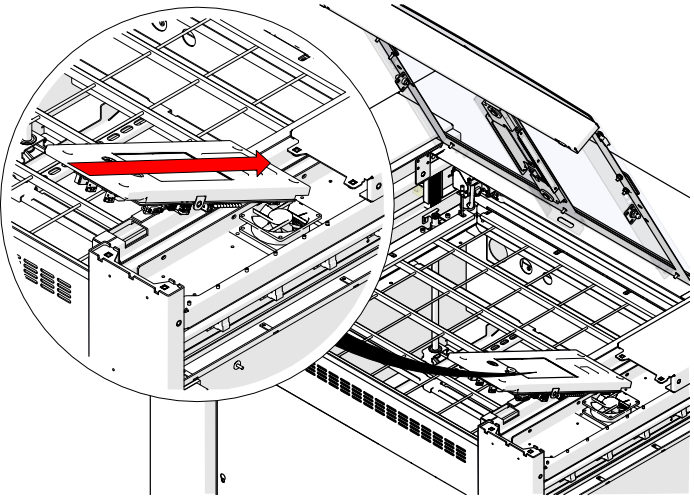
Reinstall the control board into the machine.
-
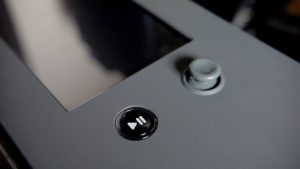
Power on the machine.