It's time to send your first job to the Laser.
We'll walk you through a step by step tutorial on taking your file from design to engraving. We'll be covering the software you can use to design your file, how to set up the page and position your graphic, how to send the file to the Laser Dashboard, choosing your settings, and sending the job to the laser.
Choose Your Design Software
Epilog’s laser systems work through the Epilog Laser Software Suite, built on an open architecture design, so you can create your artwork files in any graphic design software packages, including CorelDRAW, Illustrator, Photoshop, AutoCAD, and many more. Choose the software that you’re most comfortable with so you don’t need to spend valuable time learning a new program in your design software.
Sending a Job
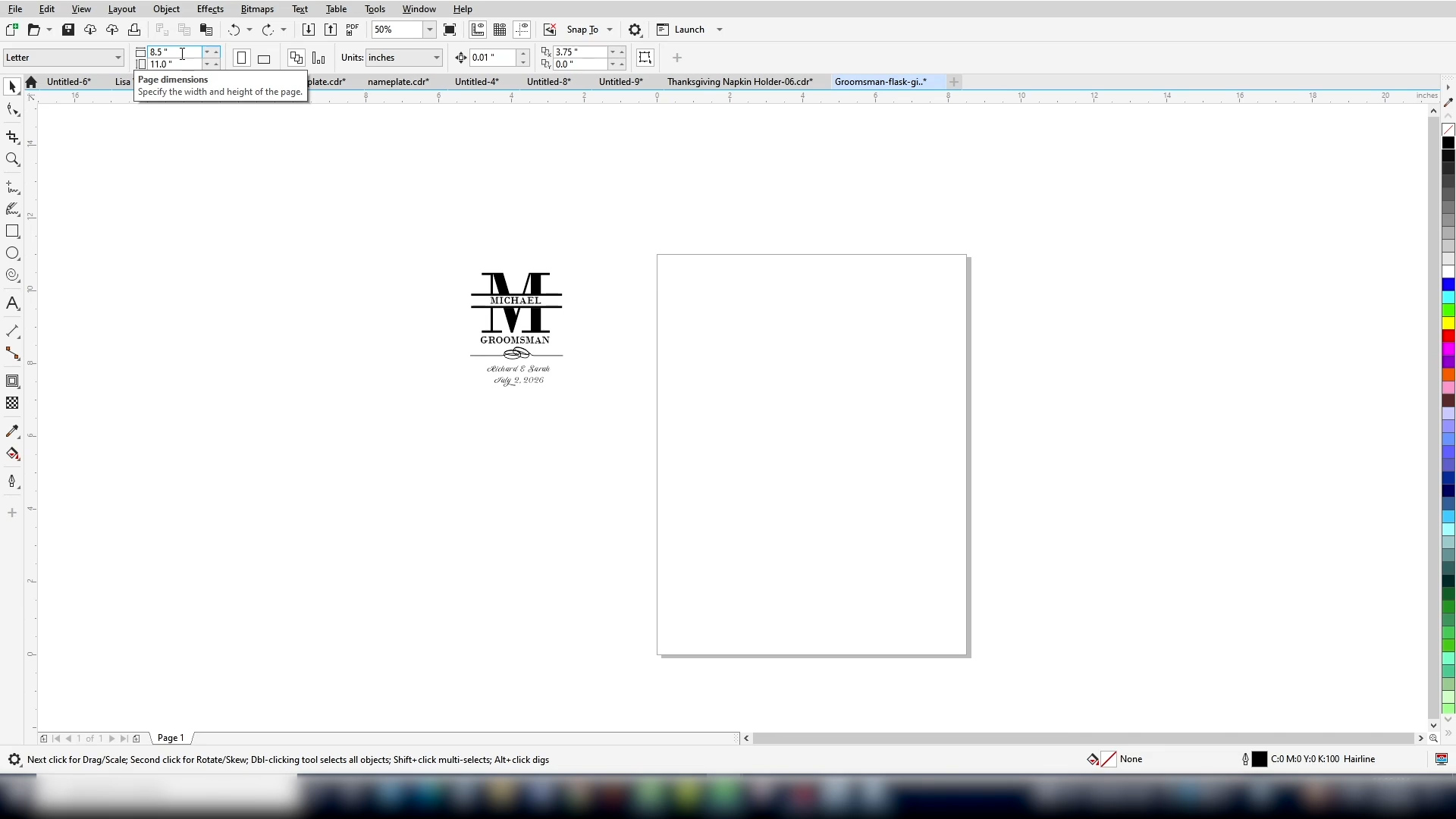
Start by choosing your page size. There are two popular options for page size, either setting it to the size of the piece you are working with or to the size of the engraving table. Either method will allow you to easily position your artwork.
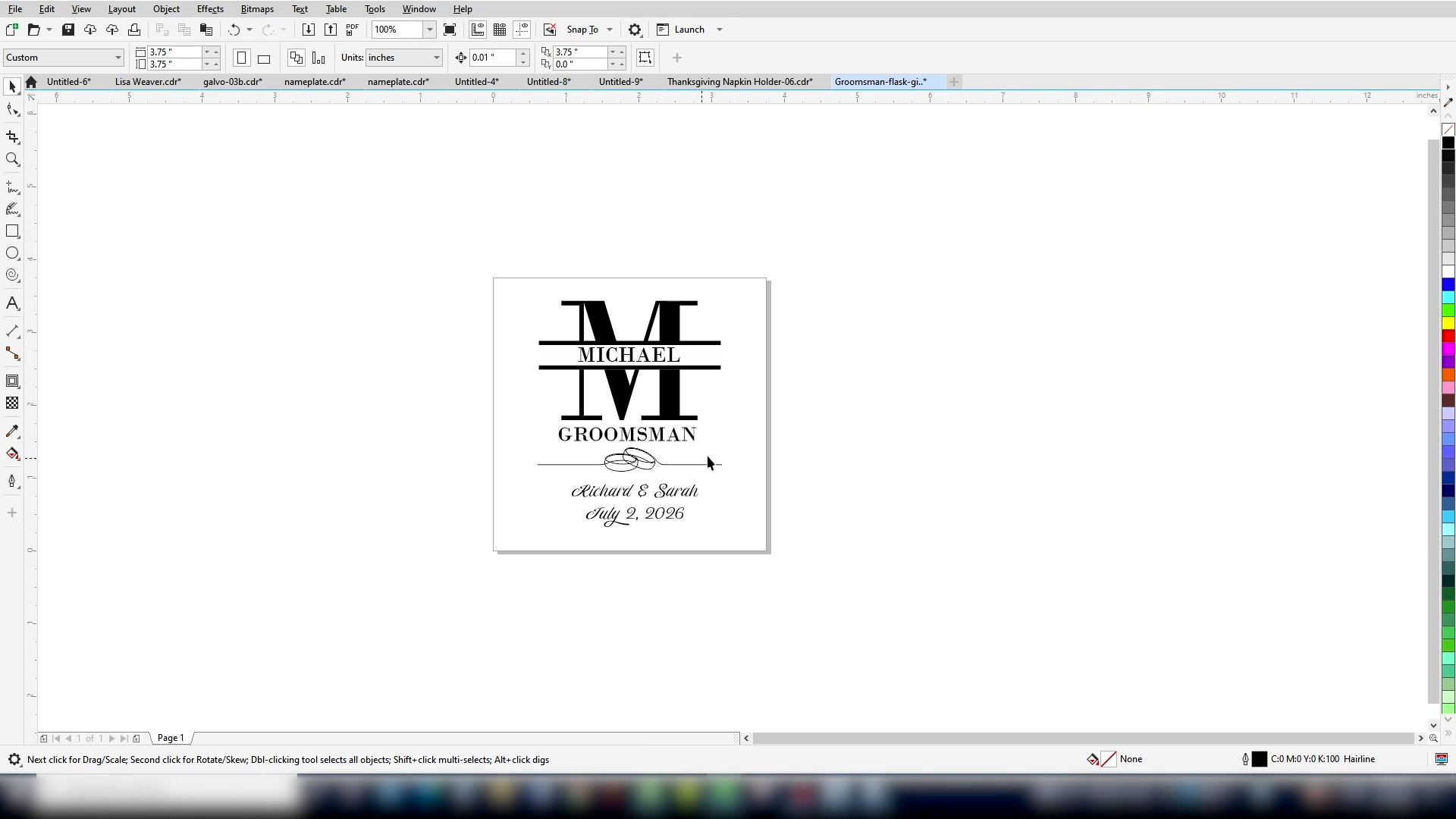
Here we have a groomsman gift we’re going to engrave on a coated metal flask. If we set this up to the size of the object we’re engraving, 3.75 inches by 3.75 inches, we can easily position this graphic to the center of the image.
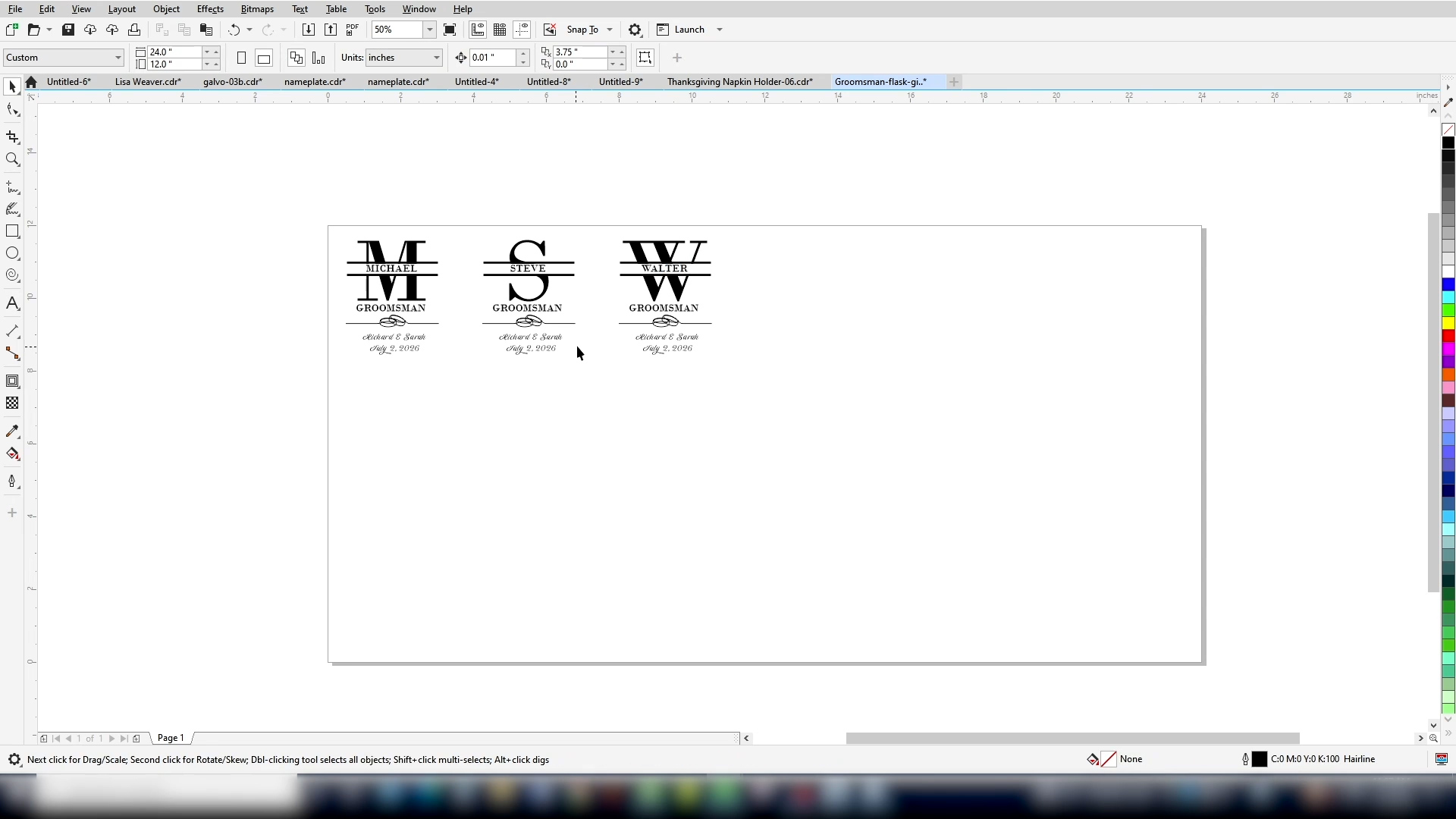
If we set the page size to the size of the engraving bed, we can easily fill up the entire table with multiple flasks. We can duplicate the image across the page for the number we need and edit each design to customize them.
Since we’re engraving 1 flask today, we’ll change the page size back to the size of a single item. Once we’re happy with our design, we’re ready to send it to the laser.
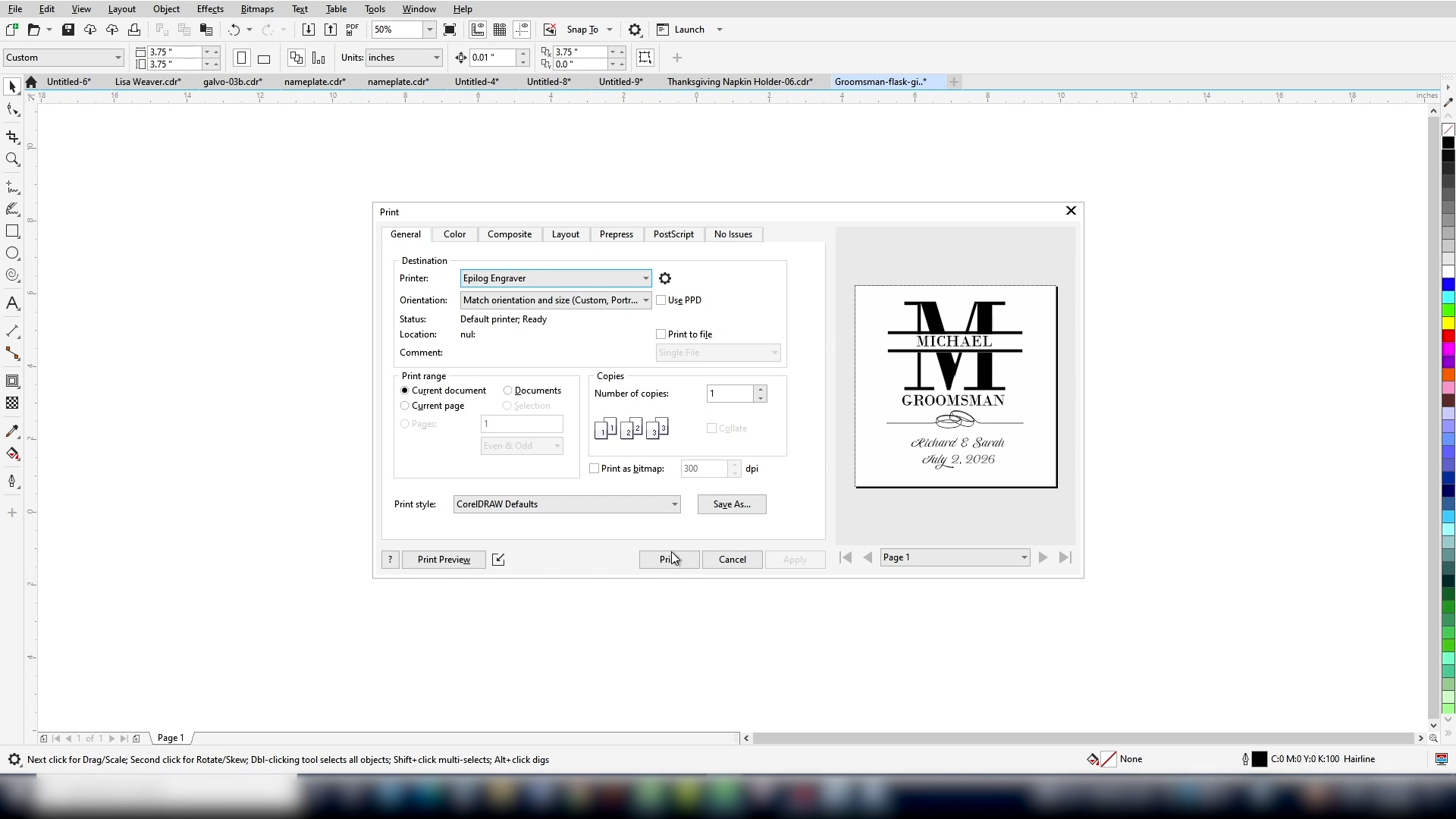
Print the file just as you would to a paper printer. In the Print drop down menu, you’ll find the Epilog Engraver that was added when you installed the Epilog Software Suite. Then select Print.
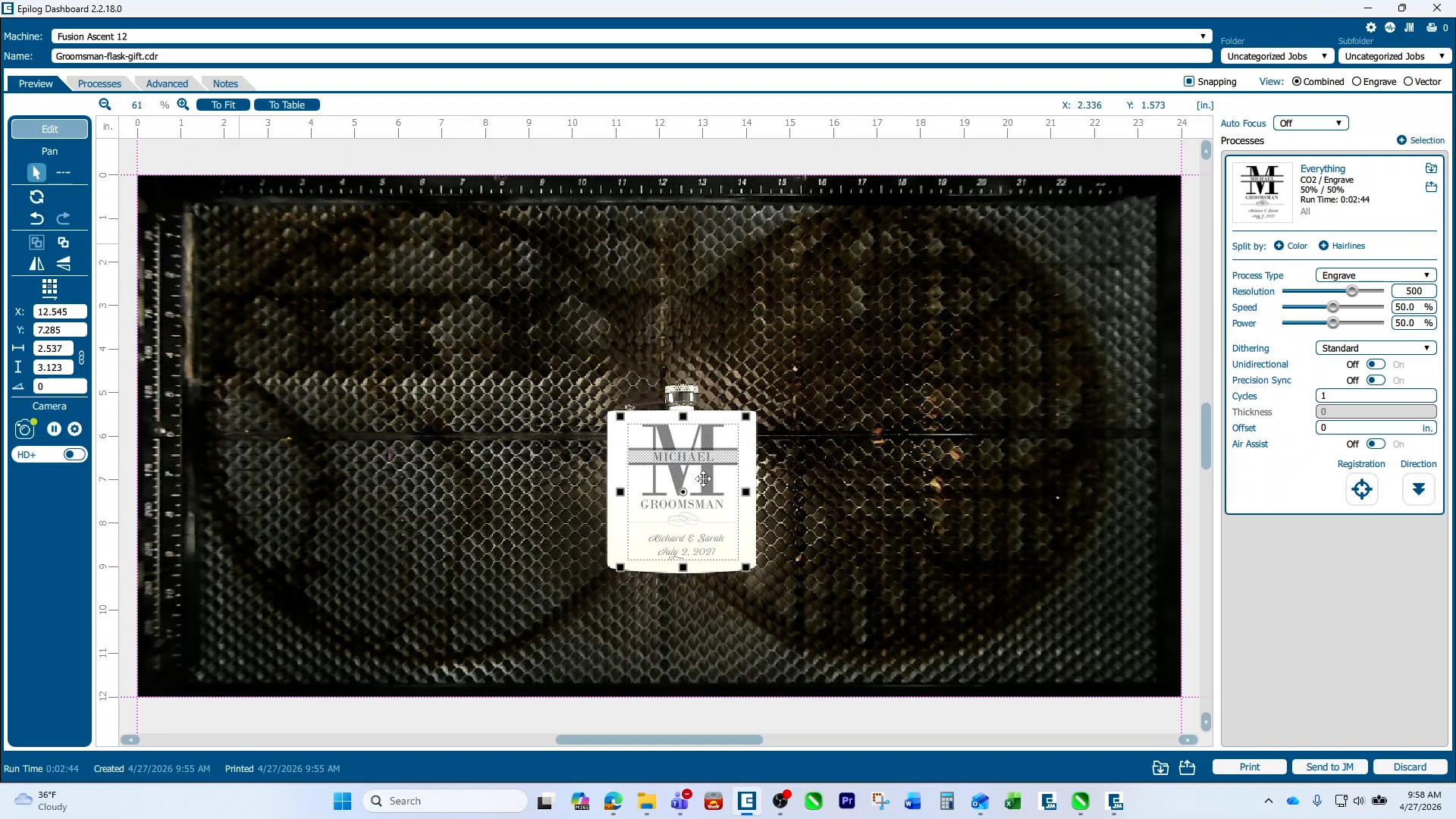
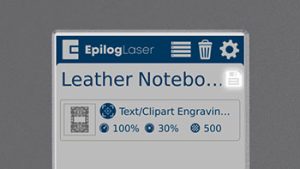
The job will appear in the Laser Dashboard, Epilog’s interface between the design and the laser, where you’ll set up all your settings. Here we can position the graphic using either the top left corner of the engraving bed or using the camera for positioning.
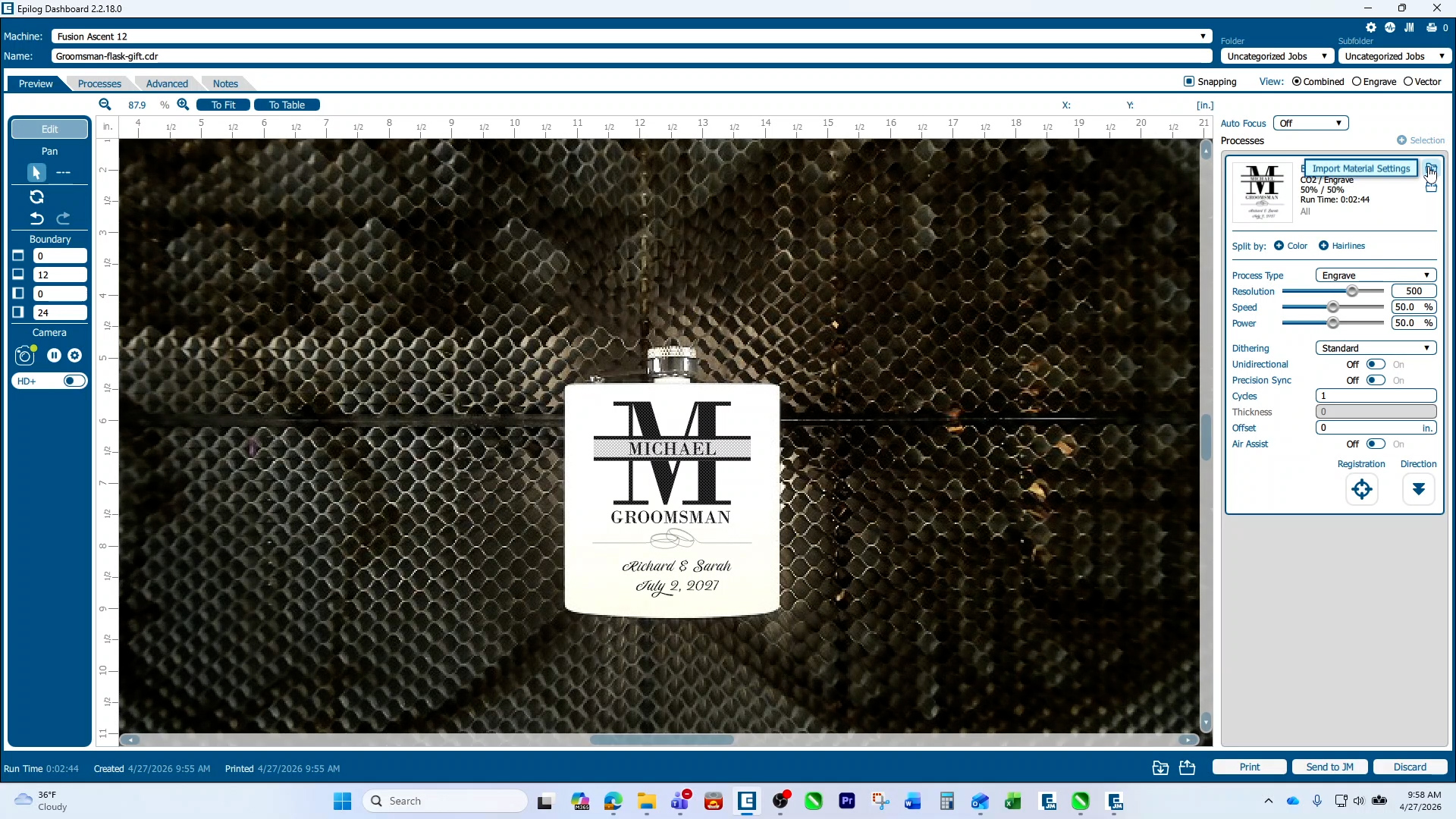
For the material settings, you can use our common materials list to get started. Click the folder with a drop down icon to open the materials list.
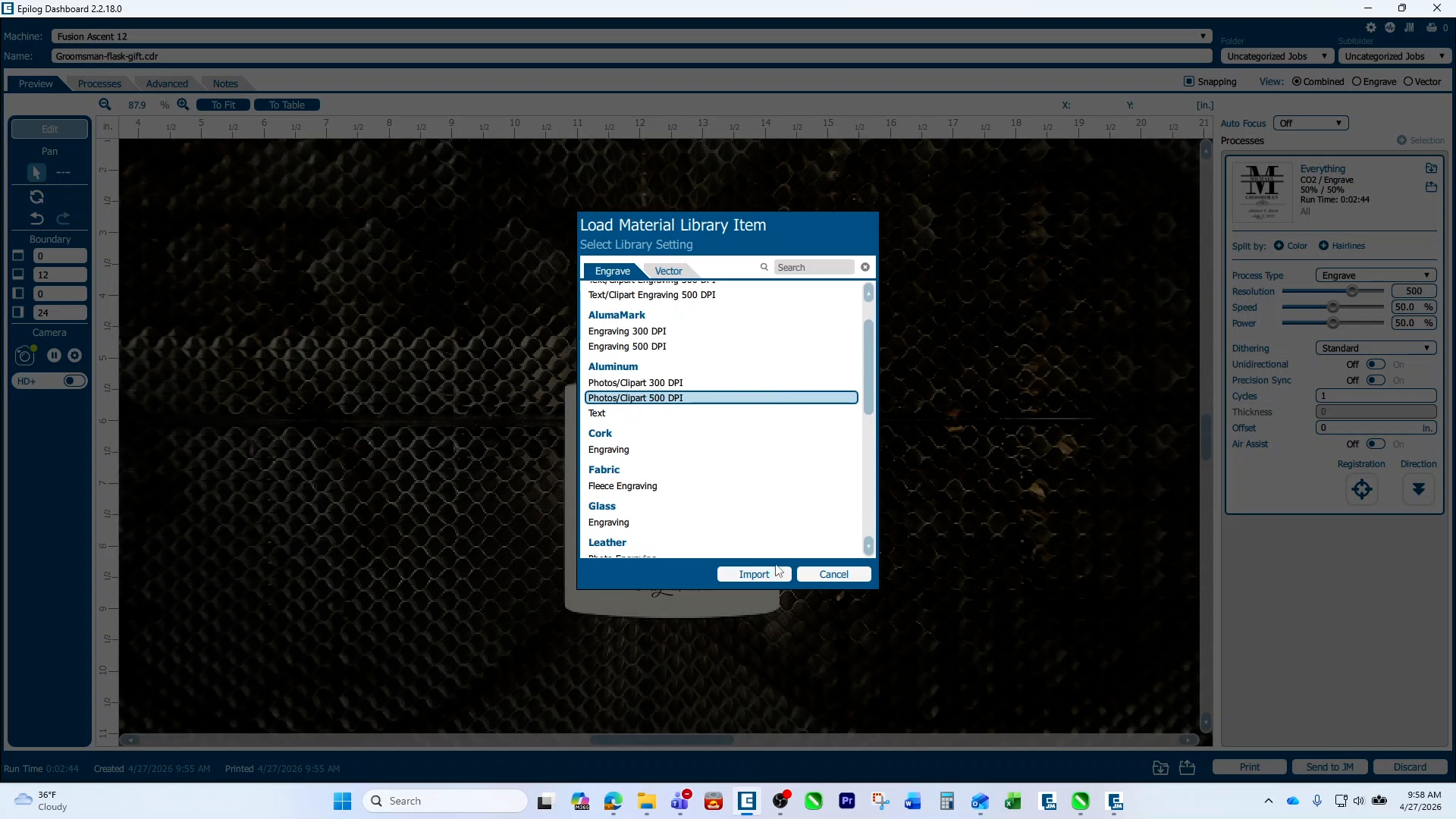
You’ll find multiple materials listed here that you can use as a jumping off place for fine tuning your own material settings. Since this is a coated metal, we’ll choose the anodized aluminum 500 DPI engraving settings. Click the Import button to use these settings.
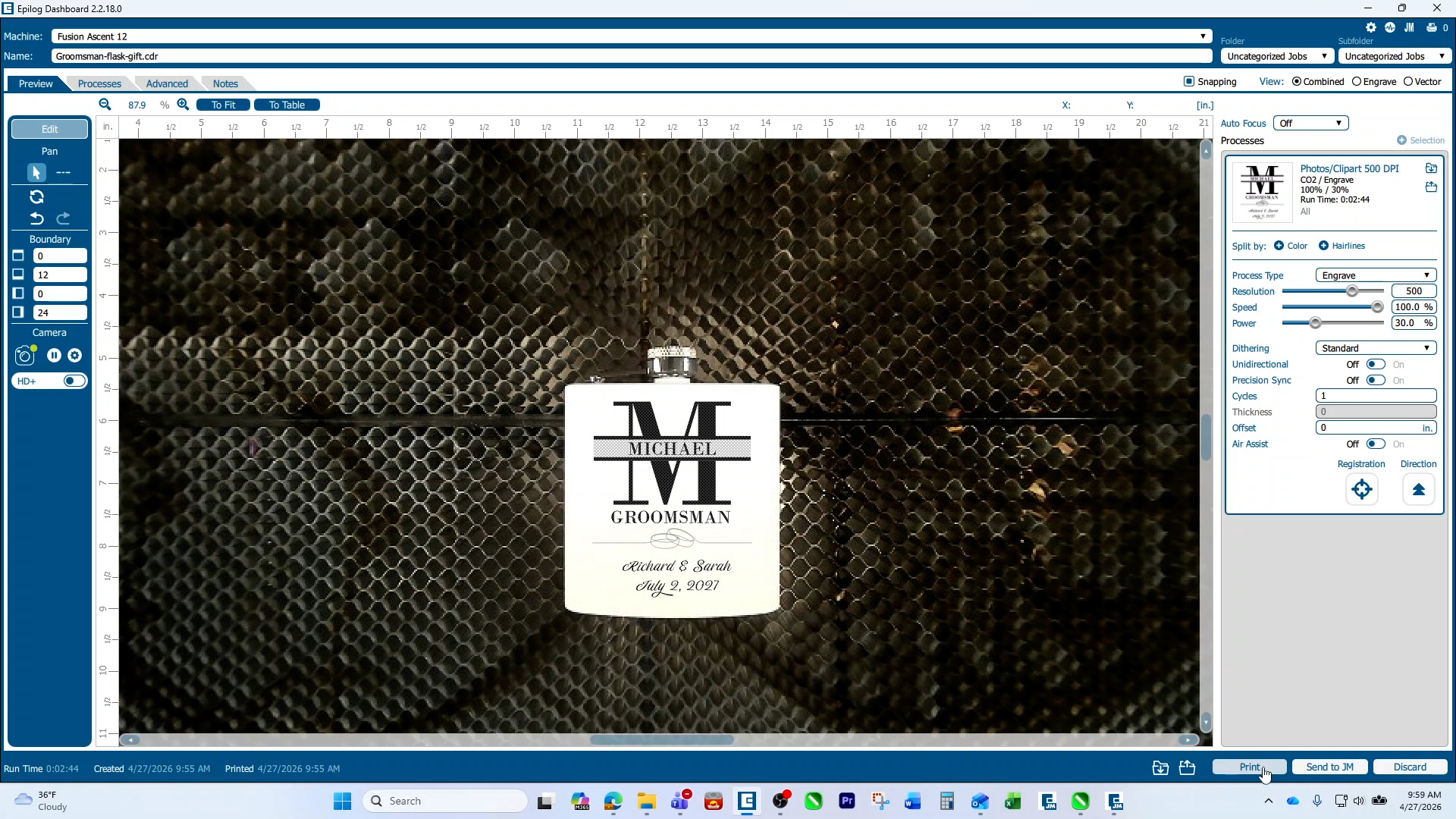
We can easily adjust these settings as needed and print the file to the laser.
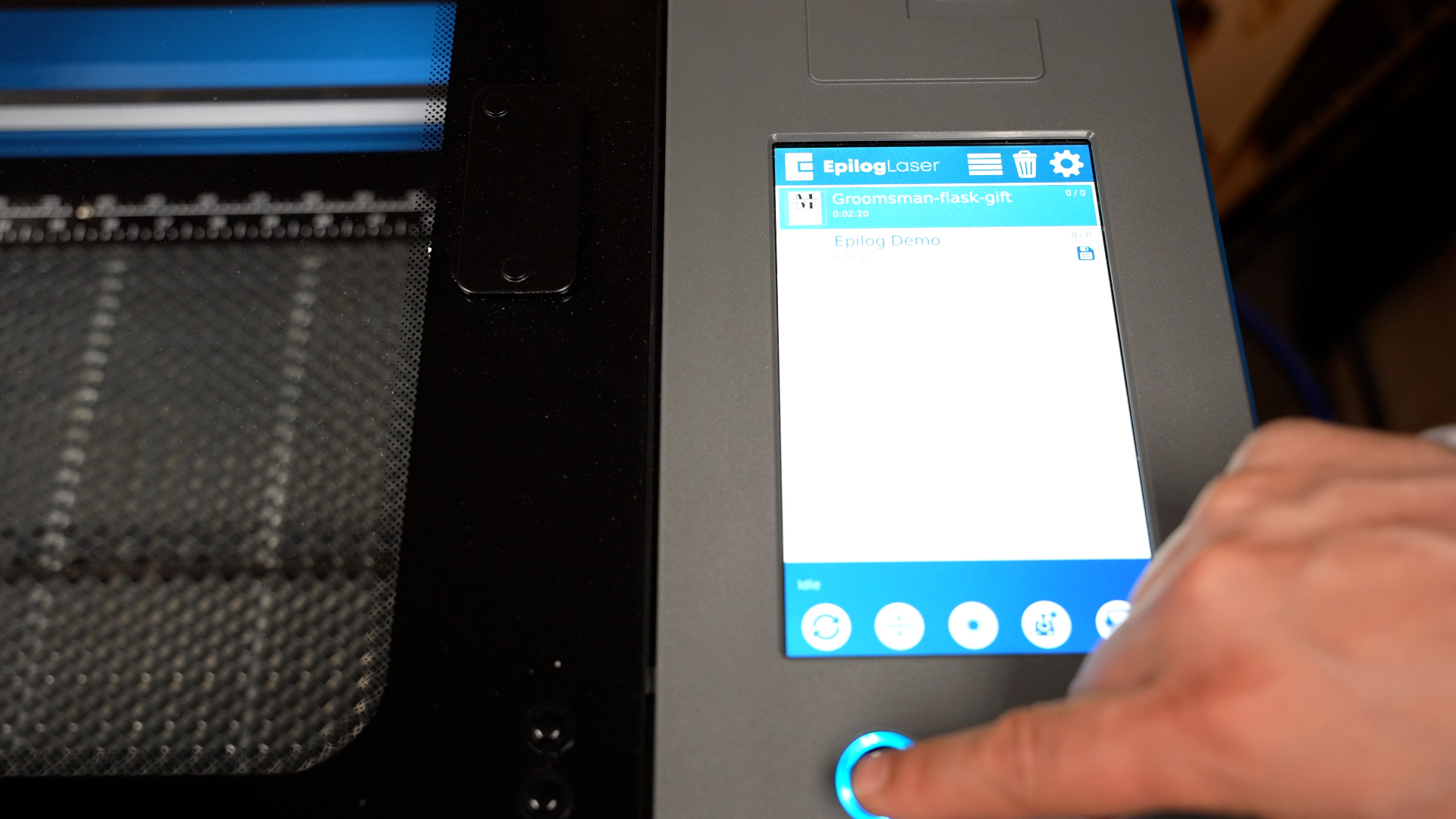
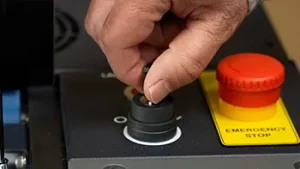
At the laser, select your job and press the Start button.
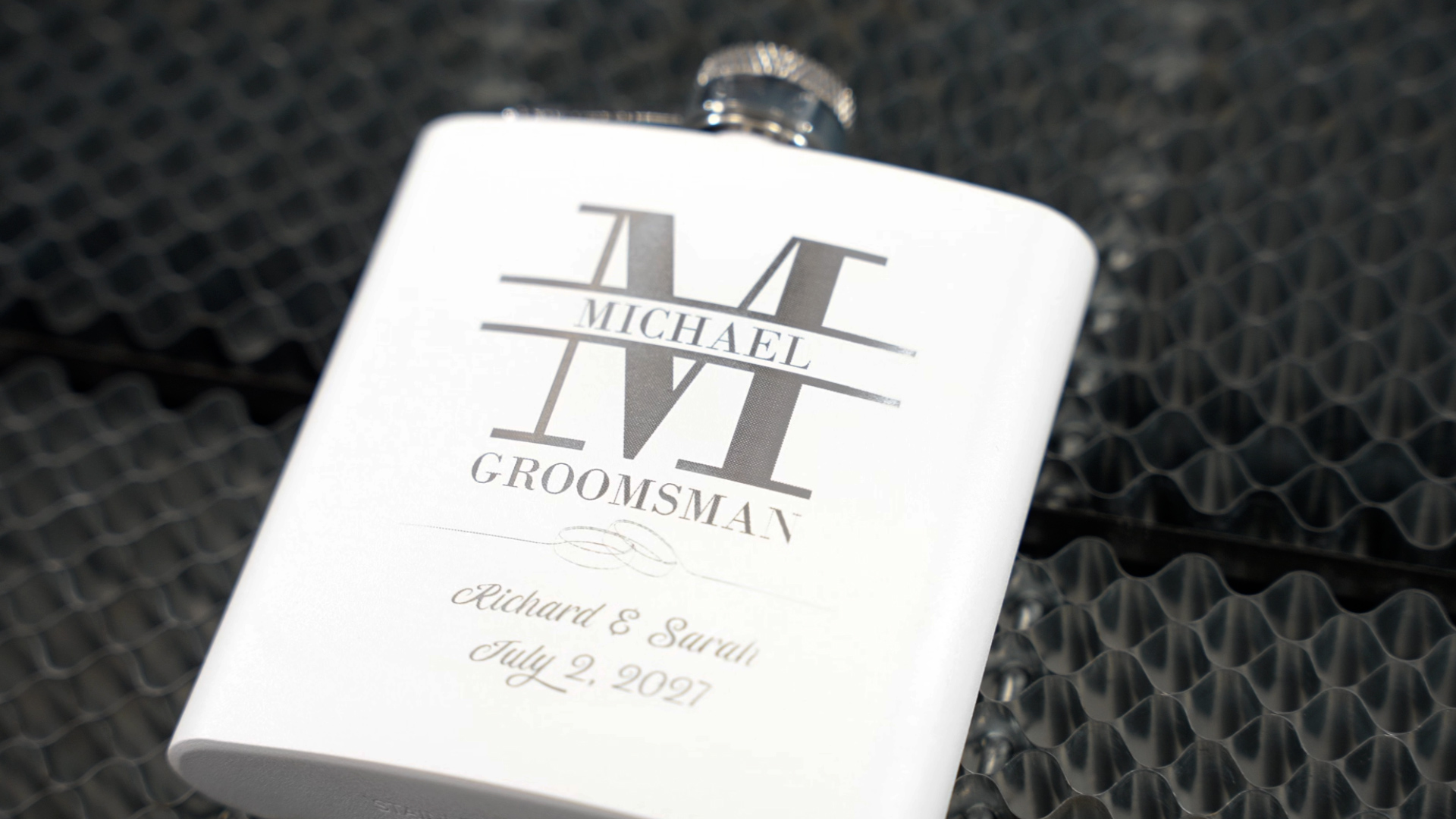
Use these step by step tips to start creating your own beautiful and profitable projects.