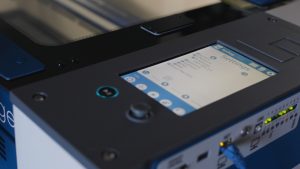
The steps below will guide you through the process of updating your firmware if you are running firmware version 1.0.8.8 or older. If you are on a newer version (1.0.9.0 or later), please refer to the appropriate update instructions linked on the right.
Download the latest firmware file from the Official Drivers and Firmware Page before beginning.
USB Transfer
-
Load the
.swuupdate file onto a USB drive from your computer.
We recommend using an empty USB drive to find the update file easily.Note: The USB drive must be formatted to FAT32 format.
Note: It’s easiest if you put the update file in the root directory of your USB drive. If the update file is not located in the root directory, the machine may not detect it automatically. If you decide to put the update file into its own folder, make sure the folder name contains no spaces.
- Eject the USB drive with the update file from your computer.
-
Plug the USB drive into the Fusion Edge and it will detect the drive as it powers on. The machine will ask if you would like to update. Press “Yes”.
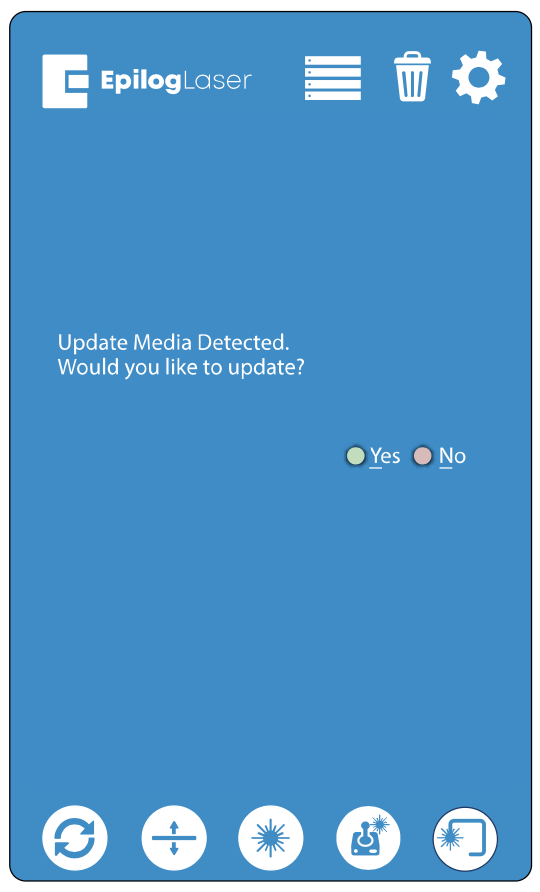
Note: If this screen does not appear after plugging in your USB drive, the update file is not being automatically detected by the machine. You may power off your machine, then press down both the joystick and Go/Stop button and power on the machine, waiting until the screen goes blank. Once the screen goes blank you may let go of both the button and joystick. This will cause the machine to boot into Update Mode.
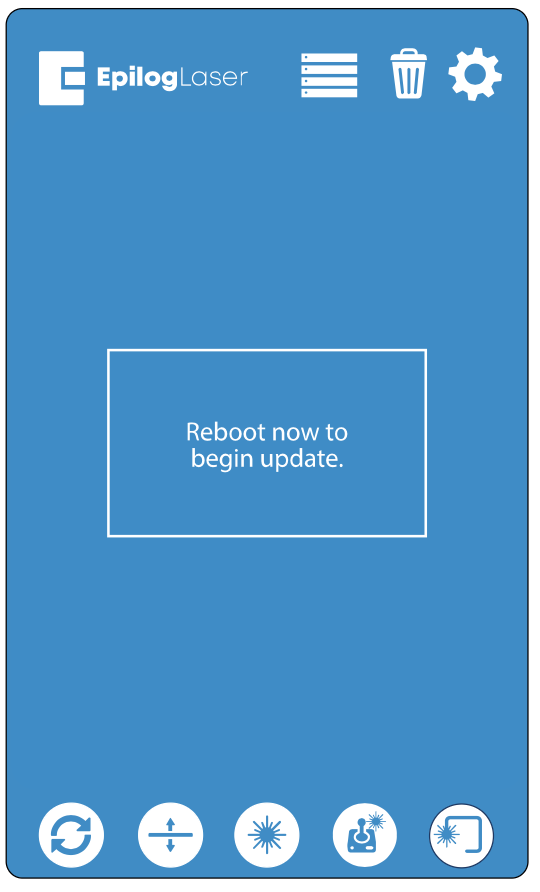
- The machine will need to reboot to run in Update Mode. Turn the machine off and then back on again.
- Once the machine has booted back up, you will see a screen with three options: USB Update, Update Network, or Cancel.
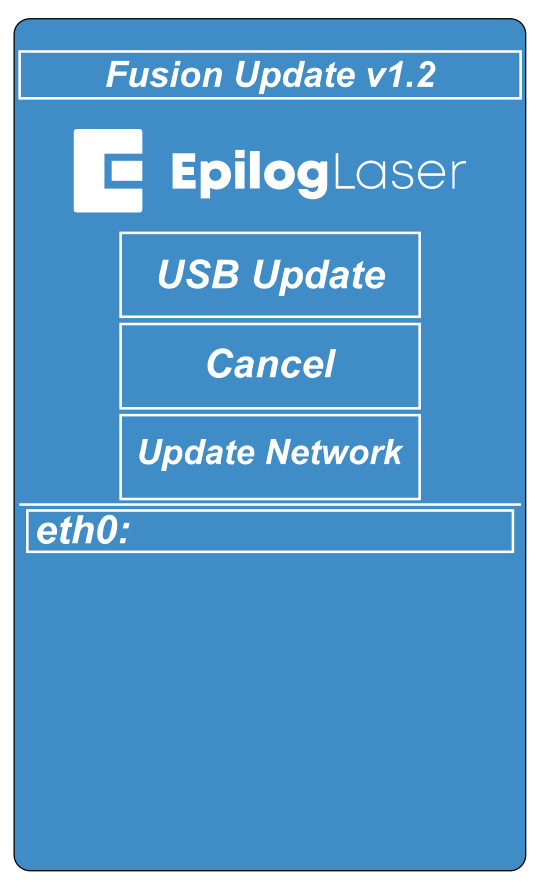
Note: Canceling will prompt you to power cycle the machine to reboot into the current firmware version you have loaded on the machine.
- Select “USB Update” and a directory folder should appear showing your
.swuupdate file. Select the filefpvX.X.X.X.update.swuand then select “Open”.
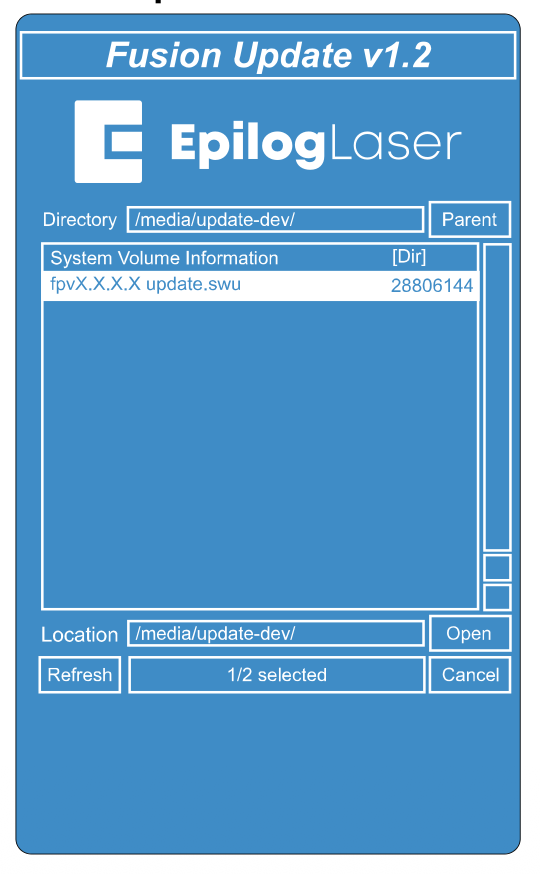
-
The update should begin and may take up to 10 minutes, depending on the size of the update file. Keep track of the time the update begins. A dialog may pop up to notify you of the screen turning off for 5–10 minutes; if so, press “OK”.
Important: The screen may turn off temporarily while updating, sometimes for several minutes. Please DO NOT turn off the machine in the middle of an update! The update is still active if LED light number 4 is flashing on the system status light panel located on the right side of the machine.
- Once the update has completed you will see “Success” on the screen. Click “Ok”.
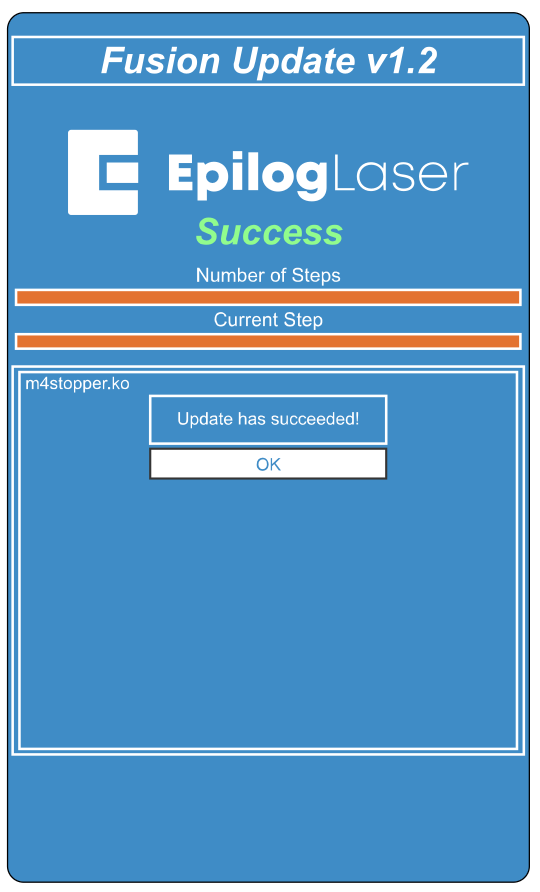
- The next screen will prompt you to power cycle in order to boot into the new firmware. Turn the machine off, unplug the USB drive, and then turn the machine back on again.
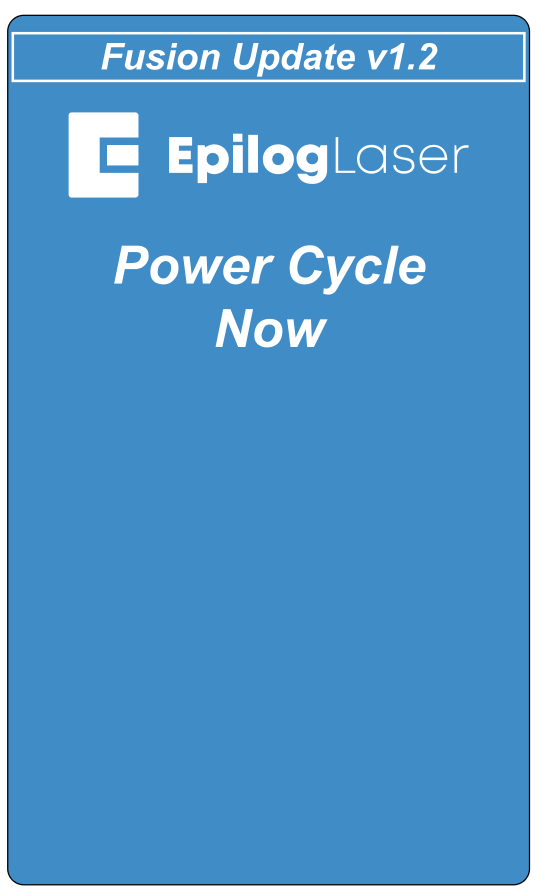
- Your firmware update should now be complete once the machine boots up.
Network Transfer
- With an Ethernet cable or Wi-Fi connection you may transfer the firmware update file (
.swu) directly from your computer to the machine. Please make sure the Ethernet cable is plugged in completely on both ends. - Press down both the joystick and Go/Stop button and power on the machine, waiting until the screen goes blank. This will cause the machine to boot into Update mode.
- Select “Update Network”.
- Open your web browser and in the search bar, type
http://followed by the IP address currently displayed on the screen next to “eth0:”. After the IP address, add:8080and hit “Enter”.Example:
http://192.168.3.4:8080Note: If there is no IP address next to “eth0:”, Ethernet transfer will not work.
- A screen will load on your computer’s web browser with a box to drag and drop the update file into.
-
Put the
.swufile in the upload box and this will initiate the update. The update should begin and may take up to 10 minutes, depending on the size of the update file. Keep track of the time the update begins. A dialog may pop up to notify you of the screen turning off for 5–10 minutes; if so, press “OK”.
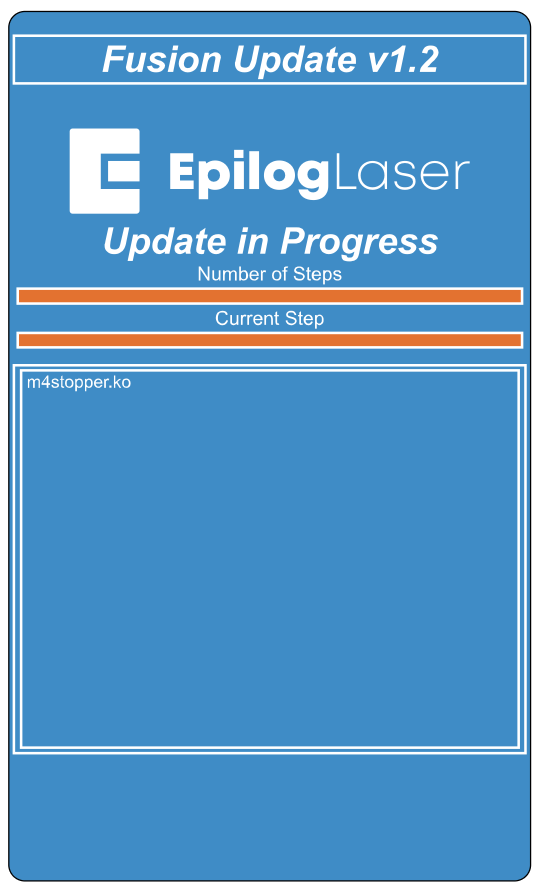
Important: The screen may turn off temporarily while updating, sometimes for several minutes. Please DO NOT turn off the machine in the middle of an update! The update is still active if LED light number 4 is flashing on the system status light panel located on the right side of the machine.
- Once the update has completed you will see “Success” on the screen. Press “Ok”.
- The next screen will prompt you to power cycle the machine in order to boot into the new firmware. Turn the machine off and then back on again.
- Your firmware should now be updated and be ready to use once the machine boots up.