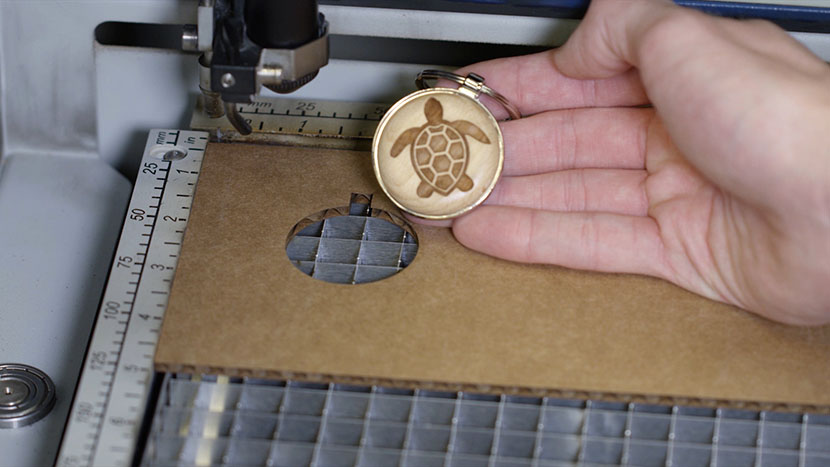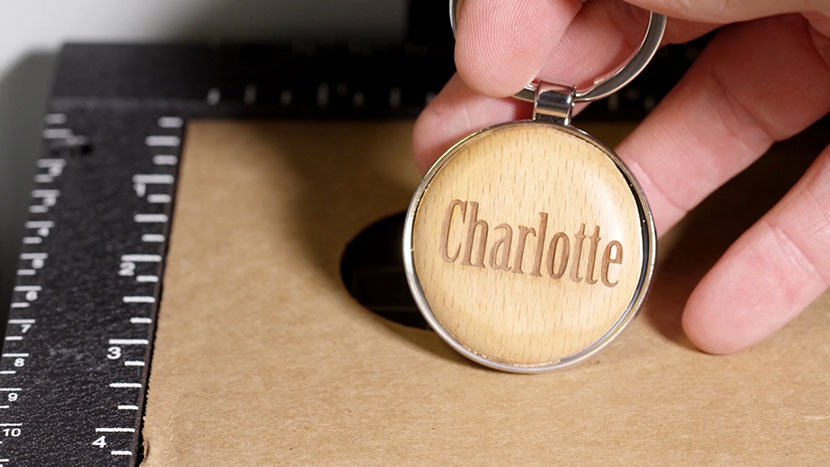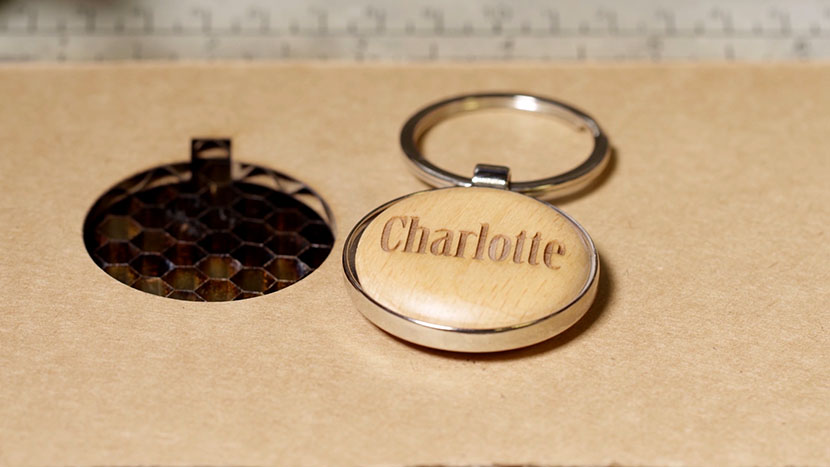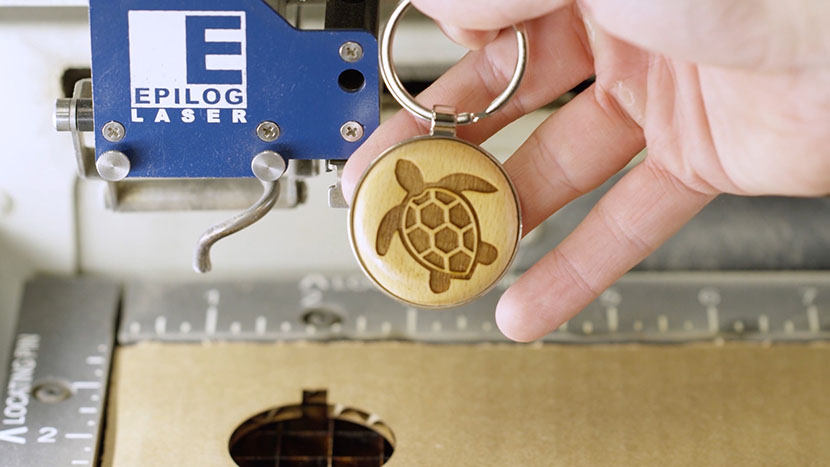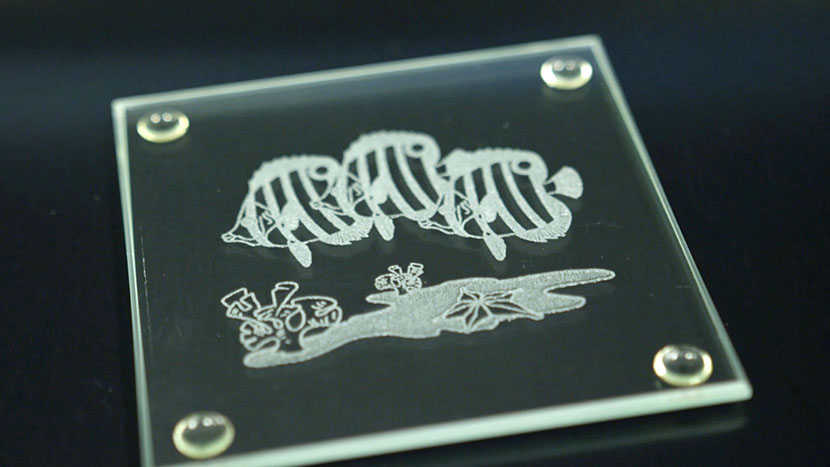
Setting Up Your Page We’ll start by creating a new file in CorelDRAW. Click on the Get Started option on your Welcome screen, then click the New Document button. You can also use the shortcut keys, Ctrl + N, for opening a new document. Now enter your page size. Enter (...)
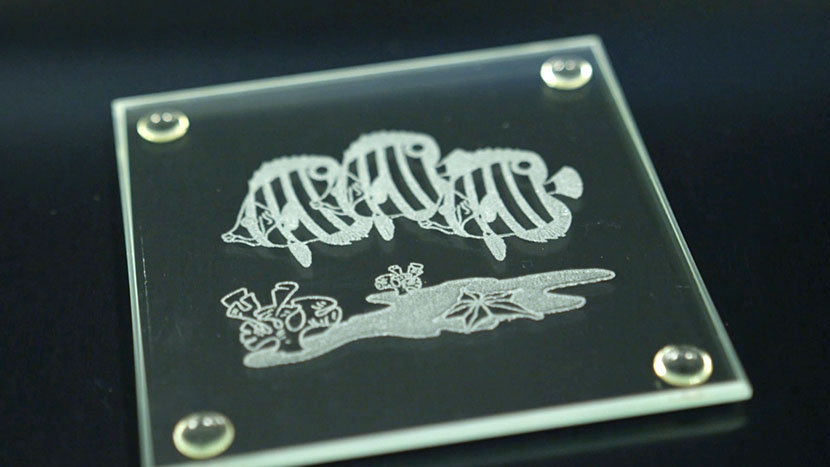
Glass Coaster
Setting Up Your Page We’ll start by creating a new file in CorelDRAW. Click on the Get Started option on your Welcome screen, then click the New Document button. You can also use the shortcut keys, Ctrl + N, for opening a new document. Now enter your page size. Enter (...)
Wood Keychain
Setting Up Your Page We’ll start by creating a new file. On the Welcome screen select the New Document button. You can also press Ctrl + N to create a new document. Now enter your page dimensions. Enter 4” for the page width and 4” for the page height, (...)
Wood Keychain
Setting Up Your Page We’ll start by creating a new file. On the Welcome screen select the New Document button. You can also press Ctrl + N to create a new document. Now enter your page dimensions. Enter 4” for the page width and 4” for the page height, (...)
Wood Keychain
Setting Up Your Page We’ll start by creating a new file in CorelDRAW. Click on the Get Started option on your Welcome screen, then click the New Document button. You can also use the shortcut keys Ctrl + N for opening a new document. Now enter your page (...)
Wood Keychain
Setting Up Your Page We’ll start by creating a new file in CorelDRAW. Click on the Get Started option on your Welcome screen, then click the New Document button. You can also use the shortcut keys Ctrl + N for opening a new document. Now enter your page (...)
Wood Keychain
Setting Up Your Page We’ll start by creating a new file in CorelDRAW. Click on the Get Started option on your Welcome screen, then click the New Document button. You can also use the shortcut keys Ctrl + N for opening a new document. Now enter your page (...)
Creating City Maps (CorelDRAW)
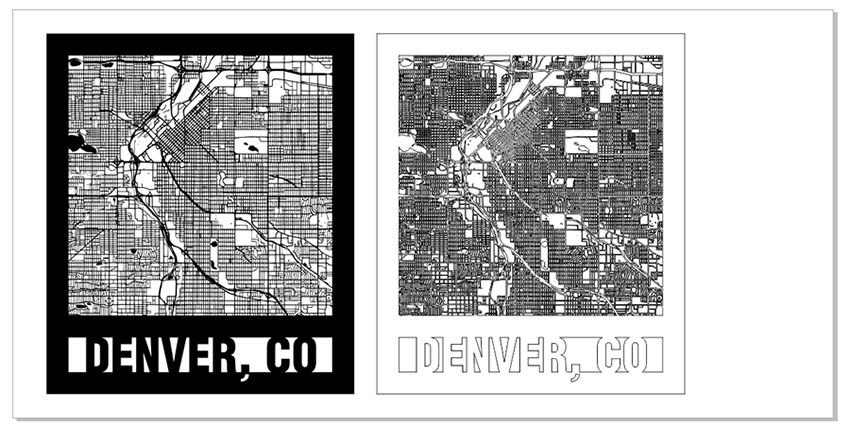
City Map Image Capture Start off by visiting snazzymaps.com to create a custom city map for laser engraving or cutting. Creating an account is not required, but if you are interested in creating different city maps for customers or friends, signing up will give you the ability to save map (...)
Creating City Maps (Illustrator)
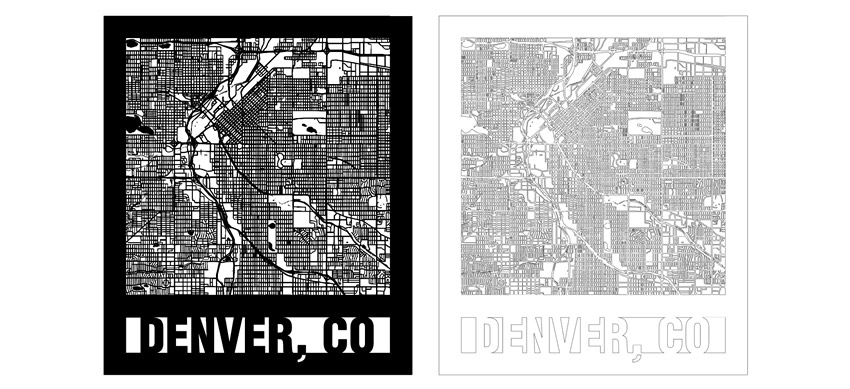
City Map Image Capture Start off by visiting snazzymaps.com to create a custom city map for laser engraving or cutting. Creating an account is not required, but if you are interested in creating different maps for customers or friends, signing up will give you the ability to save map locations (...)
Using PhotoLaser Plus
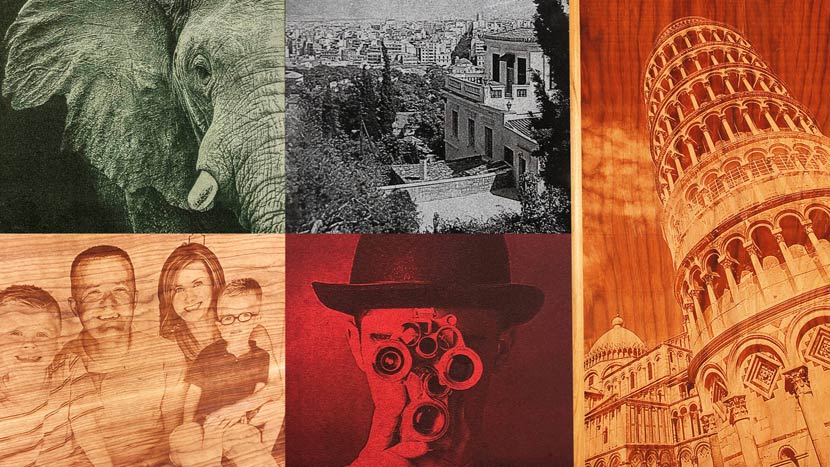
Prepare Photo Begin by importing a photograph into PhotoLaser Plus. Select the ‘Import’ option from the ‘File’ menu. Then select a photo. Now click on the work area to place the photo. Next, resize the image to match the engraving piece. In this example, our engraving piece is 6” x (...)
Use a Jig to Pre-Engrave an Item for Customization Later
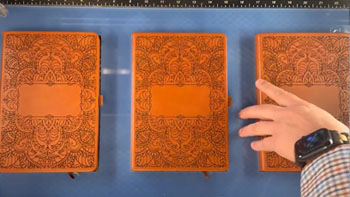
Setup the Artwork Here we are creating a jig to pre-engrave four leather notebooks. We’ll add customized names to each one later. The red lines are the outlines of the notebooks we’ll cut out in a jig. We’ll cut an arrow at the top left corner so (...)
Using Color Mapping in the Epilog Software Suite
It’s easy to color map with the Epilog Dashboard. Prepare the Artwork for Color Mapping For this file, we want to score the red numbers and cut out the blue outlines. Once the artwork is ready, Print the file to the laser. Everything has come over in a single process (...)