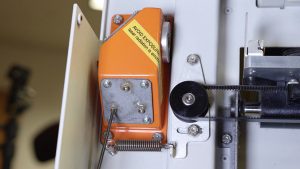
This guide covers calibrating the manual focus gauge on the FiberMark by finding the true focal point on a piece of anodized aluminum.
Parts Required
- None
Tools / Materials Required
- Manual Focus Gauge
- Small sheet of anodized aluminum
Setting the Manual Focus Gauge
Turn On the Engraver
Turn on the engraver and place a small piece of anodized aluminum in the upper left corner of the table.
Create a Test Job
Set up a job with a 2" x 2" black-filled box in the upper left corner of the page, not touching the edge or corner of the page.
Send the Job
Send it to the engraver as a raster job at 1200 DPI, using the recommended anodized aluminum settings.
Focus With the Current Gauge
Manually focus on the material using the manual focus gauge as it is currently set.
Start the Job
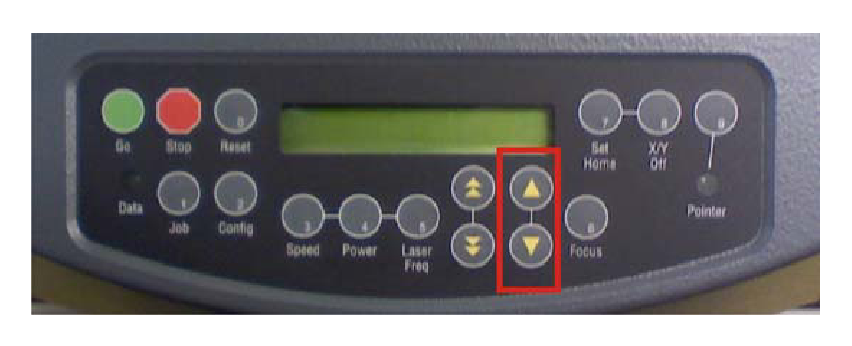
Start the job. Once it is running, press the Focus button. This enables the arrow keys without changing what the display shows.
Find the Best Focus
Use the small Up and Down arrow keys to move the table in small amounts while watching where the laser strikes the material. Aim for the darkest mark and the brightest, strongest sparks coming off the metal.
Stop the Job
When you have the darkest mark and the brightest sparks, press Stop once to stop engraving. Do not move the table.
Set the Focus Gauge
Loosen the two adjustment screws on the manual focus gauge, set it on the lens carriage and let its tip drop to the material (move the material under the gauge if needed). Retighten the two screws.
Gauge Calibrated
The manual focus gauge is now set to the correct focus distance for your engraver.