This article explains how to fix an Epilog print driver window that looks very small or blurry on a Windows 10 computer. The problem is usually caused by the computer’s display driver or display scaling settings, not by the Epilog driver.
Issue Summary
After upgrading to Windows 10, or after installing the Epilog print driver on a new computer, the driver Dashboard window that holds the engraving settings appears very small or blurry.
Fix 1: Update the Video Driver
In many cases the computer is missing the driver for its graphics adapter, or is using a limited driver supplied by the computer manufacturer. Installing the current, full-featured driver from the graphics chip manufacturer usually fixes the display.
- Intel: downloadcenter.intel.com
- NVIDIA: nvidia.com/page/support.html
- AMD: support.amd.com/en-us/download
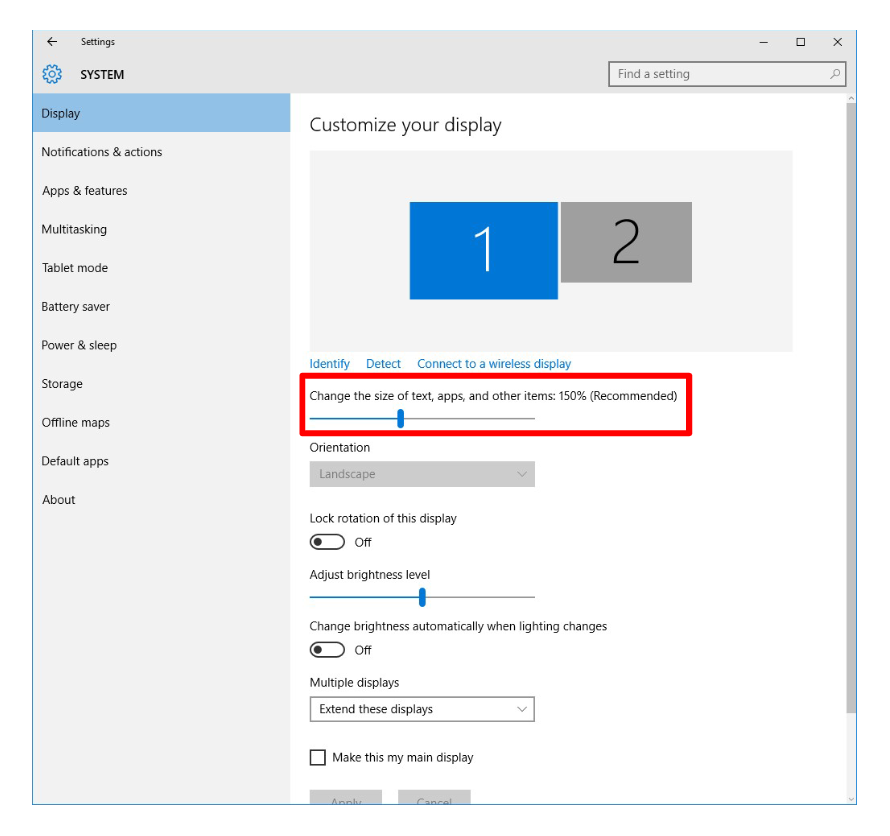
Fix 2: Reset the Display Scaling
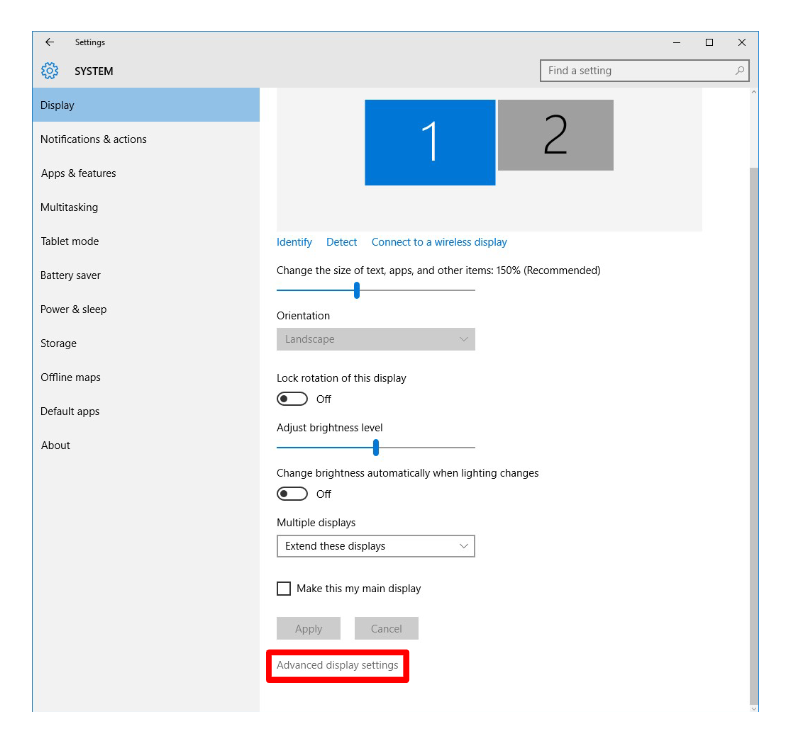
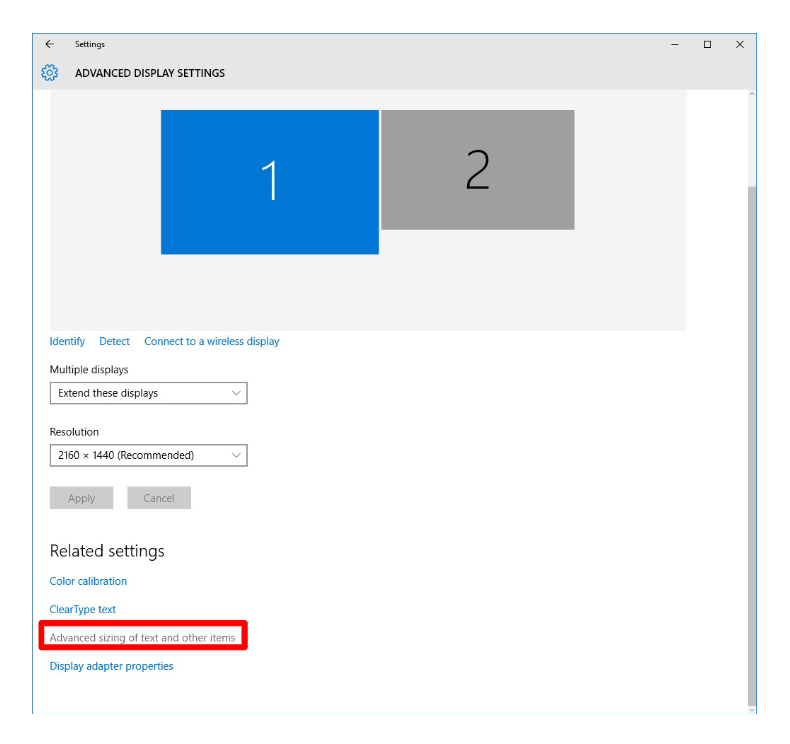
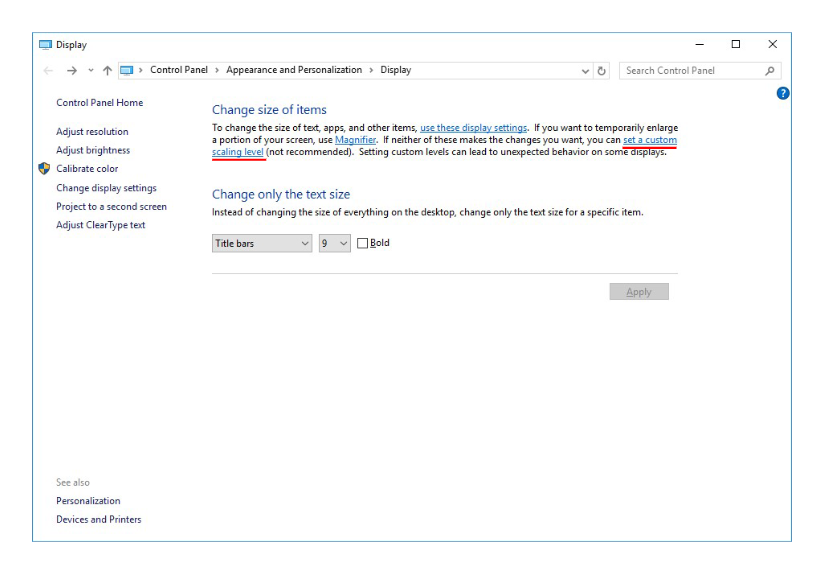
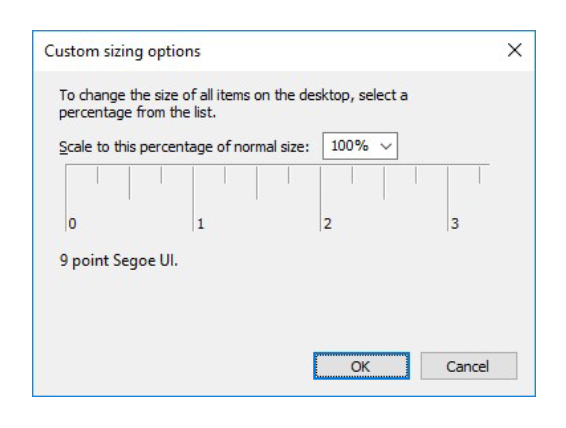
If the full-featured video driver is already installed, the computer may still have a custom scaling (DPI) setting carried over from an earlier version of Windows. Reset it to 100%, then set the size again.