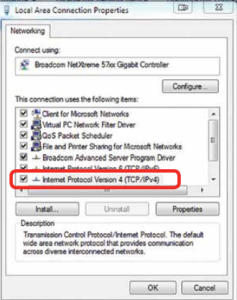
To create a direct Ethernet connection to your Epilog laser, you will need to assign a static IP address to your computer. The TCP/IP port address you set on the PC is not the same as the laser’s IP address. This guide explains how to configure the TCP/IPv4 settings on Windows 11.
TCP/IP Port Setup
-
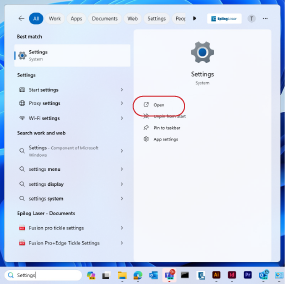
In the search bar at the bottom of the screen, type Settings.

-
Click Open.
-
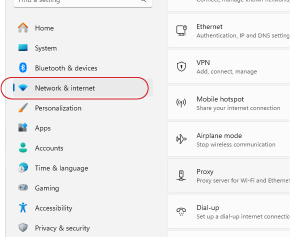
Click Network and Internet.
-
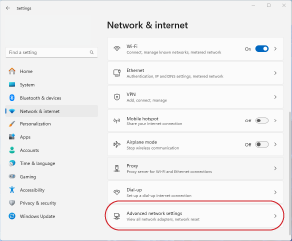
Click Advanced Network Settings.
-
Select the drop-down arrow next to the laser’s Ethernet connection.
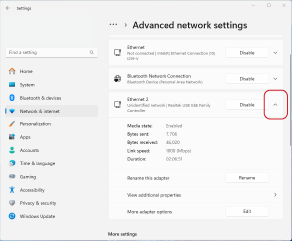 Note: If you see multiple adapters, look for the one labeled Unidentified Network. You can unplug and replug the Ethernet cable to identify the laser’s connection.
 -
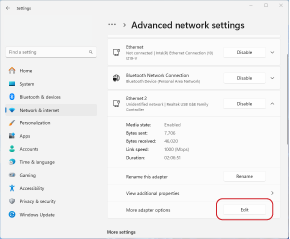
Next to More Adapter Settings, click Edit.
-
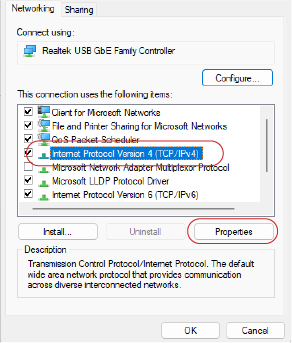
Select Internet Protocol Version 4 (TCP/IPv4), then click Properties.
-
Choose Use the following IP address and enter 192.168.3.3 as the IP address.
Note: The final octet must differ from the laser’s IP address—this is intentional.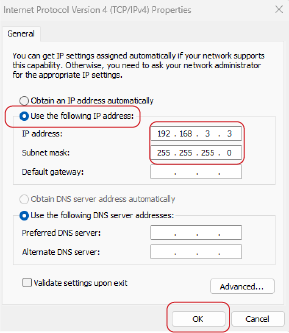
-
Set the Subnet mask to 255.255.255.0, then click OK to save the settings.