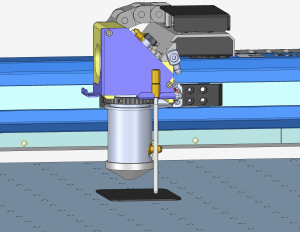
The Focus Calibration Wizard allows the laser system to automatically determine the optimal focal height for the installed lens. This process engraves a test pattern on anodized aluminum and identifies the focus position that produces the brightest mark. Running the calibration ensures accurate engraving and cutting performance.
Running the Focus Calibration Wizard
-
Open the Settings Menu
Click the Gear icon in the upper-right corner of the display.
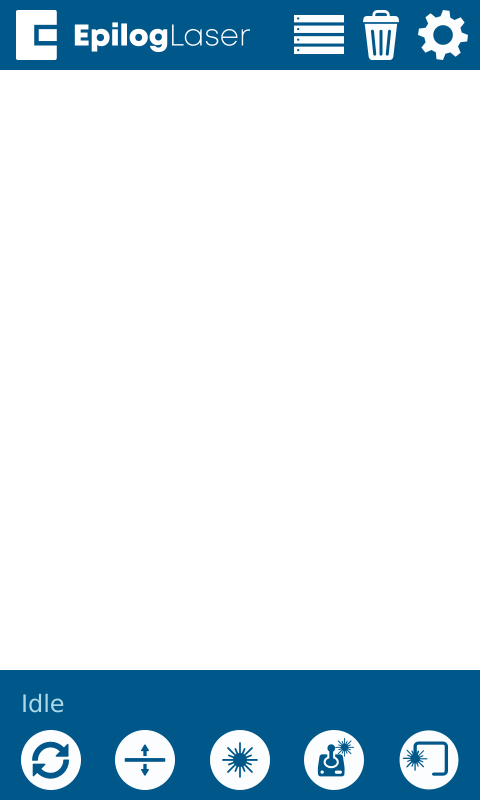
Figure 1: Access the settings menu by selecting the gear icon. -
Select Focus Settings
Select Focus from the menu.
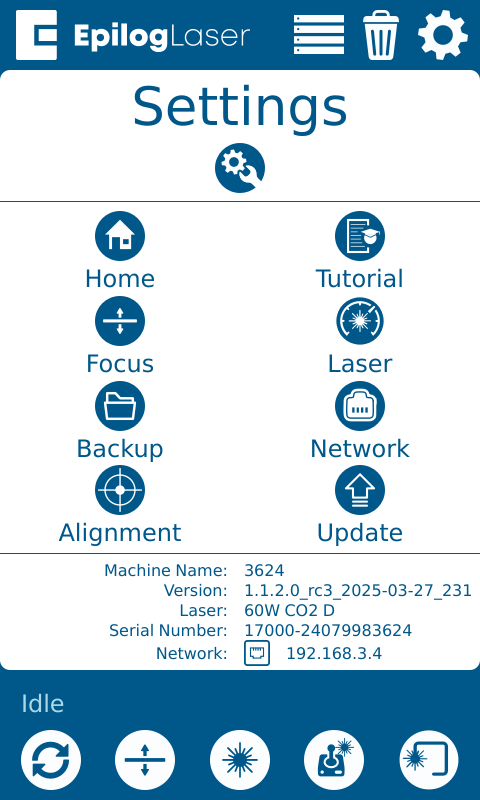
Figure 2: Select the Focus option. -
Select the Lens Aperture
If prompted by the calibration wizard, select the lens aperture used by your machine.
If the wizard does not ask for this information, you may skip this step.-
Need help determining your lens aperture?
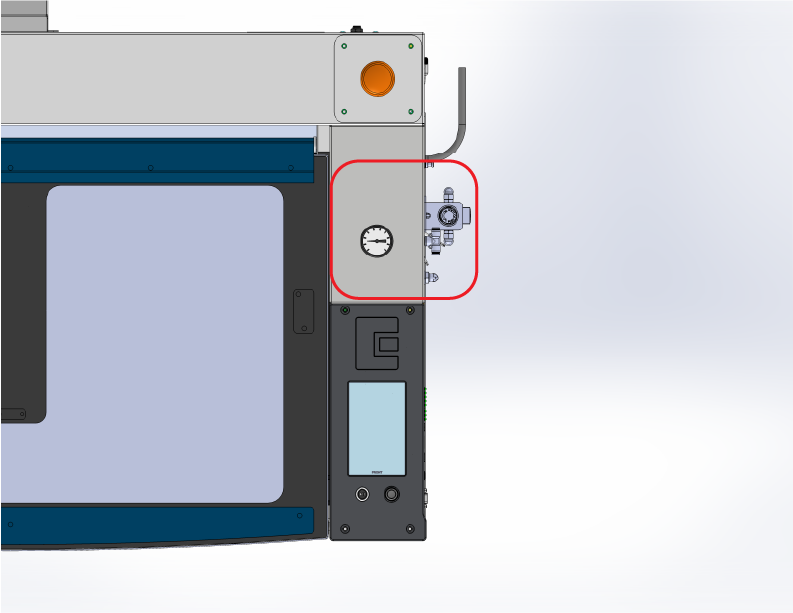
Look for a regulator to identify 1.0″ units. 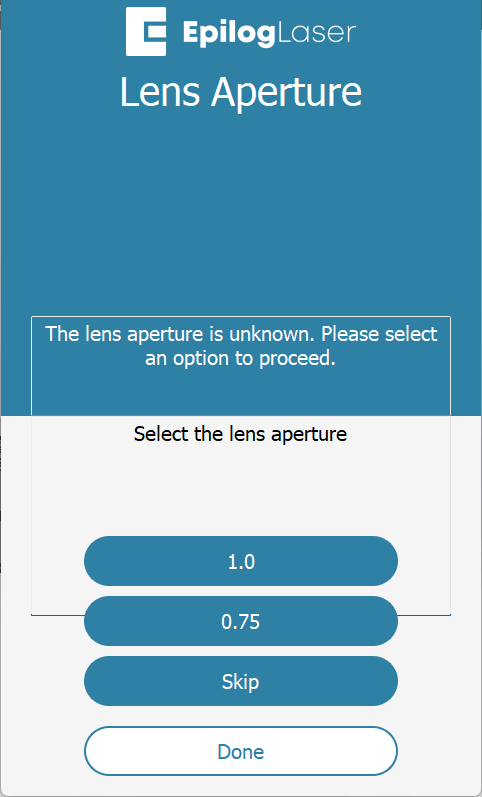
Select the appropriate aperture on the display. Note: Check for a pressure gauge on the right side. If present, your machine uses a 1.0″ aperture.
-
-
Select CO₂ Focus
Choose CO2 Focus to begin the focus calibration wizard.
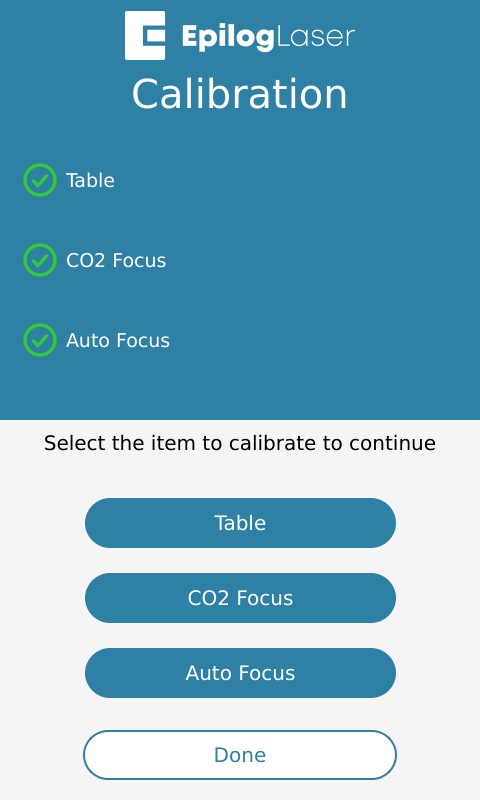
Figure 3: Select the CO₂ Focus calibration option. -
Start the Calibration Wizard
Click Proceed to continue.
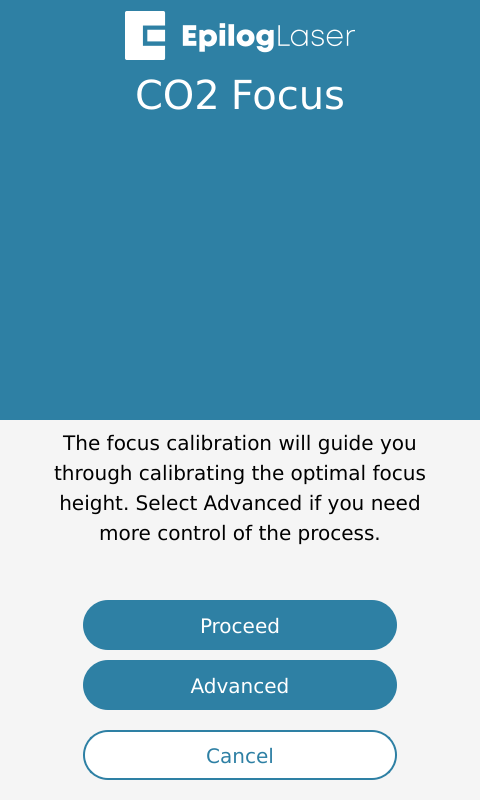
Figure 4: Press Proceed to begin the calibration workflow. -
Select Standard Calibration
Select Standard to run the automated focus calibration.
Note: Use the standard focal height lens. Accessory lenses such as the 4″ lens require the Advanced Workflow.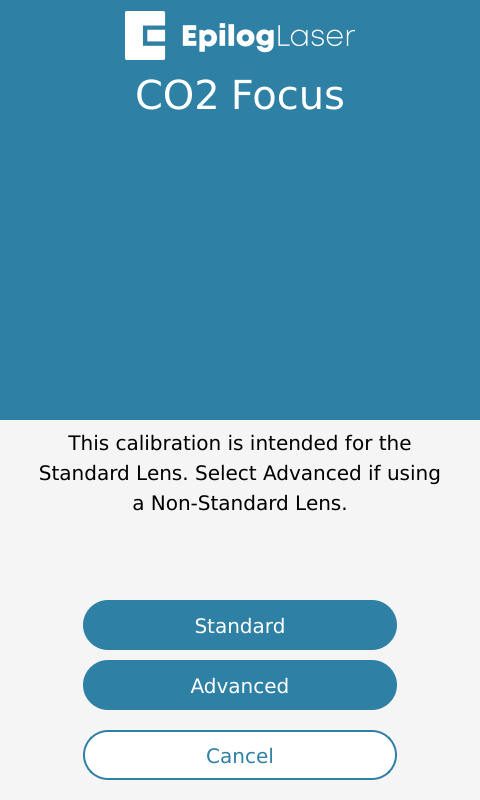
Figure 5: Select the Standard calibration option. -
Insert Calibration Material
Insert a piece of anodized aluminum into the machine and press Trace.
Note: Use 0.025″ thick anodized aluminum, the same material used for camera calibration and the default demo job.
Figure 6: Place the anodized aluminum in the machine and run the trace outline. -
Align the Material
Ensure the material is positioned directly under the traced outline, then click Proceed.
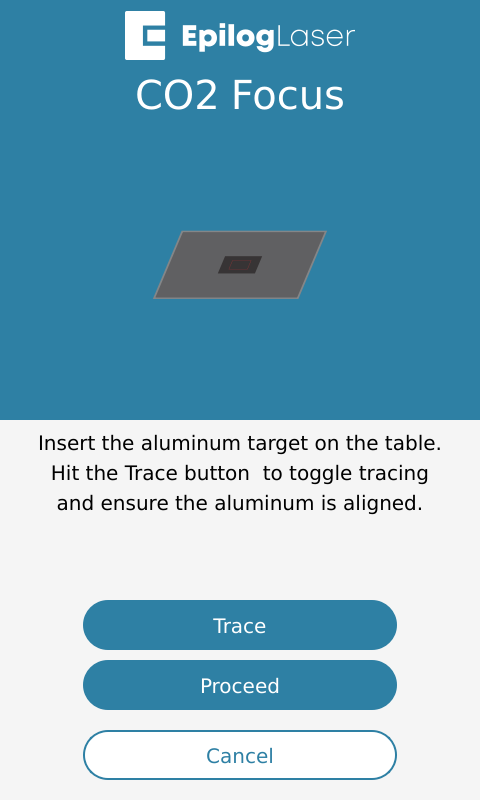
Figure 7: Position the material inside the traced area. -
Prepare the Job
Press Prepare, then click Proceed.
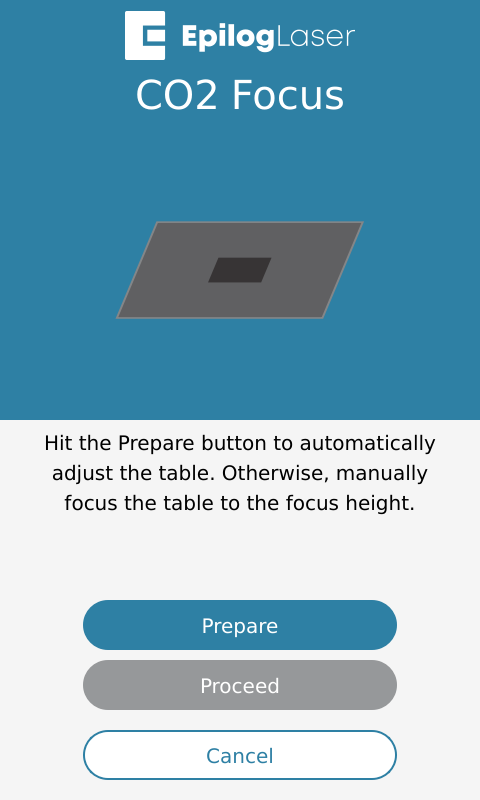
Figure 8: Prepare the calibration job. -
Start the Calibration Job
Click Proceed to begin the engraving job.
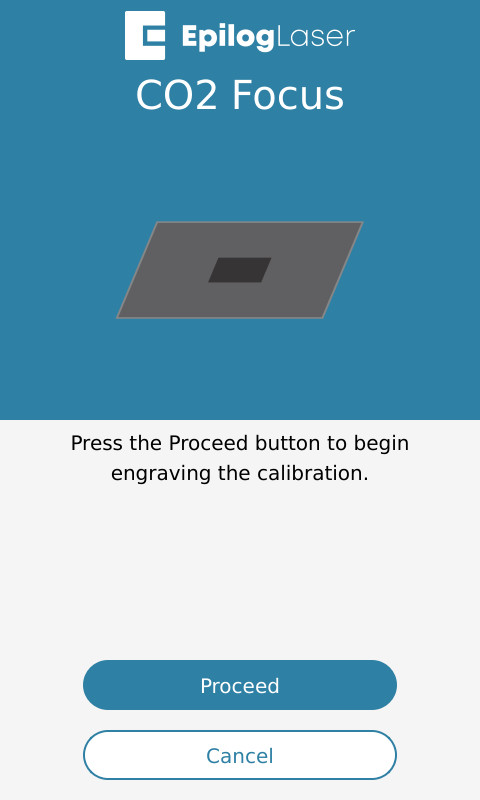
Figure 9: The machine will begin engraving the calibration pattern. -
Wait for the Job to Finish
Allow the laser to complete the calibration engraving.
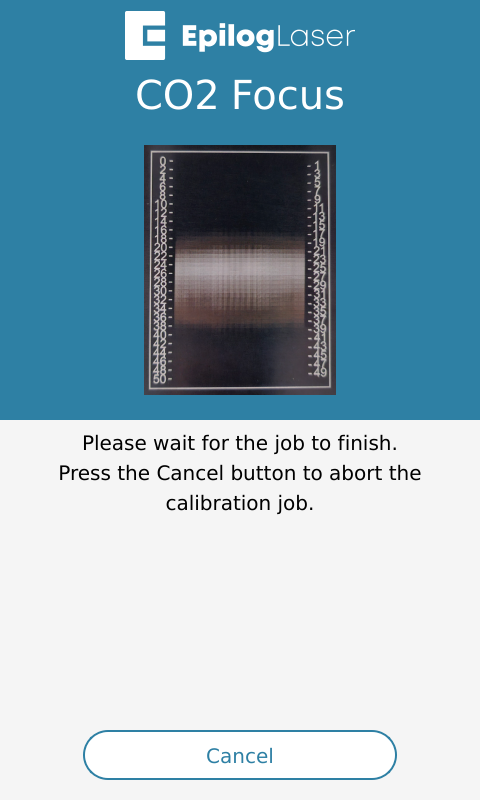
Figure 10: The calibration engraving will complete automatically. -
Select the Brightest Mark
Find the number corresponding to the brightest engraving mark on the test pattern and enter it on the display.
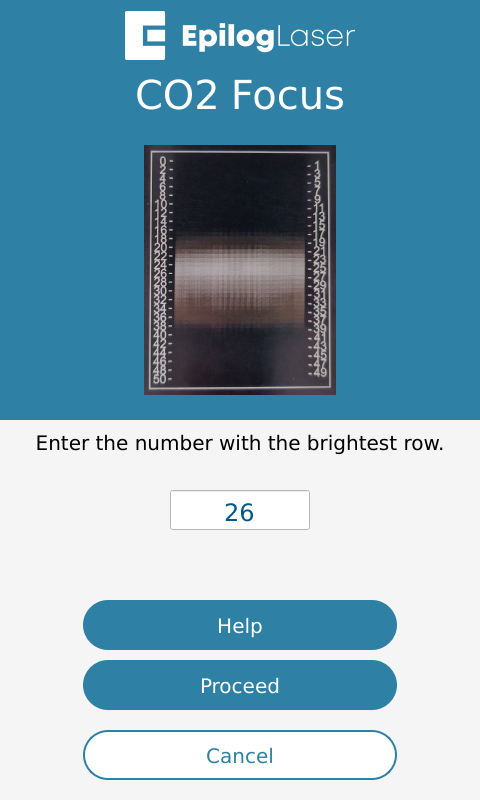
Figure 11: Choose the number that corresponds to the brightest mark. -
Calibration Complete
The focus calibration process is now complete.
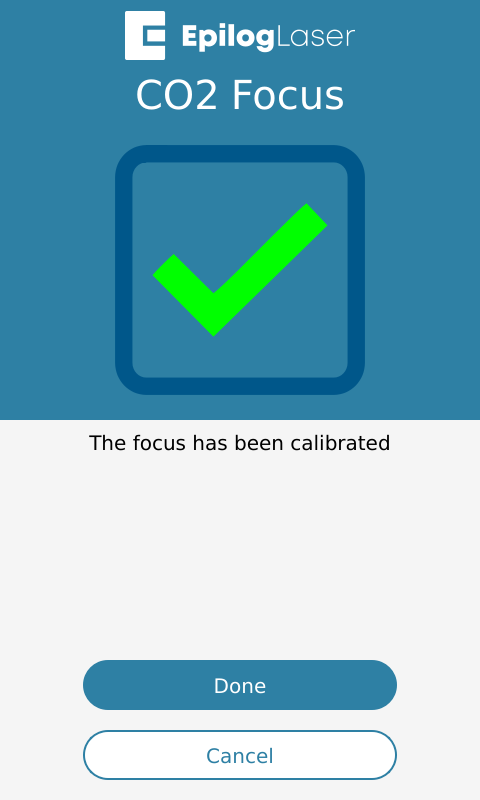
Figure 12: The machine confirms the calibration is complete.
Advanced Workflow
The Advanced Workflow is intended for users who cannot complete the standard calibration process, are using an accessory lens such as a 4-inch lens, or prefer a manual calibration method. This option provides greater control over the calibration process by allowing manual adjustment of focus settings and engraving parameters.
During the advanced calibration procedure, you will select custom speed and power settings, enter the material thickness, and place your test material in the machine. The laser will engrave a 2×2 pattern while you manually raise and lower the engraving table. By adjusting the focus height during the job, you can identify the position that produces the brightest engraving mark. This method allows fine-tuning of the focal point and is especially useful when calibrating non-standard lenses.