When working with Adobe Illustrator, frequent updates can sometimes alter default settings or introduce changes that interfere with how vector paths are interpreted. This guide walks through the key settings that affect vector recognition.
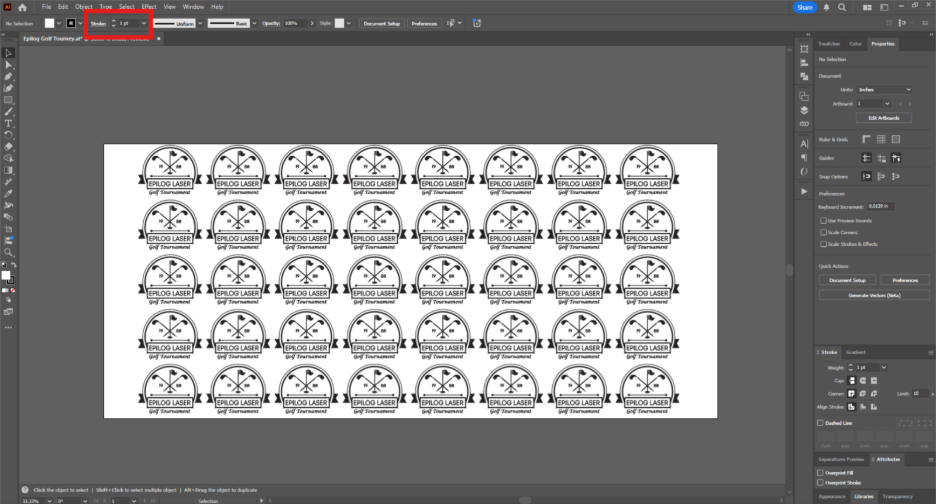
Setting Line Weight, Stroke, or Thickness
The Epilog Dashboard separates raster and vector processes by the line weight. Any line less than or equal to these weights will be seen as a vector line; anything greater may be seen as a raster line.
| Measurement Unit | Vector Threshold (Max Weight) |
|---|---|
| Inches | 0.001 in |
| Points | 0.072 pt |
| Millimeters | 0.025 mm |
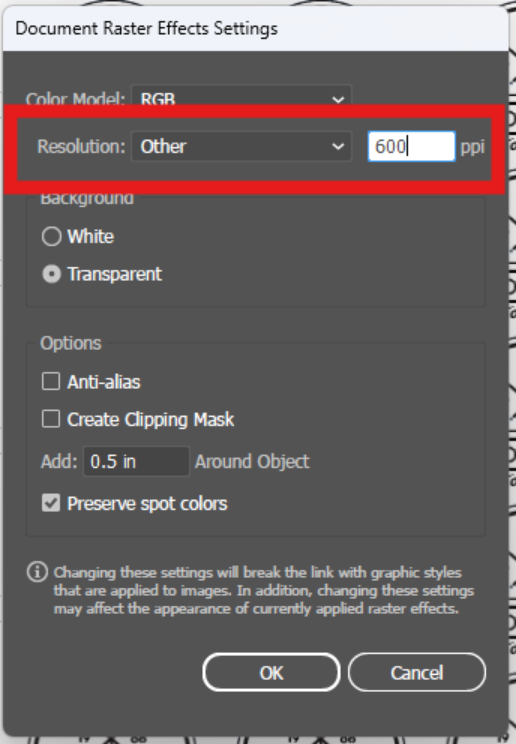
Document Raster Effects Settings
This setting controls the resolution of the artwork. Since vector lines are generally very thin, a lower resolution may result in the lines not being seen by the Dashboard. If lines are not recognized, try increasing the resolution:
Path: Effect > Document Raster Effects Settings > Resolution > Other > 600ppi
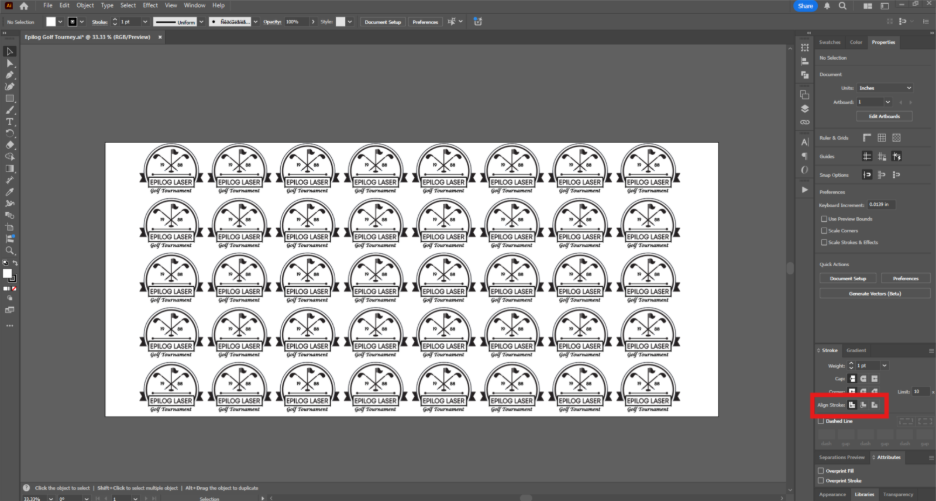
Aligning Stroke to Center
To be recognized as a vector line in Illustrator, strokes must be aligned specifically to the center of the path.
Setting Print Resolution
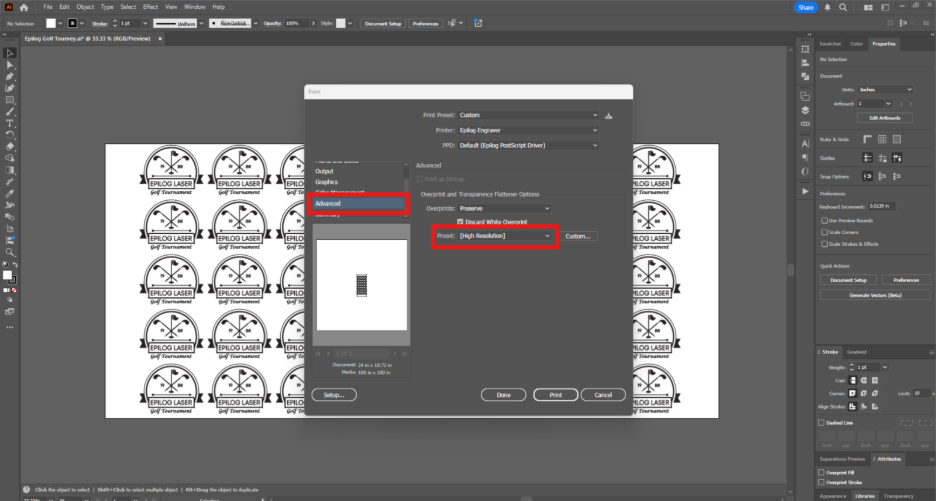
If vector lines are still not appearing in the Dashboard, try increasing the resolution of the print output itself via the Print dialog:
Path: Control + P (or File > Print) > Advanced > Preset > [High Resolution]