Estimated time: 5 minutes • Skill: Basic
Touchscreen calibration ensures accurate touch response when selecting options and settings on the display. This procedure is rarely required and should only be performed if the touchscreen is registering incorrect inputs or responding inconsistently.
Touchscreen Calibration Procedure
-
Open the Settings menu.
At the display panel, press the gear icon in the upper-right corner of the screen to open the Settings menu.
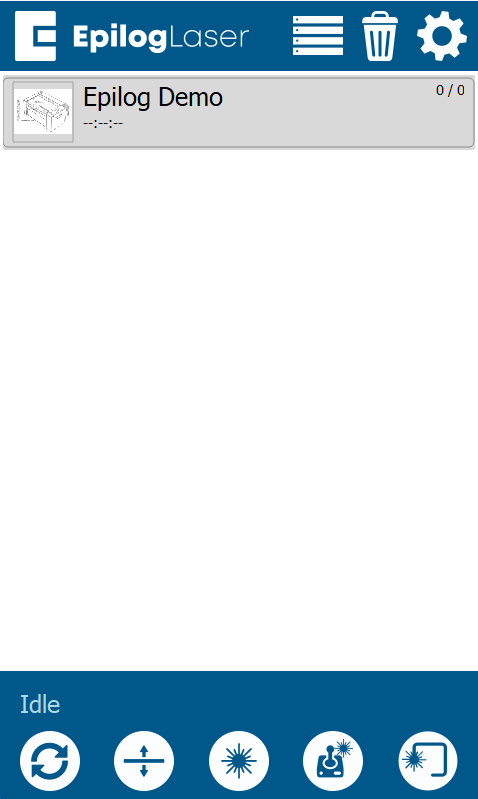
Figure 1: Select the gear icon to access the Settings menu. -
Access the Advanced Settings menu.
Press and hold the word Settings on the touchscreen until the Advanced Settings menu appears.
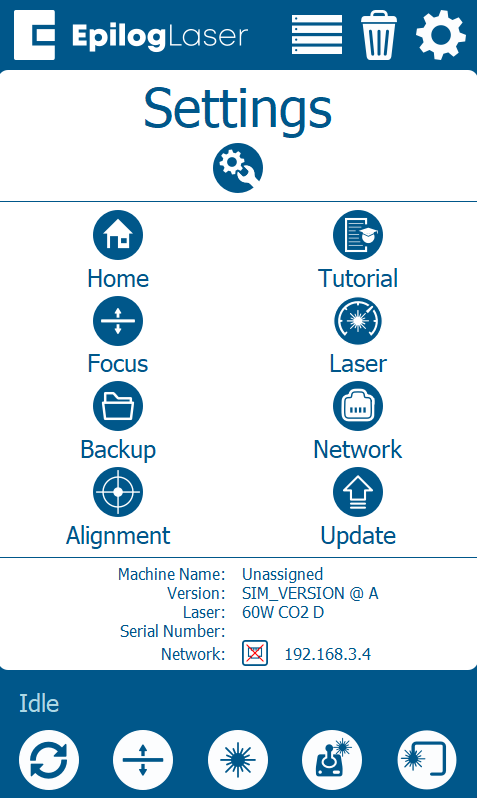
Figure 2: Press and hold “Settings” to open the Advanced Settings menu. -
Select Test Display.
From the Advanced Settings menu, select Test Display.
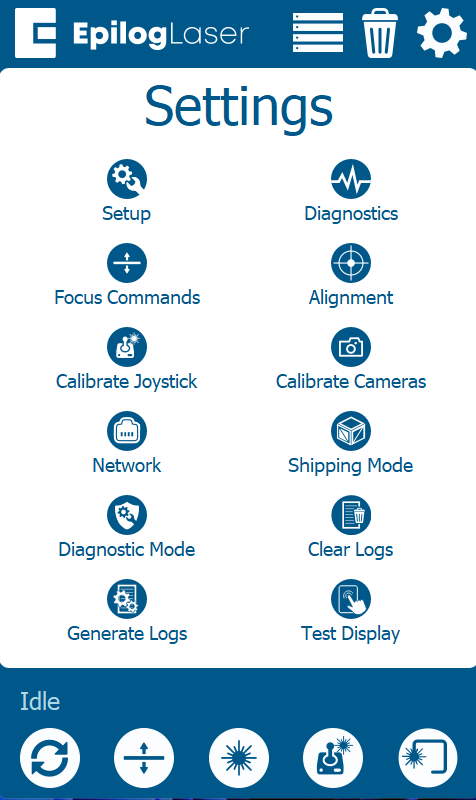
Figure 3: Choose Test Display” from the Advanced Settings menu. -
Test Display.
Here you can press on quadrants of the display to test the touchscreen. As you press on areas of the display the text color will change to indicate where the screen is registering input.
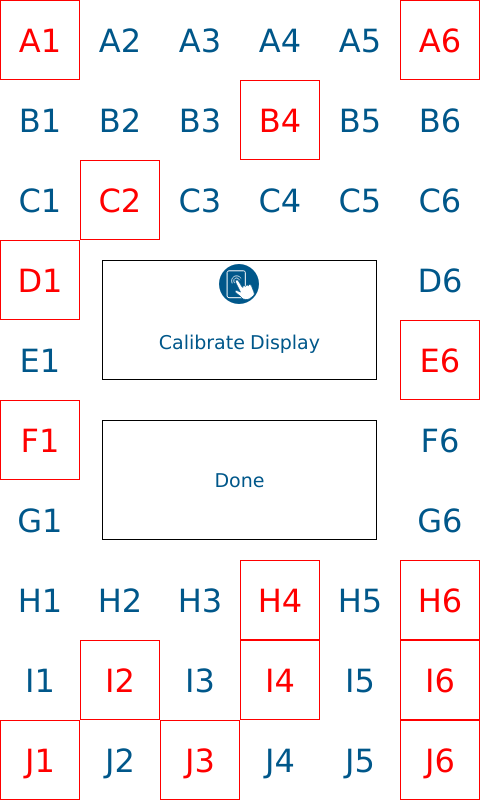
Figure 4: Testing the touchscreen response. -
Calibrate Display.
Press Calibrate Display. The engraver will prompt you to press a target displayed in each corner of the touchscreen.
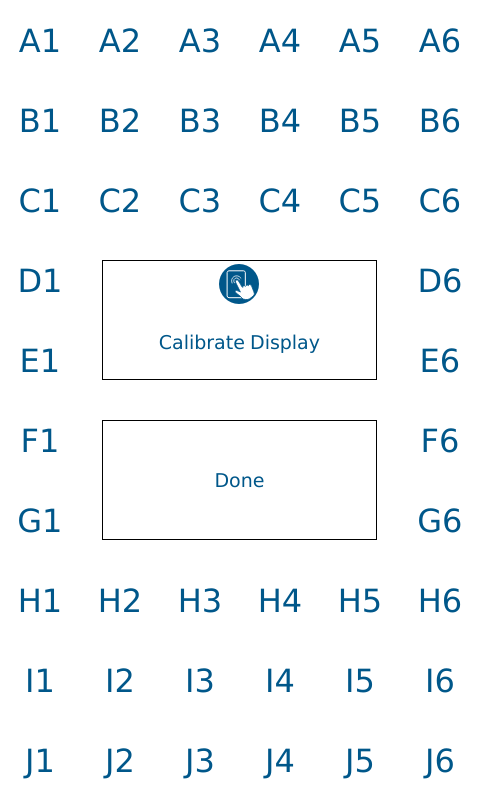
Figure 5: Calibration targets will appear one at a time in each corner of the display. -
Press the upper-left target.
When prompted, press the calibration target located in the upper-left corner of the display.
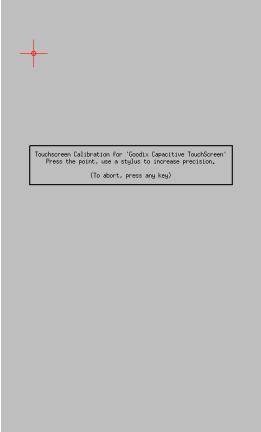
Figure 6: Press the target in the upper-left corner. -
Press the upper-right target.
Press the calibration target located in the upper-right corner of the display.
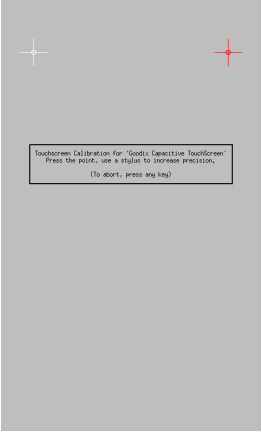
Figure 7: Press the target in the upper-right corner. -
Press the lower-left target.
Press the calibration target located in the lower-left corner of the display.
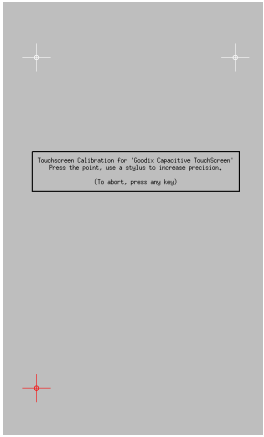
Figure 8: Press the target in the lower-left corner. -
Press the lower-right target.
Press the calibration target located in the lower-right corner of the display.
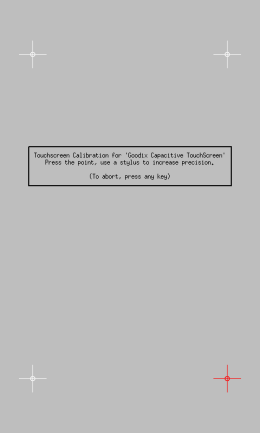
Figure 9: Press the target in the lower-right corner. -
Complete calibration.
After the final target is pressed, the system will automatically return to the Test / Calibrate Display menu. There is no confirmation or success message displayed.