Inhoudsopgave
- Inleiding
- Veiligheid
- Aan de slag
- Setting Up Your Laser System
- Unpacking the Fusion Ascent
- Choose Where to Locate the System
- Connecting the Exhaust
- Connecting Electrical Power
- Connecting the Laser to Your Computer
- Power on the Laser
- Set the IP Address
- Install the Software Suite & Set Up Your Laser
- Sign Up for Driver Updates and Register Your System
- Configuratiescherm
- System Features
- Machine Maintenance
- Specifications
- Technical Support
- Warranty
- Materiaal instellingen
- Calibration
Jog Menu
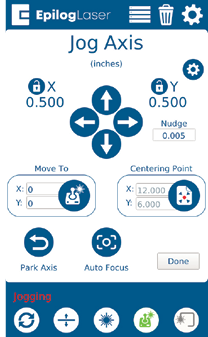
Access the Jog Menu by pressing the Jog key, which will turn green when active. The Jog Menu allows you to adjust the current X and Y axis positions of the laser head. You may change the current position of the laser head either using the Joystick, or by entering precise coordinates under “Move To”.
Locking Coordinates
The X and Y coordinates may be locked and unlocked to help you fine-tune the laser head’s position. Tap the lock icons to lock or unlock the X and Y coordinates. When only the X coordinate is locked, the joystick will only move the laser head in the Y direction (toward the front or back of the machine). When only the Y coordinate is locked, the joystick will only move the laser head in the X direction (left or right). If both the X and Y coordinates are locked, the laser head will not move until they are unlocked.
Move To
Enter X and Y coordinates to move the laser to a specific location on the table.
Centering Point
Pressing this button tells the laser where you want the center of your artwork to be. While jogging the laser head across the table, use the red dot pointer to help identify the center point of your engraving. The Centering Point feature is used with Center-Engraving enabled jobs. To return to the Centering Point you have previously set, long-press the Centering Point button and the laser head will return to that point.
Park Axis
Park Axis returns the laser head to the default home position in the upper left corner of the table.
Home Axis
The Home Axis button homes the laser head and then returns it back to the home position, the default every time you turn on the machine.
Nudge
The Nudge arrows allow you to fine-tune the position of the laser down to a thousandth of an inch. To change the increments you want to nudge the laser’s position, click the text box under “Nudge” and enter an amount.
Auto Focus
The Auto Focus button is in the bottom center of the Jog Axis menu screen. When you have jogged the lens carriage above your material, press the Auto Focus button to use the plunger Auto Focus. The table will rise until the material touches the plunger, then set the table to the correct height. Your job should now be in focus.