Have you ever received an engraving file without the font files included or the fonts are in a bitmap format? Every engraver knows the frustration of trying to match up a font to the sample that you receive from a customer. Corel has a new feature that will allow you (...)
Layering a Clip Art Image
In our 3D acrylic Sample Club download, we engraved parts of a clip art image on five cut pieces of acrylic. When placed together, the engraved acrylic creates a 3D effect because of the different levels of each engraving. In this article we’re going to show you how you can (...)
Creating a 3D Effect With the Laser on Acrylic and Glass
1) This 3D effect will work for any block style font and many other types of shapes, but for this exercise we are going to apply the effect to the letter “E”. Start with a capital letter “E” to the specifications below. Font: Arial Black Size: 310 pt Convert to (...)
Everything You Wanted to Know about Fonts…and Then Some!
Regardless of your design program, you’re likely faced with a myriad of fonts to select from when you’re creating a design. But how do you choose fonts? What types of fonts go with what kind of designs? How can you manipulate text and fonts to create appealing visuals? Read on (...)
Make Your Own FontBot
What is a FontBot? It’s a design you create from the letters and characters of a specific font. Designers have come up with all kinds of amazing robots and other creations using fonts, but what will yours look like? We’ll be giving a quick demonstration on how to create your (...)
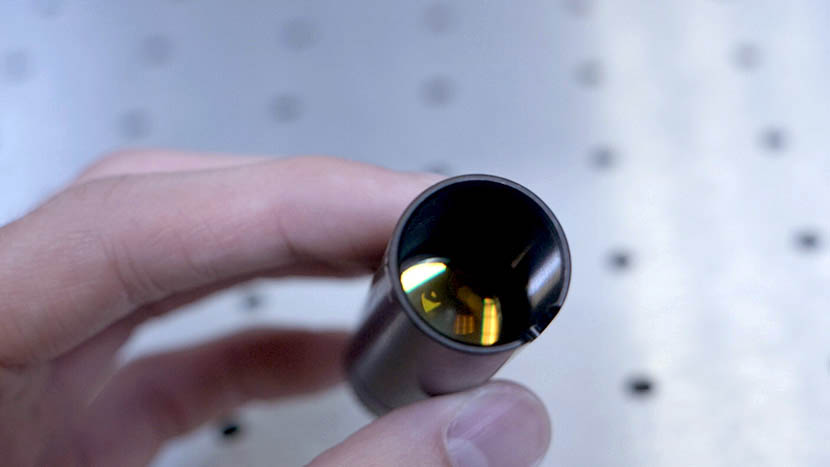
Focus Lens 101
This Technical Library article discusses the purpose of the focus lens as well as guidelines for using lenses of different sizes for various projects. What does a focus lens do? A laser beam emanating from the laser tube is typically around one-quarter of an inch (240 thousandths) in diameter. This (...)
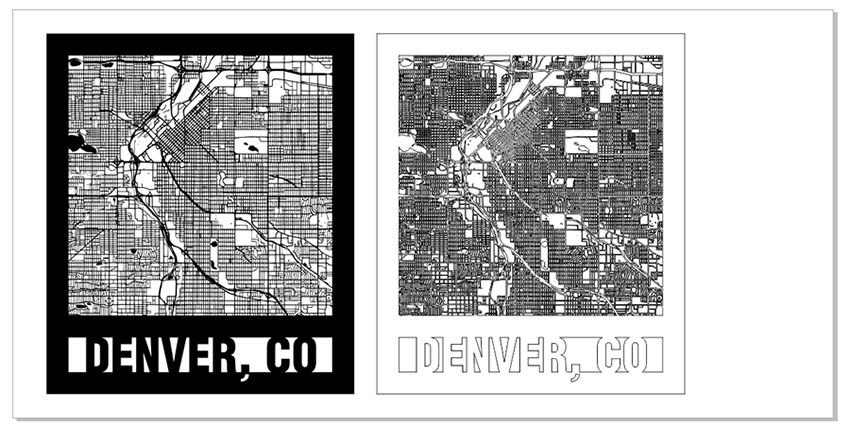
Creating City Maps (CorelDRAW)
City Map Image Capture Start off by visiting snazzymaps.com to create a custom city map for laser engraving or cutting. Creating an account is not required, but if you are interested in creating different city maps for customers or friends, signing up will give you the ability to save map (...)
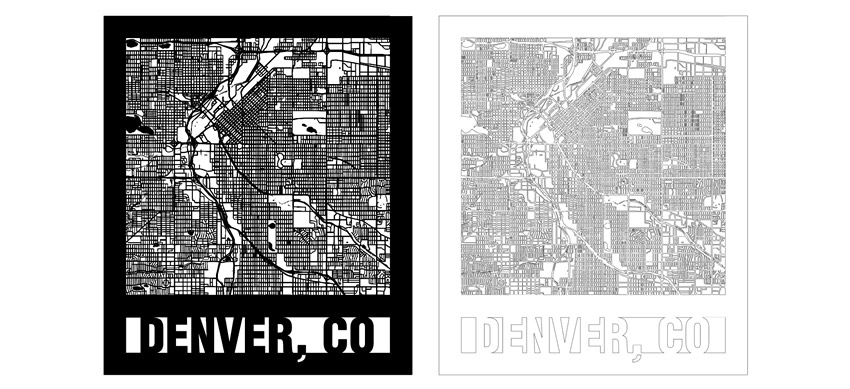
Creating City Maps (Illustrator)
City Map Image Capture Start off by visiting snazzymaps.com to create a custom city map for laser engraving or cutting. Creating an account is not required, but if you are interested in creating different maps for customers or friends, signing up will give you the ability to save map locations (...)
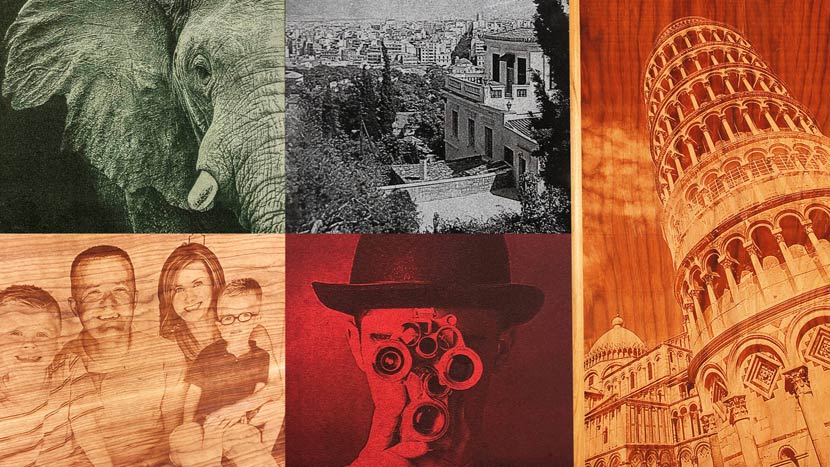
Using PhotoLaser Plus
Prepare Photo Begin by importing a photograph into PhotoLaser Plus. Select the ‘Import’ option from the ‘File’ menu. Then select a photo. Now click on the work area to place the photo. Next, resize the image to match the engraving piece. In this example, our engraving piece is 6” x (...)
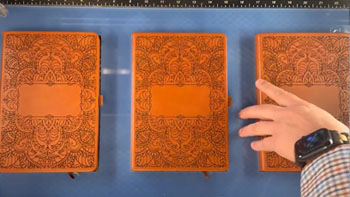
Use a Jig to Pre-Engrave an Item for Customization Later
Setup the Artwork Here we are creating a jig to pre-engrave four leather notebooks. We’ll add customized names to each one later. The red lines are the outlines of the notebooks we’ll cut out in a jig. We’ll cut an arrow at the top left corner so (...)
Driver and Firmware Downloads
You can find the latest versions of Epilog Laser’s driver and firmware software available for download at www.epiloglaser.com/support/drivers/. To stay informed when a new driver version is released, join the Driver Notification mailing list located on that page.
Using Color Mapping in the Epilog Software Suite
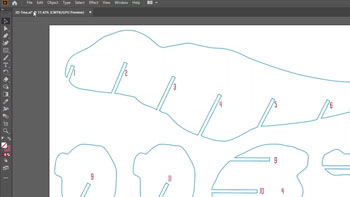
It’s easy to color map with the Epilog Dashboard. Prepare the Artwork for Color Mapping For this file, we want to score the red numbers and cut out the blue outlines. Once the artwork is ready, Print the file to the laser. Everything has come over in a single process (...)