Understanding the Copies Feature
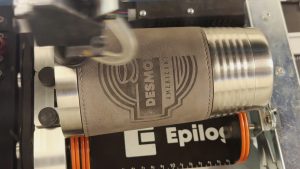
The Copies feature is designed to replicate your entire design multiple times within a single job.
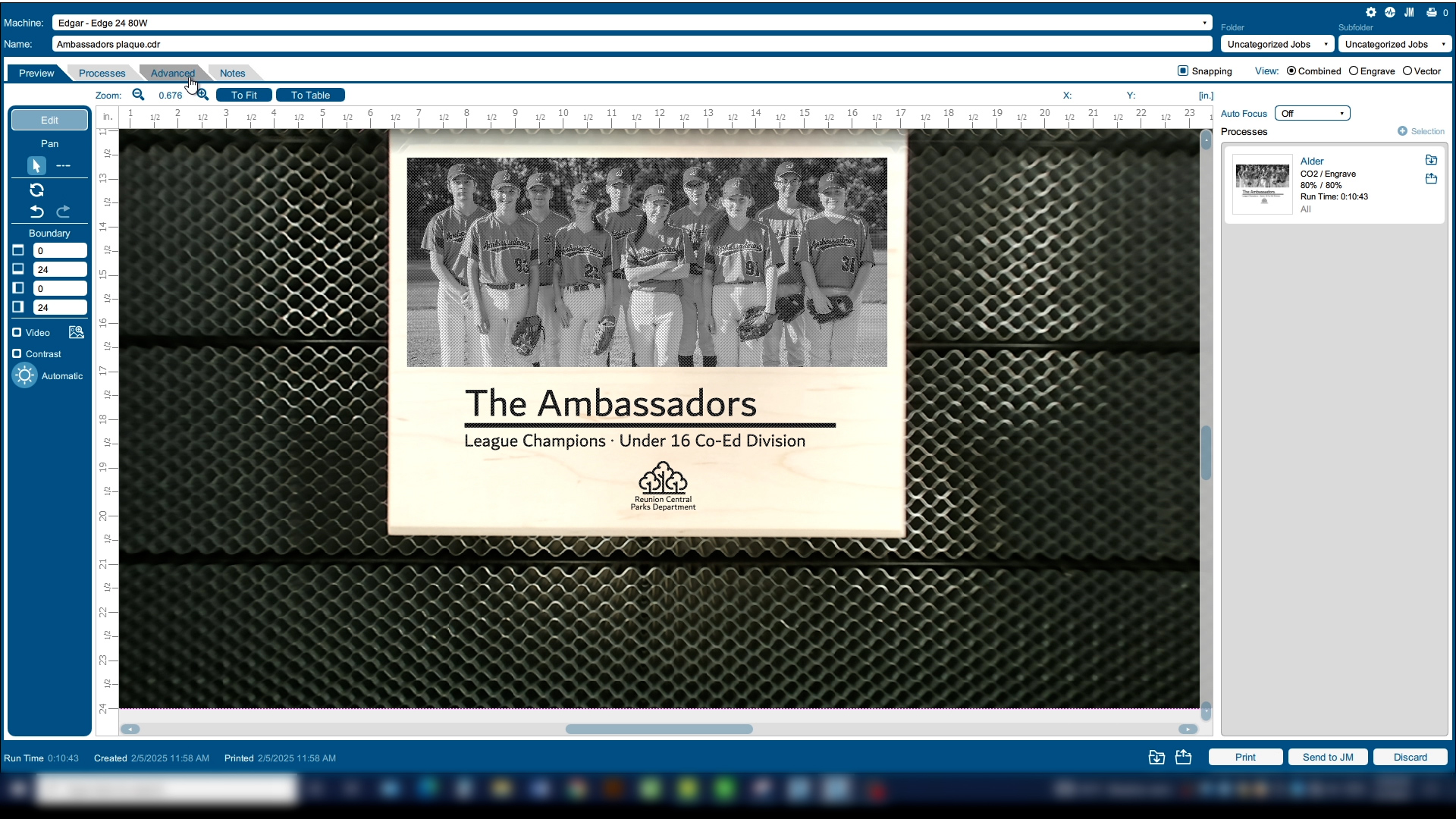
In this case, it will run the wood plaque two times. This is especially useful when you need additional depth to your engraving.
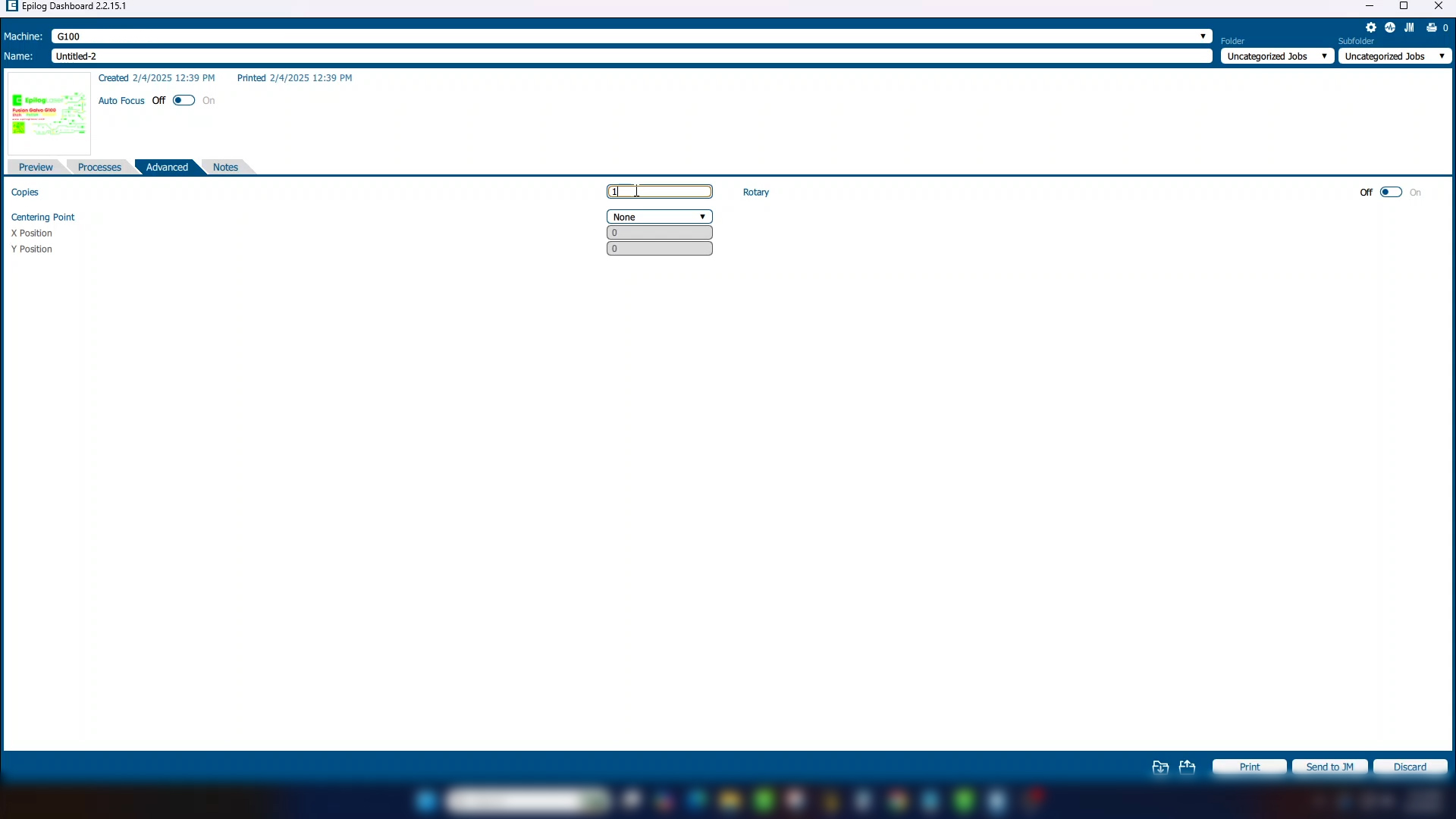
To change the number of copies, go to the Advanced Tab and set your number of Copies.
Understanding the Cycles Feature
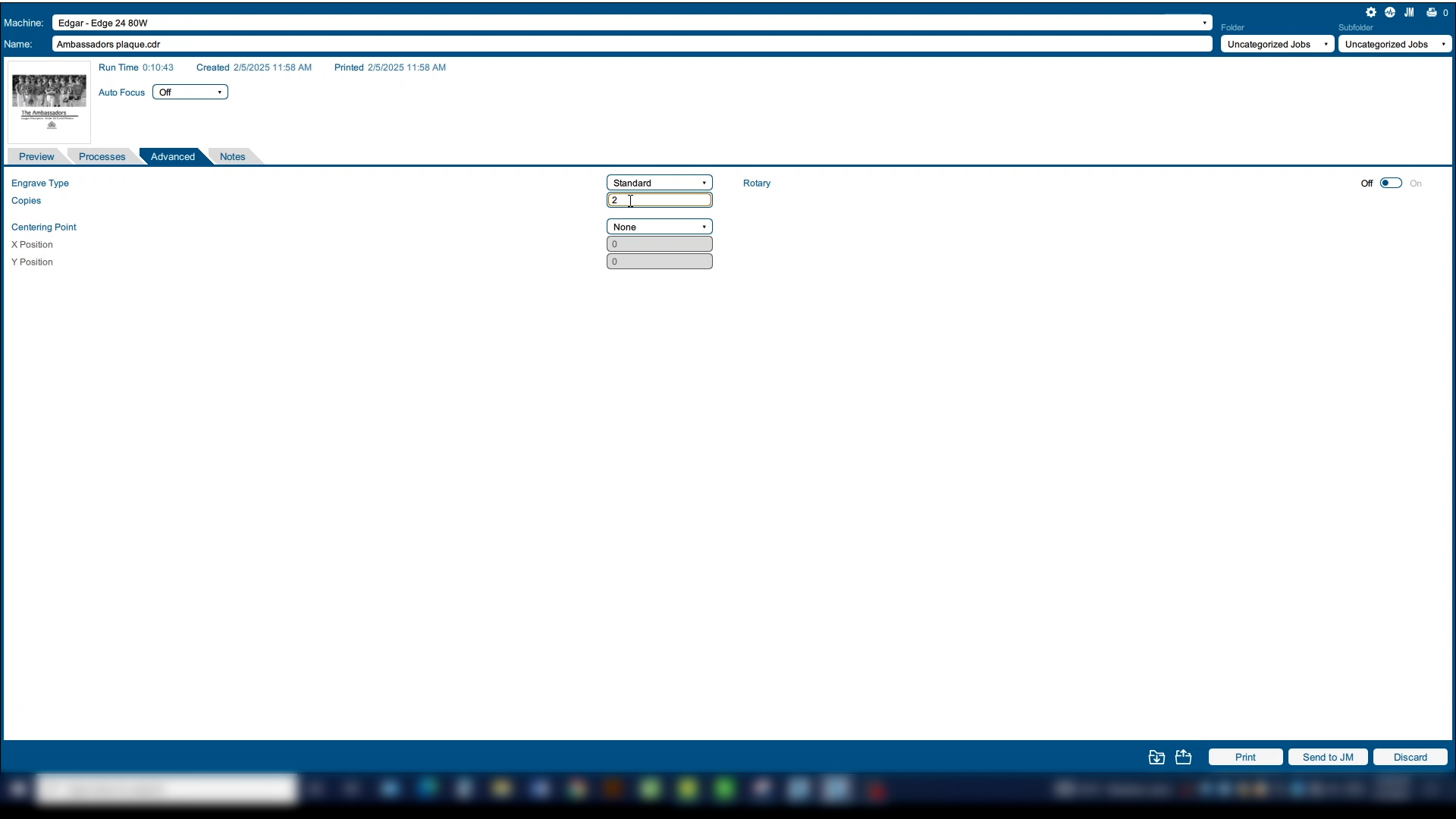
Next we’ll look at working with Cycles. Whereas Copies refers to the entire engraving and cutting job, a Cycle is specific to a single process.
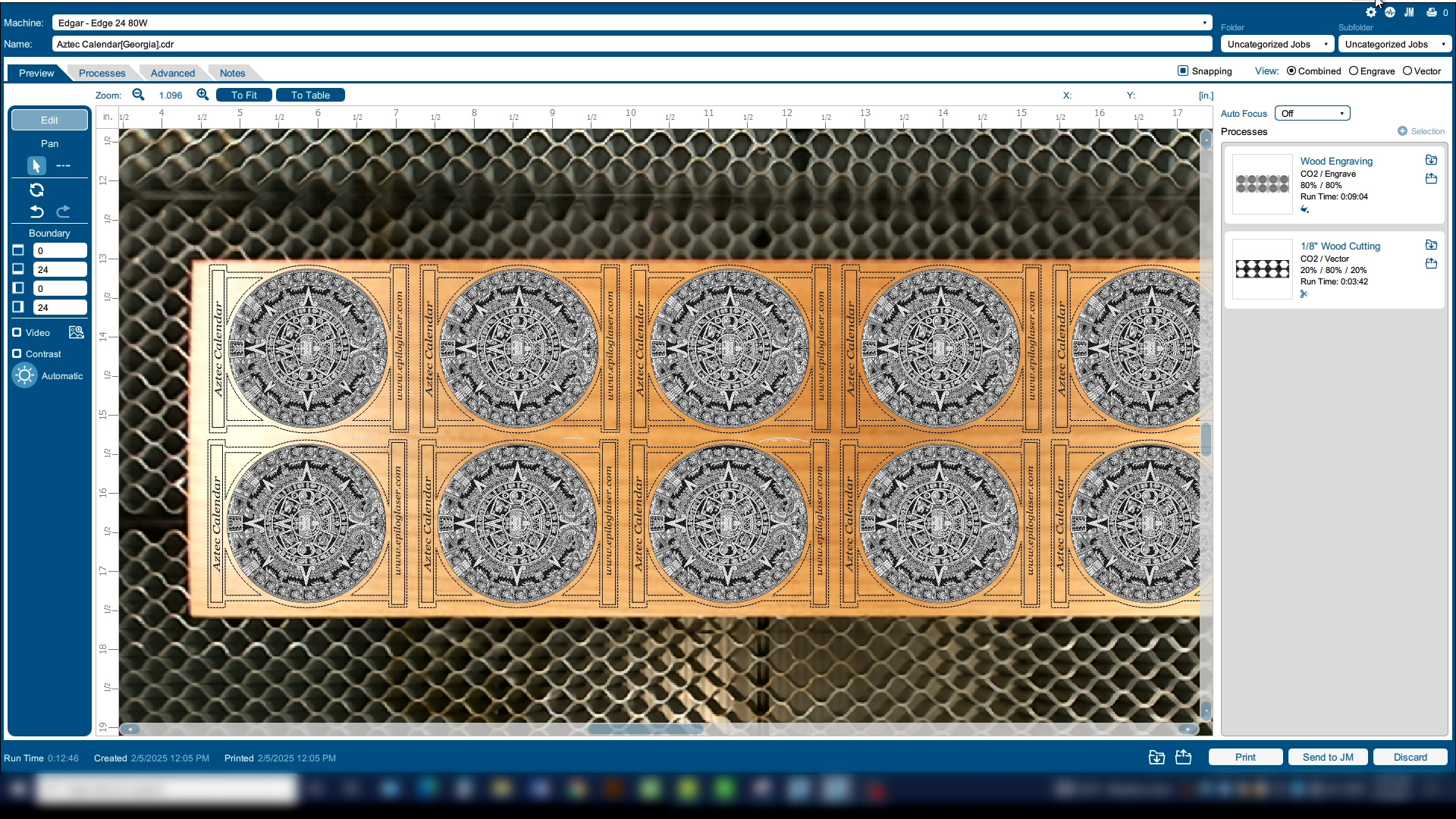
In this example, we want to engrave the image twice to achieve deeper engraving than we can achieve in a single pass—but we don’t want to run the cutting portion of the job twice.
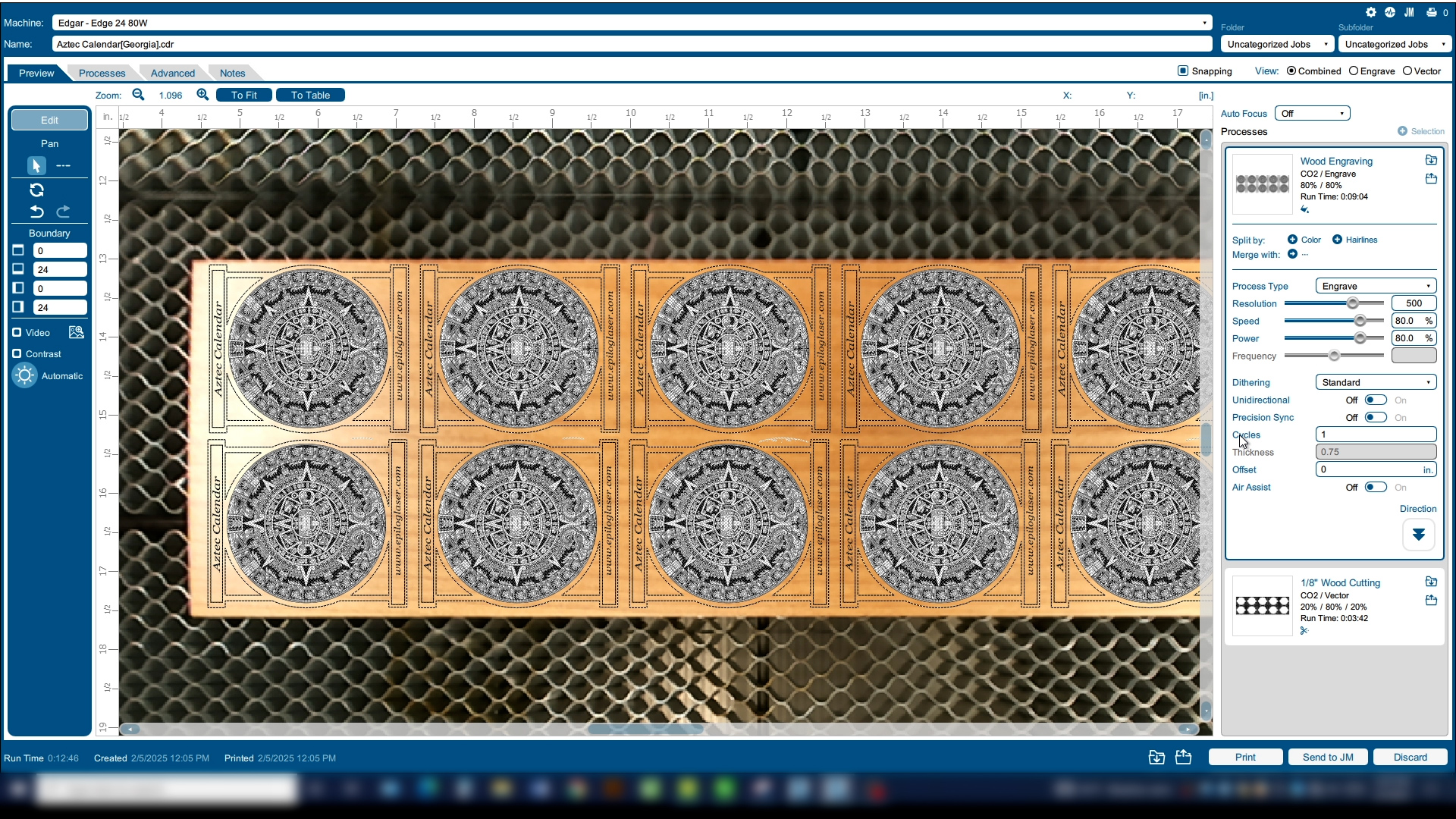
Expand the engraving process on the right side of the Laser Dashboard. You’ll find a selection for Cycles that allows you to set how many times that individual process will repeat.
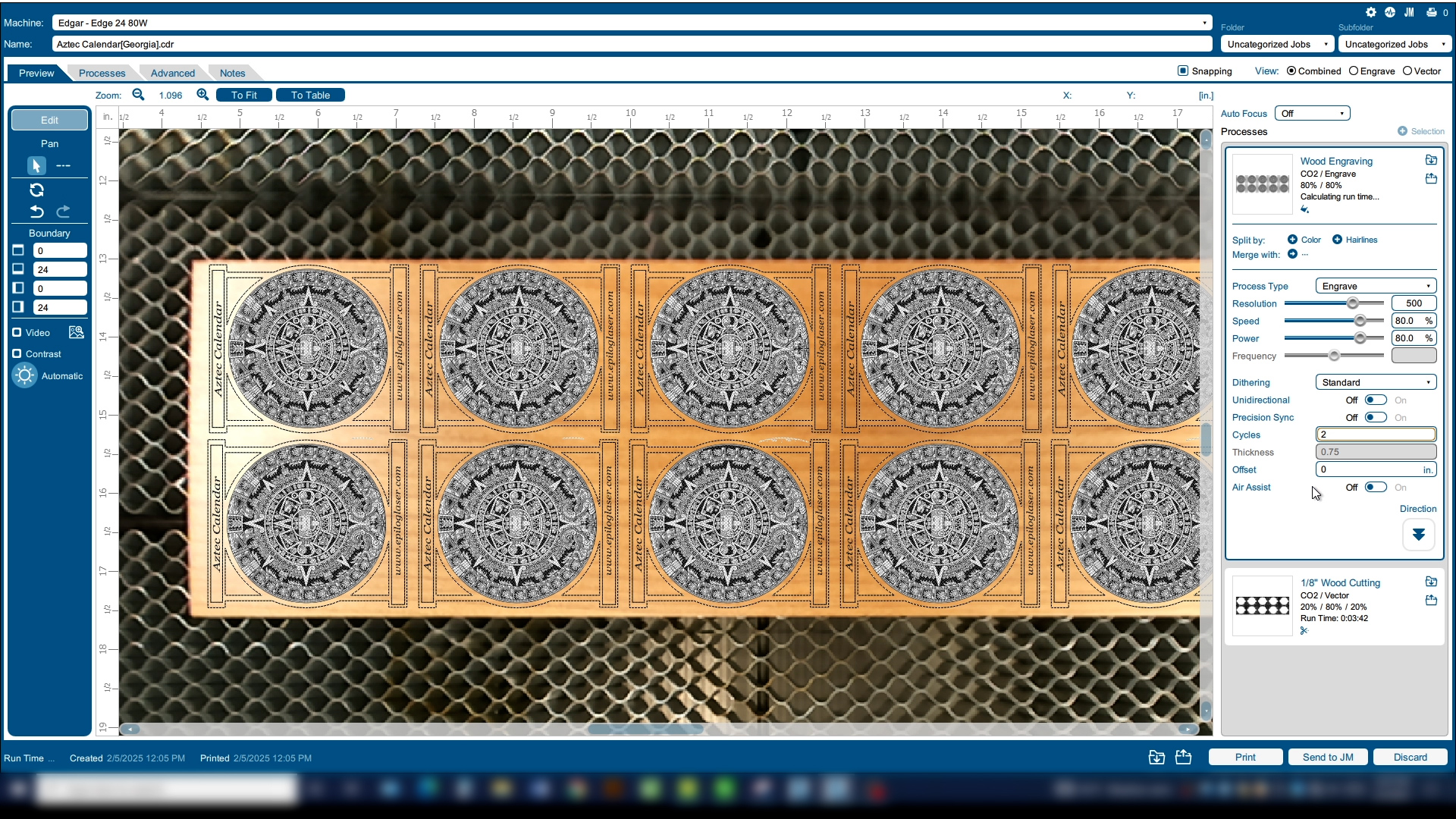
Now the laser will run the engraving portion of the job twice, then the cutting portion a single time.
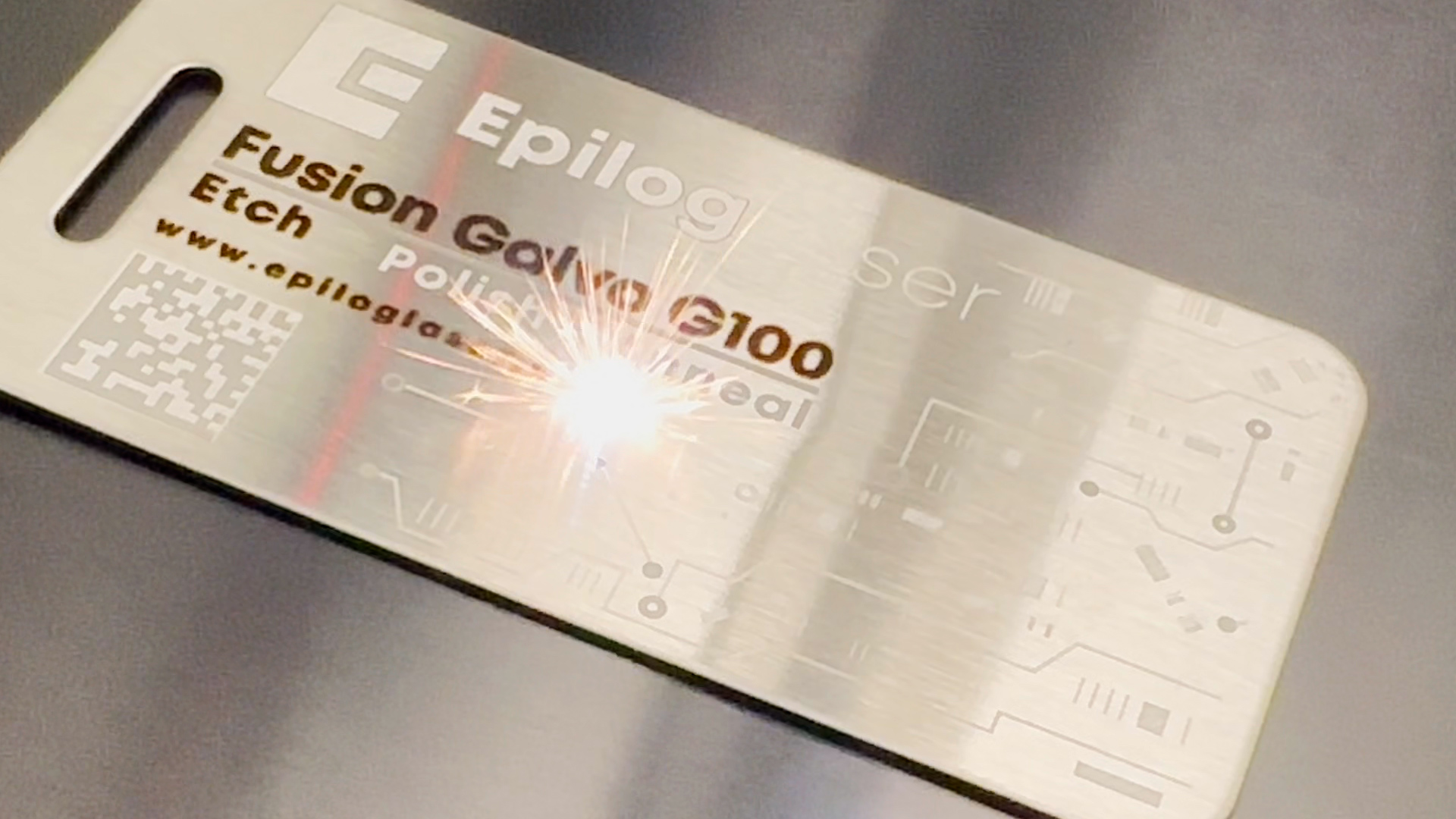
Using Copies and Cycles on the Fusion Galvo
On the Fusion Galvo, you’ll find similar controls over Copies and Cycles.
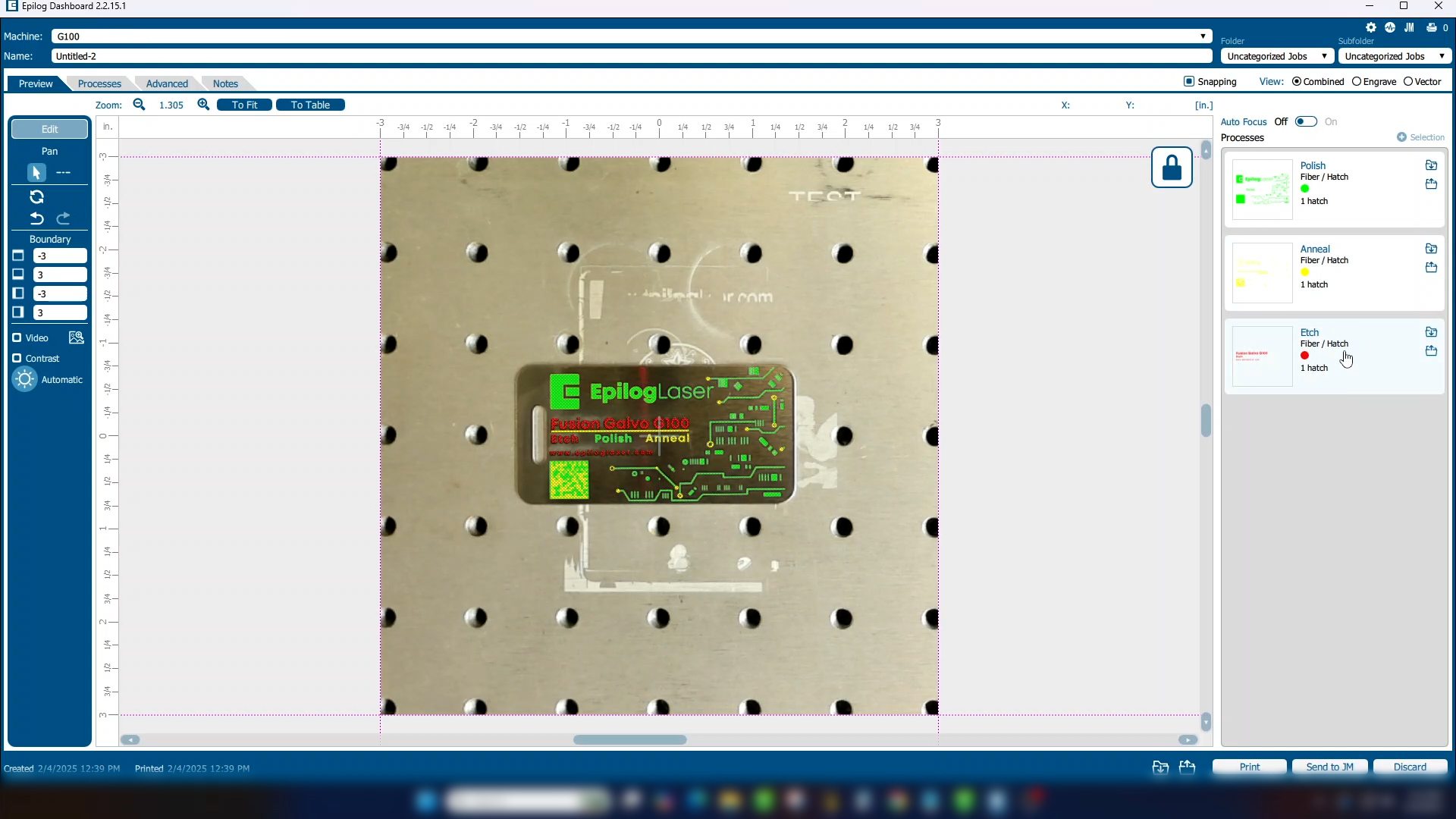
In this example, we have a project with three processes for different engraving marks.
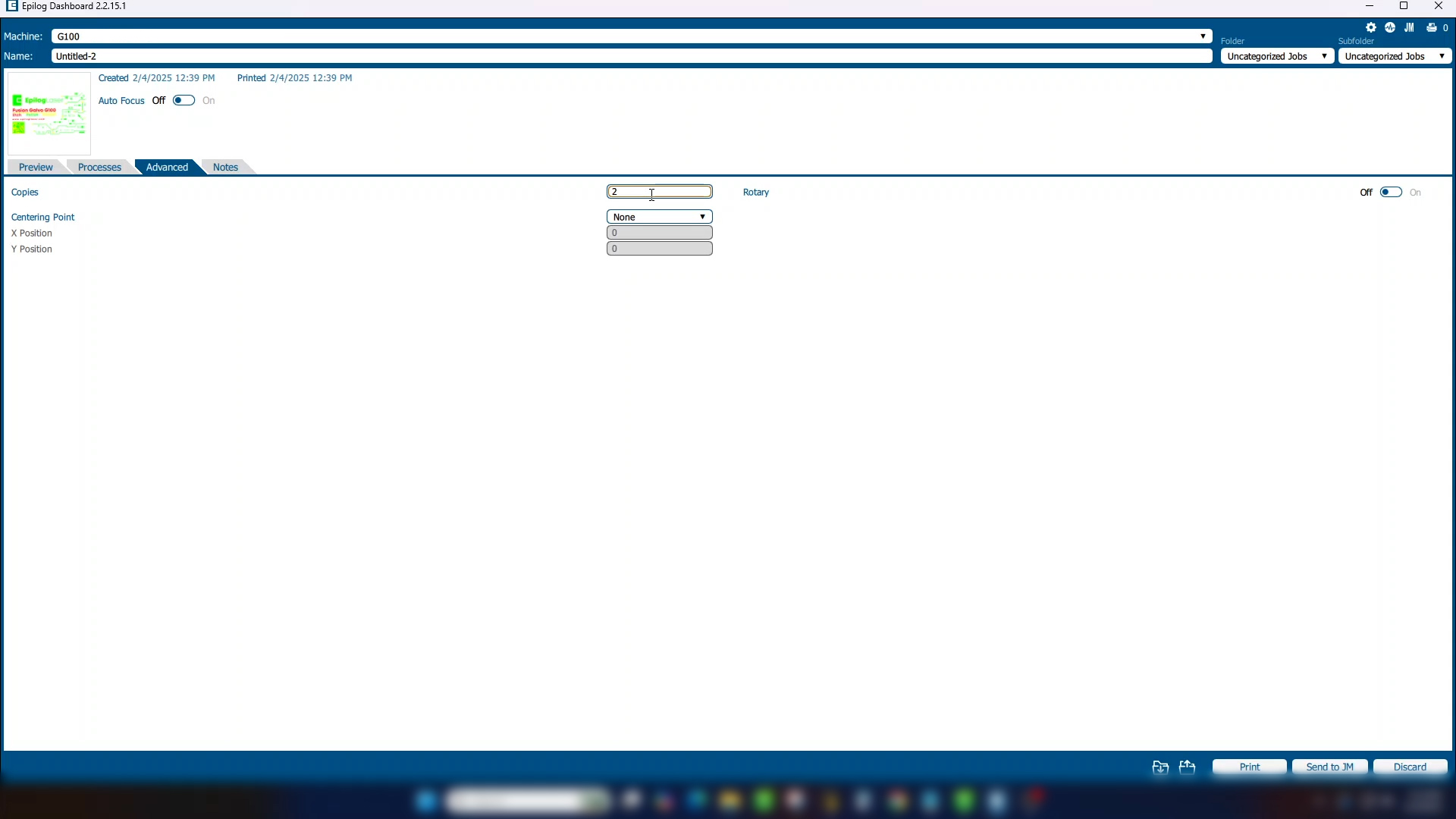
We’ll go into the Advanced tab to change the number of Copies to 2. This will repeat all of the job processes: Polish, Anneal, and Etch—then repeat the full sequence a second time.
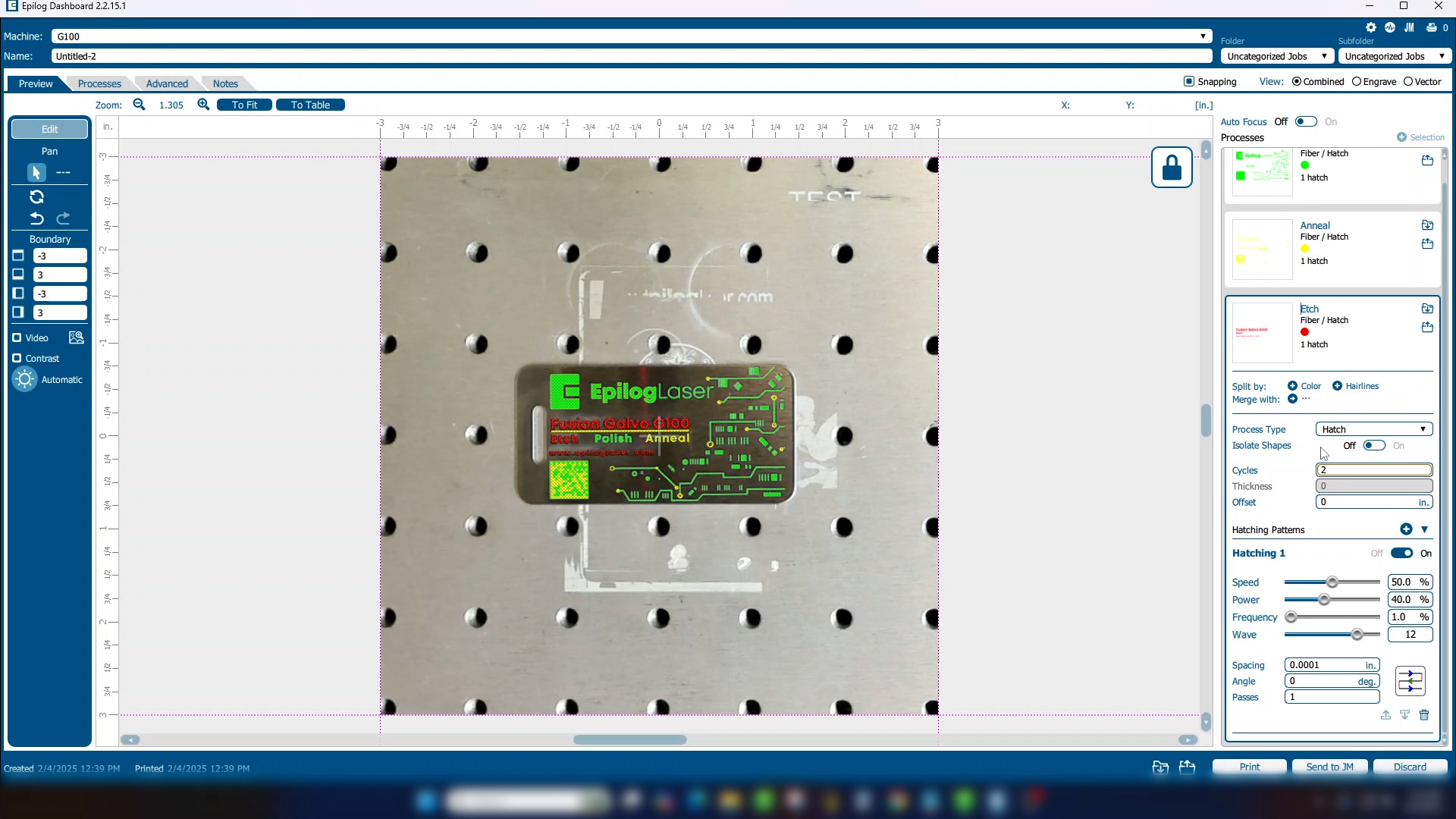
With Copies set back to 1, you can open a single process and set the number of Cycles. This will repeat just that one process before moving on. Only that selected process will be repeated.
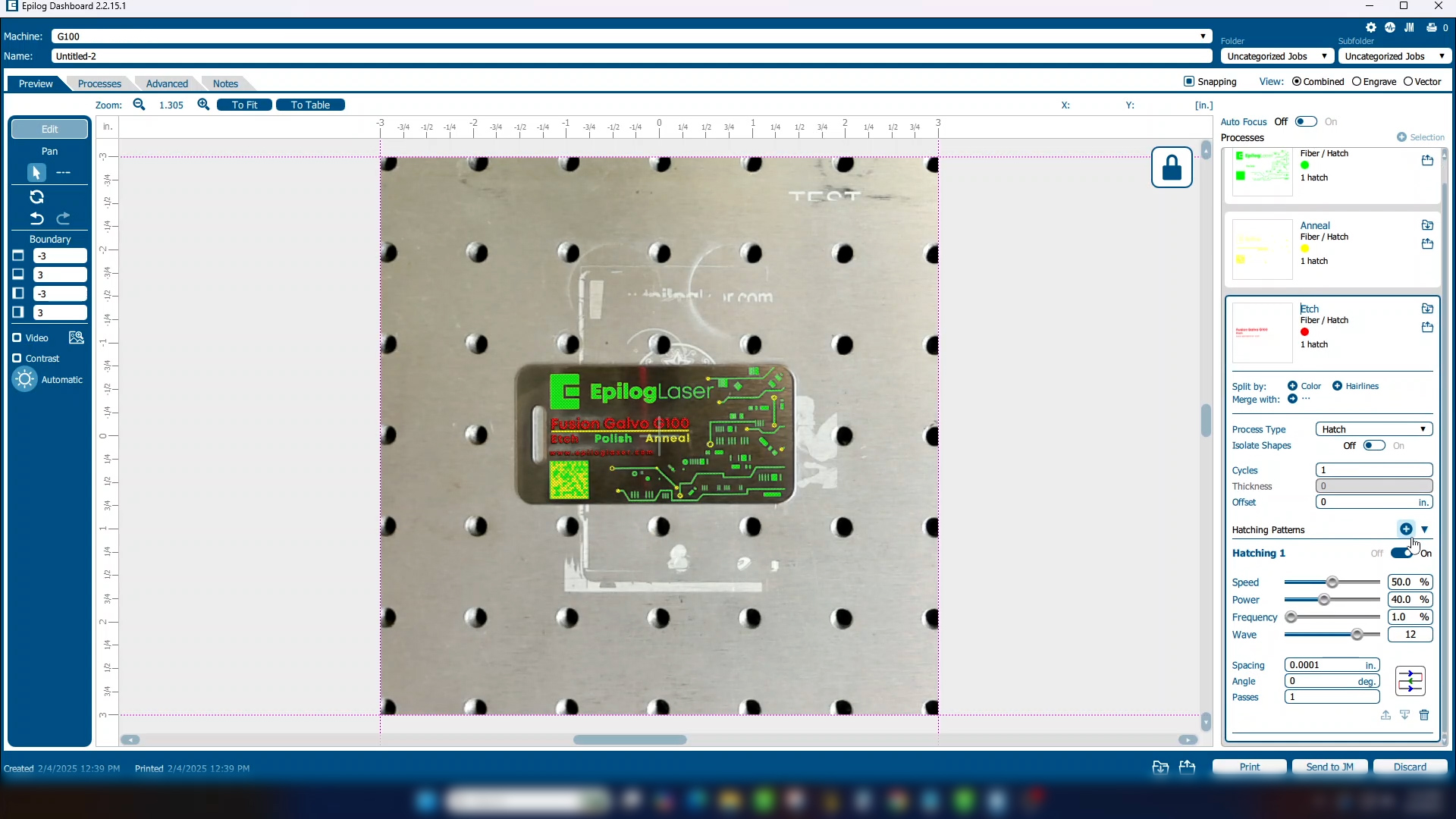
The difference between flatbed systems and the Fusion Galvo is that you may also have multiple hatch patterns within a single process.
This allows you to use multiple angles on your passes for smoother engraving.
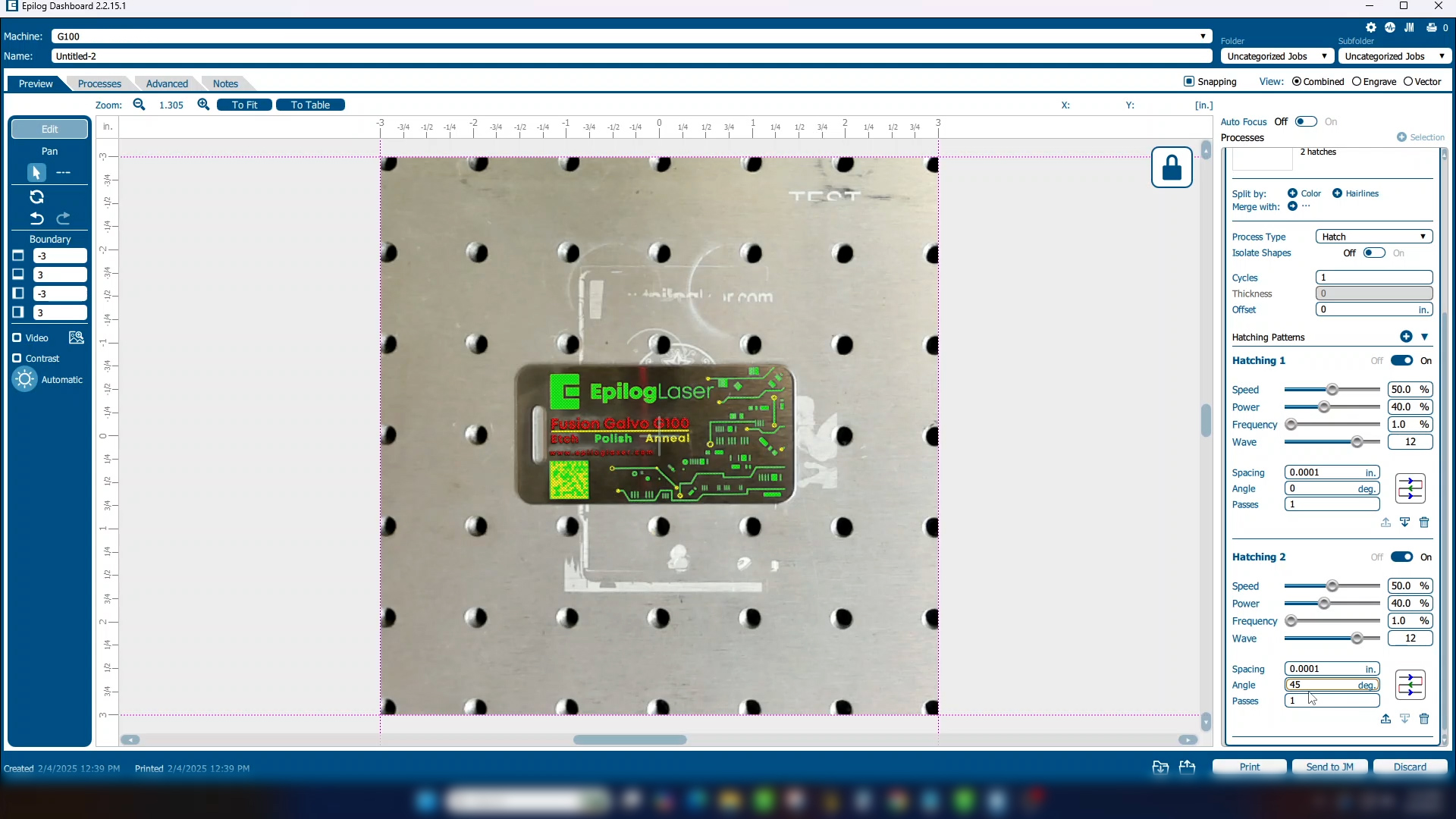
If you only want to repeat one of the hatch patterns, choose the number of passes next to that pattern. The laser will move through each hatch pattern, repeating only the specified one as set.
Recap: Copies vs. Cycles vs. Passes
- Copies: Runs the entire job multiple times.
- Cycles: Repeats a specific process multiple times.
- Passes: Repeats a single hatch pattern (Fusion Galvo only) multiple times.
By understanding and leveraging Copies, Cycles, and Passes, you can tailor your workflow to match your project needs. These features give you even more control to achieve perfect results with your Epilog Laser System.