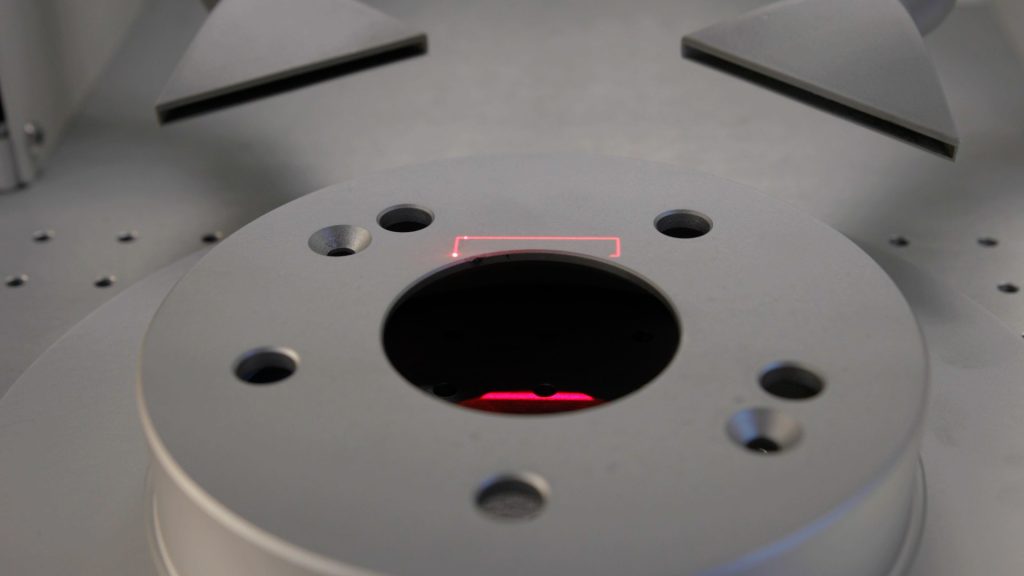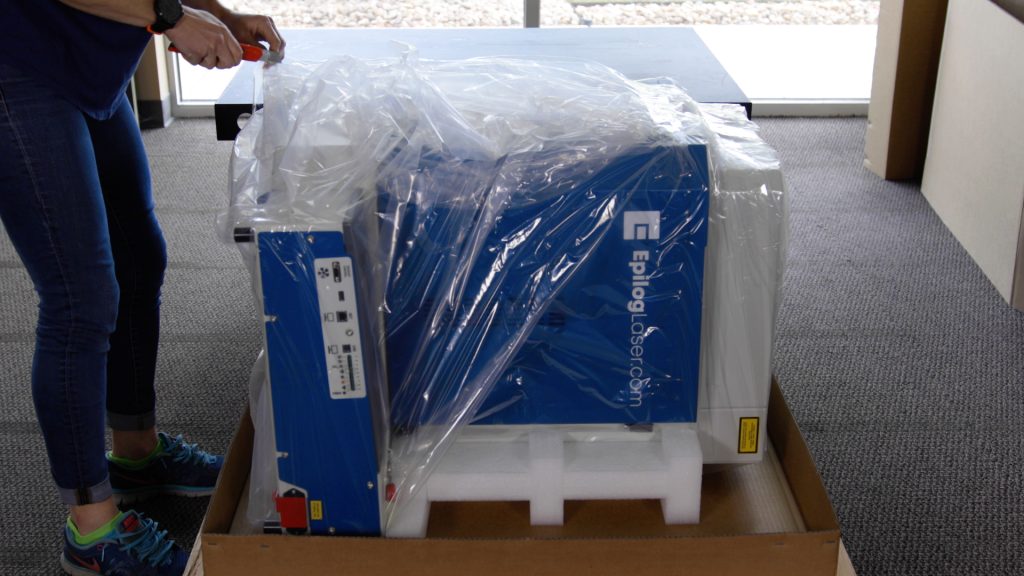
Open the Packaging Start by using scissors or a utility knife to cut the box straps. Stand clear of the straps, as they are under high tension and may pop out at high speed when cut. Remove the wooden board sitting on top of the box and set it to (...)
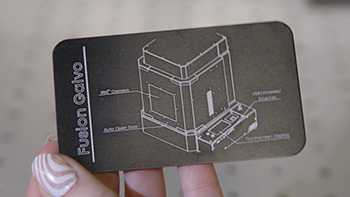
Epilog Laser System Initial Setup
Step 1: Turn on Your Machine Begin by turning on your laser system. The power switch is located on the side near the back of the machine for all models: Fusion Maker, Edge, Pro, and Galvo. For the Fusion Pro 48 and Fusion Galvo G100, there’s an additional key to (...)
Sending Your First Job to the Fusion Galvo G100 Laser
Choose Your Design Software Epilog’s laser systems work through the Epilog Laser Software Suite, built on an open-architecture design so you can create your artwork files in many different graphic software packages, including CorelDraw, Illustrator, AutoCAD, Bartender, Engravelab and many more. Choose the software that you’re most comfortable with, (...)
How to Permanently Save Jobs on Your Laser Engraver
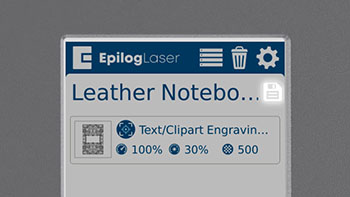
How to Save a Job at the Laser Saving a job to your laser is quick and easy. This lets any operator access and run a popular job, even if they are not familiar with the file. After sending a job to the laser, you can see it in the (...)
Image Resolution and How it Affects Engraving
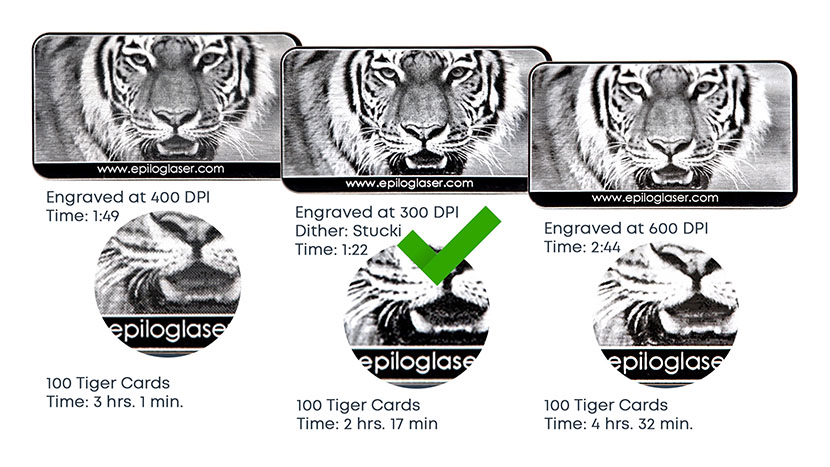
1200 DPI resolution is used for projects that need the best engraving quality. It is ideal for very small fonts or when deep engraving is important. How do you know which DPI setting is right for your project? Print quality is often determined by the resolution of an image, and (...)
Bitmap (Raster) vs Vector Graphics for Engraving
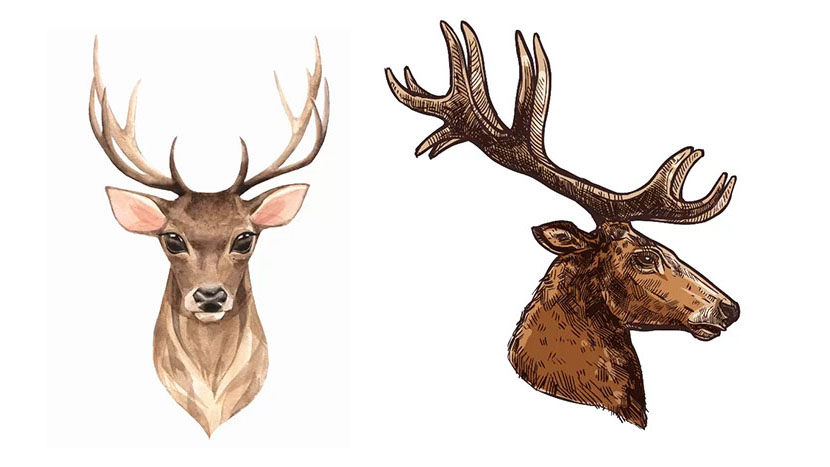
Raster Images Let’s begin by talking about raster images. A raster image is an arrangement of cells, called pixels, which form an image when displayed on screen. This deer image is an excellent example of a raster image. It looks like a highly detailed picture, but is actually made up (...)
Use a Jig to Pre-Engrave an Item for Customization Later
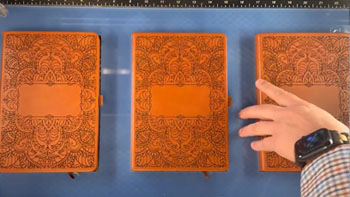
Setup the Artwork Here we are creating a jig to pre-engrave four leather notebooks. We’ll add customized names to each one later. The red lines are the outlines of the notebooks we’ll cut out in a jig. We’ll cut an arrow at the top left corner so (...)
Using Color Mapping in the Epilog Software Suite
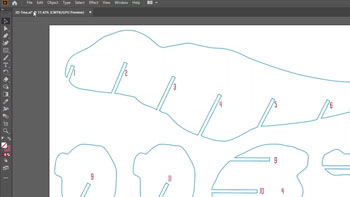
It’s easy to color map with the Epilog Dashboard. Prepare the Artwork for Color Mapping For this file, we want to score the red numbers and cut out the blue outlines. Once the artwork is ready, Print the file to the laser. Everything has come over in a single process (...)
Using Margins to Preview Your Engraving
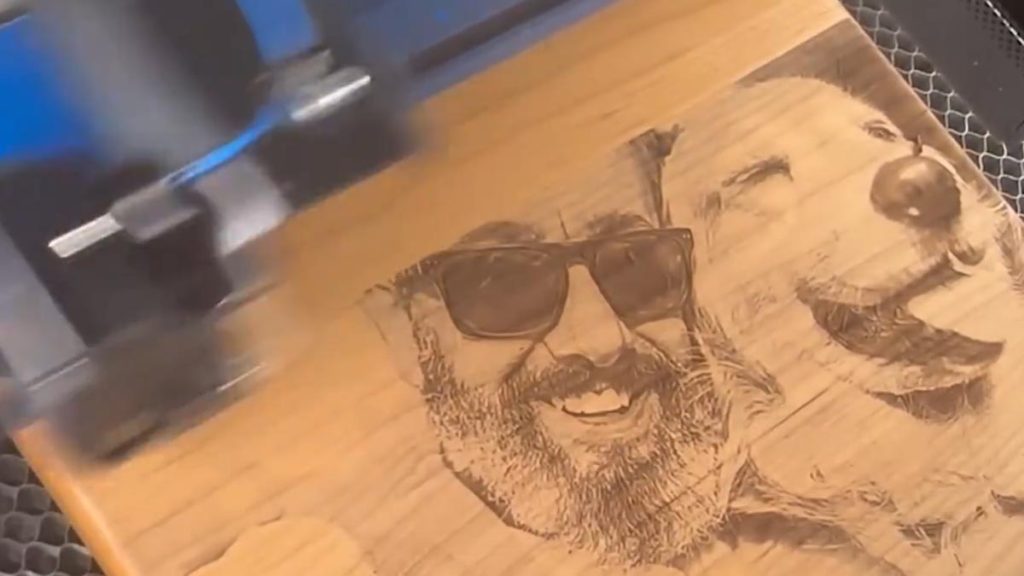
For a helpful tip, we’ll show how to use margins in the Epilog Dashboard to preview the engraving to make sure our photo quality is ideal. Prepare the Artwork We’ll be engraving this photo on a wood plaque. First, we’ll process the photo in PhotoLaser Plus. (...)
Center-Center vs Custom Center Engraving
Using Center-Center There are many ways to use Center Engraving on the Epilog Laser Dashboard. Let’s take a logo we want to engrave at the center of a coaster. In the Epilog Dashboard, choose the Advanced Tab. Next to Centering Point you’ll see a list of all (...)
How to Quickly Make an Engraving Fix
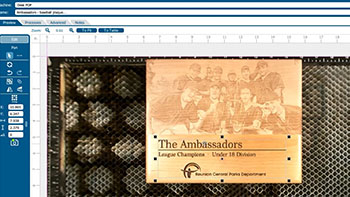
Isolate Text This initial engraving looks good, but the text portion could be deeper! We can isolate the text to improve the result. Turn off the camera. Ungroup your artwork. Select the text and Separate by Selection. You’ll see two processes listed now. Turn off the photo process. Adjust Settings (...)
Creating Custom Shaped Artwork
Let’s start creating your custom shaped artwork by placing your part on the table of the laser. Then bring the part into focus using the focus menu. Once the red dot pointer aligns with the vertical line, your part is in focus. For this tutorial will be using CorelDraw as (...)