Introduction
In firmware version 1.0.9.0, the update process has been streamlined for efficiency. Systems running 1.0.9.0 or later can update using the methods below. Click the USB / Network tabs to view instructions for each update method.
Download the latest firmware file from the Official Drivers and Firmware Page before beginning.
-
Requirement: Use a blank USB drive formatted to FAT32 (32 GB or smaller).
1. Prepare the Drive
- Insert the USB flash drive into your computer.
- Extract (unzip) the firmware download.
- Copy the .SWU file to the root of the drive.
- Eject safely and insert into the machine.
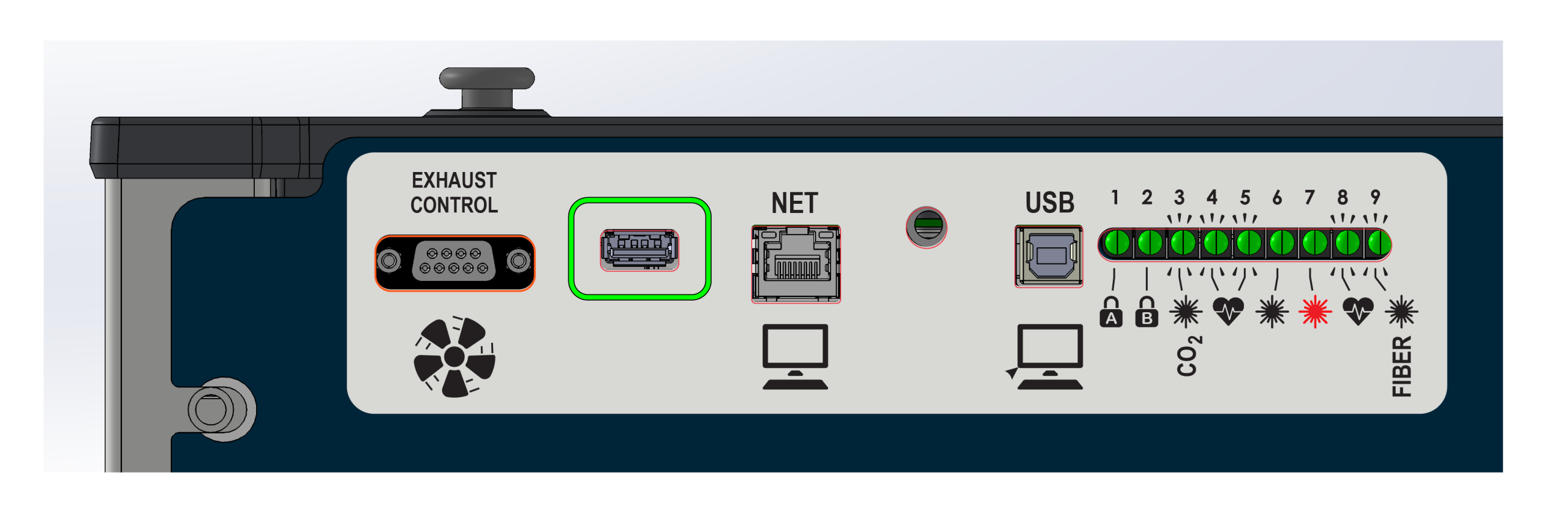
2. Installation Steps
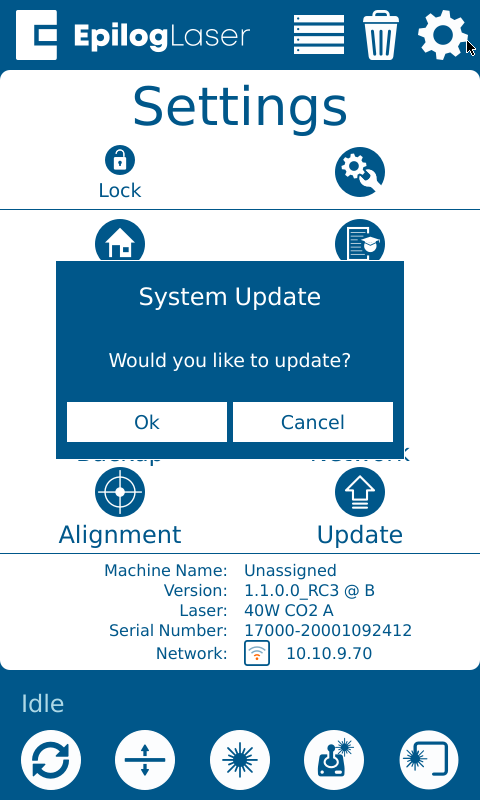
Auto-detect Prompt
- Power ON the machine.
- The system should auto-detect the drive. If not, navigate to Gear Icon > Update > USB Drive Update manually.
- Select the .SWU file and press Update.
Warning: The screen may go dark. Do not power off until the “Power Cycle” prompt appears.
-
Network Update Method
Ensure your machine is connected via Ethernet. Setup Instructions
- On the machine, go to Gear Icon > Update > Network Update.
- Note the IP address shown (e.g.,
http://192.168.1.50:8080). - Open a browser on your PC and enter that address.
- Drag the extracted .SWU file into the browser window.
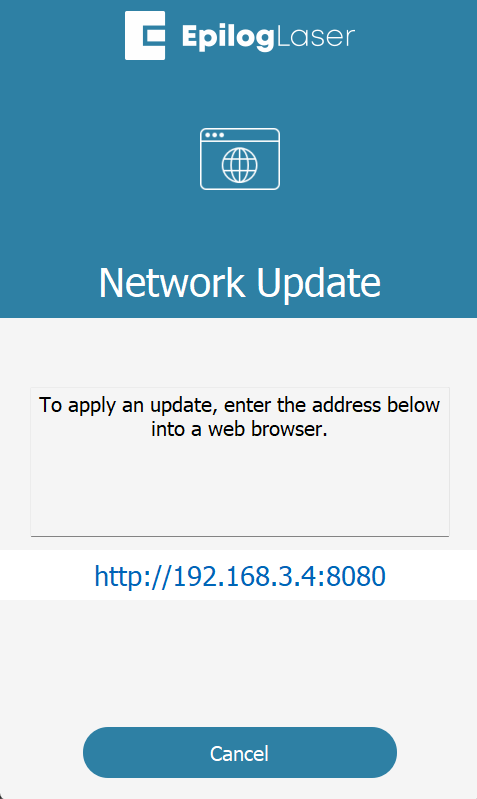
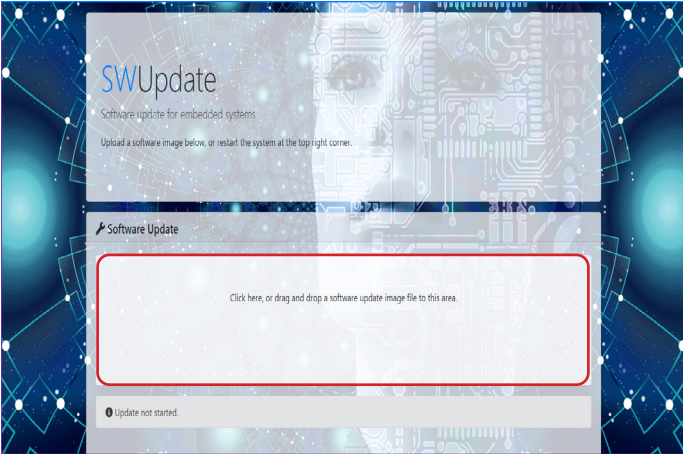
Once the transfer is complete, Power Cycle the machine to finish.
Was this helpful?
Thanks for your feedback!